Outputs
Choose where each projector's finished image leaves the show machine.
Everything you set up in Alignment ends up in a projector's output. Each output goes to a rectangle on a physical display, a stream on the network or a connector on a video card. A display output can sit anywhere on its display.
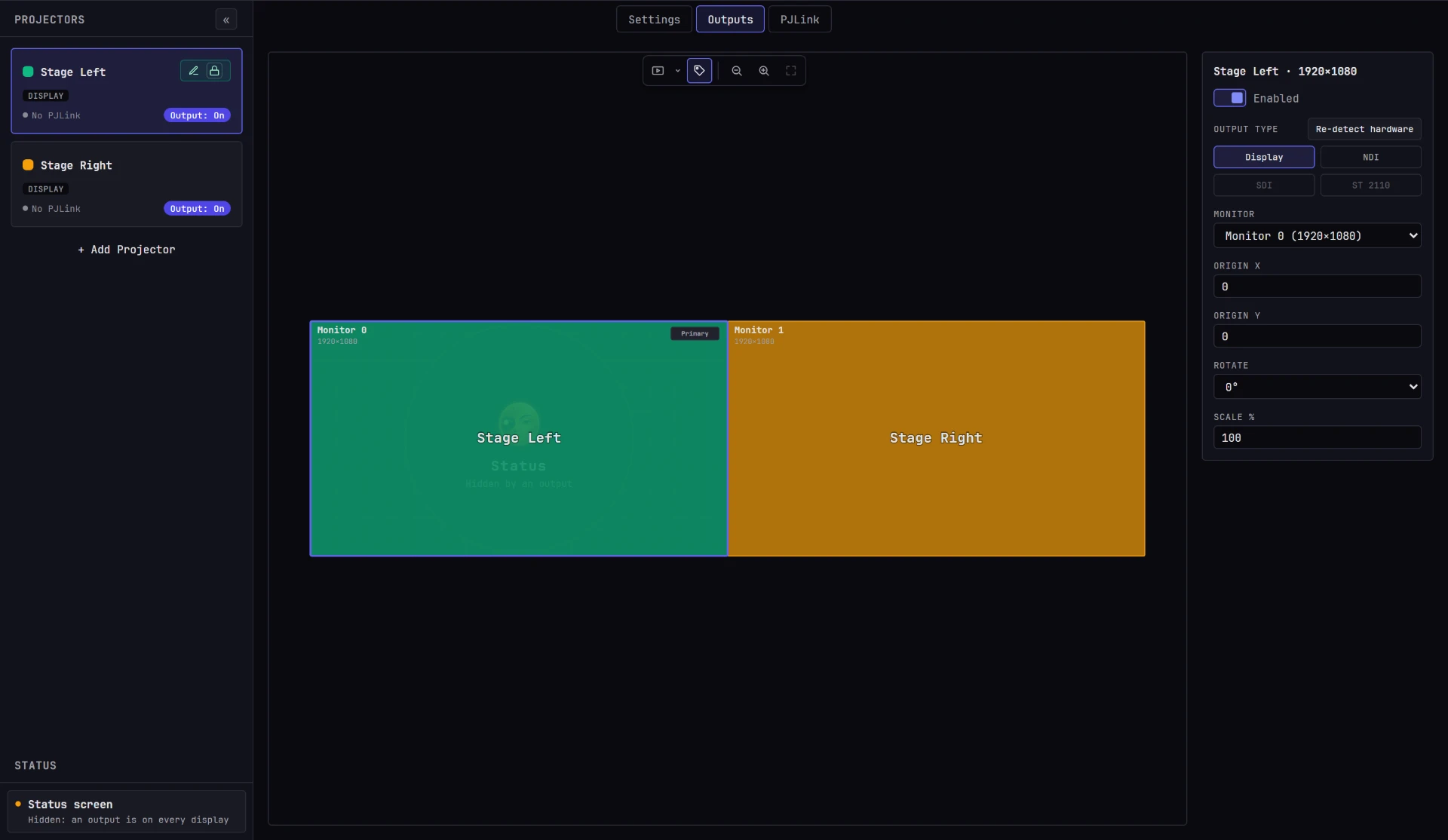
Open the Outputs view
- In the top bar, click the projector name (Projectors when nothing is selected), or the projector icon before it, which turns into a gear when you hover over it.
- At the top of the Projectors view, click Outputs, the second of its sub-tabs: Settings, Outputs, PJLink and Test Pattern.
The canvas is on the left, and the output card for the selected projector is on the right. If no projector is selected, Moonshine selects one.
Displays with no output are black
Moonshine covers every display attached to the show machine. A display without an output shows black instead of the desktop, except the one showing the status panel (by default the first free display). The status panel appears on the canvas as the Status rectangle: see The status screen.
Tip
Once the project has a projector, hover over the projector name to pick one from Select Projector, or choose Manage Projectors to open this view.
A show across machines
When the show runs on two or more machines (see Settings → Cluster), each projector's output leaves one of them, and the Outputs view shows one machine's displays at a time.
- Machines, under the projector list, lists every machine in the show, with the followers indented under the leader, and shows how many displays and projectors each one has. A machine reads Offline when it's switched off, restarting or off the network, and Not in the show when it responds but has been taken out. A machine that's off is still listed by name; one this server has never seen reads Unknown machine. Drag the divider between the projectors and Machines to give either list more room.
- Click a machine to show its displays on the canvas, with its name, its counts and any warning above them. Selecting a projector shows the machine it runs on.
- Drag a projector's card or rectangle onto a machine to run it there, or drag a card onto the canvas to run it on the machine shown. A display output moves to the first free spot on that machine's displays, keeping its rotation and scale; NDI and SDI outputs move unchanged. Press Ctrl+Z to move it back.
- While you hold it over a machine, the machine shows what will happen (Move Stage Left to STAGE-PC) or why it can't take the projector: it's offline, someone else is editing the projector, or the projector already runs there.
- A projector whose machine is offline or has left the show is dark. Its card shows the machine's name in amber until the machine comes back or you move the projector to a machine in the show.
The output card, its types and its status badge are those of the projector's machine. Re-detect hardware appears only for the machine you're connected to.
The status screen
Each machine shows a status panel on one of its displays, with its address, its QR code and the state of every output. On the canvas, it's a rectangle marked with the Moonshine moon and Status, on the display where it appears. By default it covers the first display without a projector output, main display first.
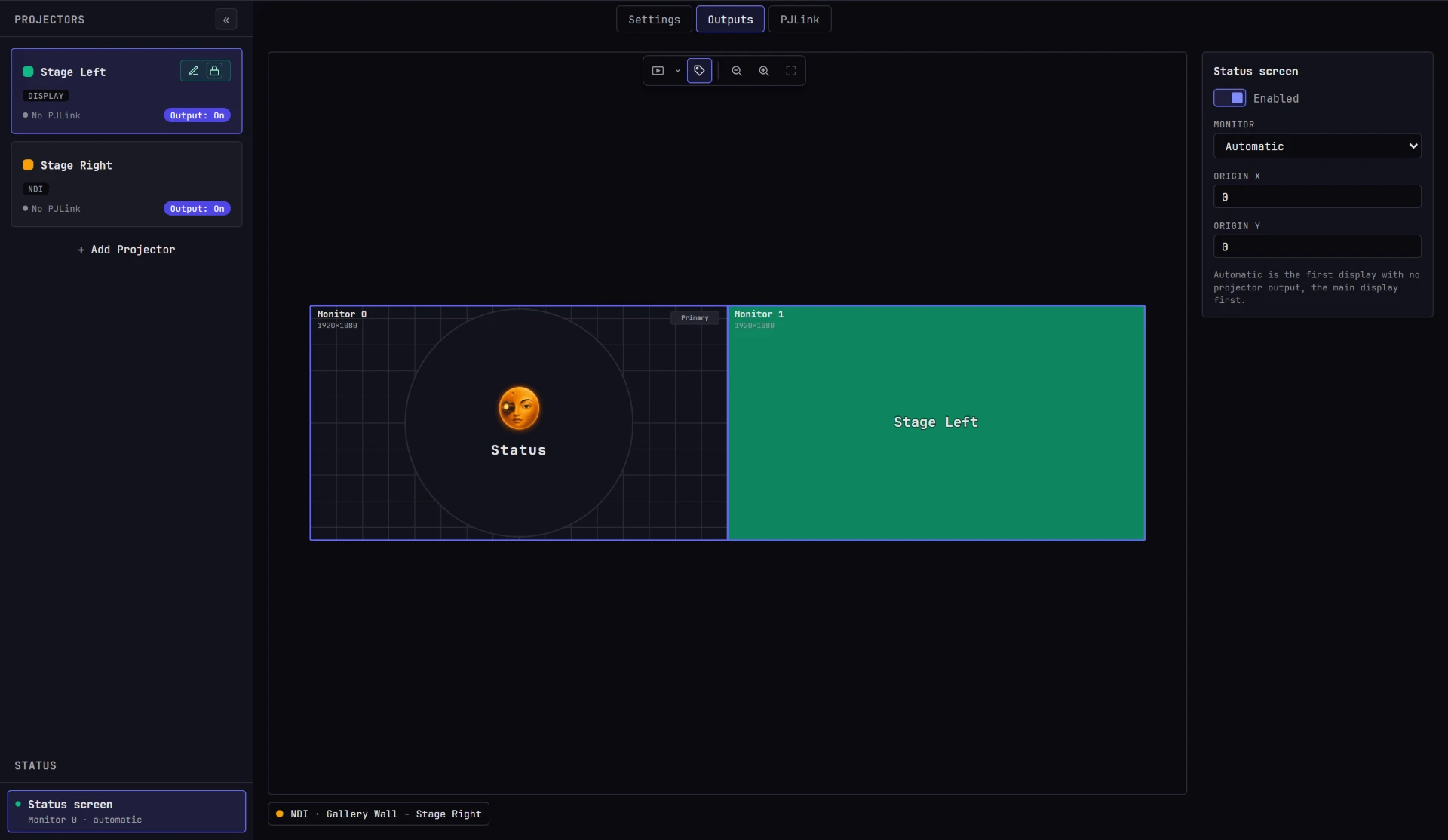
- Select it by clicking its rectangle, or Status screen in the Status section at the bottom of the sidebar. The panel on the right then shows its fields: Enabled, Monitor, Origin X and Origin Y.
- Move it by dragging its rectangle onto another display, or anywhere on one. It snaps to the displays' edges.
- Put it out of the way by dragging it off every display. Its row then reads Off screen, and the rectangle waits beside the displays for you to drag it back.
- Switch it off with Enabled. Its row reads Off.
- Automatic, under Monitor, puts it back on the first display without a projector output.
A projector output always takes the display. When an output is on the status screen's display, the status screen hides and its row reads Hidden: an output is on Monitor 1. While it's off, hidden or off screen, its rectangle is dashed and dimmed.
Each machine has its own status screen, saved with the project. In a show across machines, the Status section belongs to the machine on the canvas, so you can set each machine's status screen from the leader. When a project opens on another machine, that machine's status screen starts on Automatic.
The four output types
Every projector has one output, and the output has one type. Choose it with Output Type on the output card, under the Enabled switch.
| Type | Where the image goes | What it needs |
|---|---|---|
| Display | A rectangle on a monitor or projector connected to the machine's graphics card | Only the cable |
| NDI | A compressed video stream on the local network | Nothing extra: NDI is built into TouchDesigner |
| SDI | A connector on a Blackmagic, AJA, BlueFish444 or Deltacast card | The card and its manufacturer's driver |
| ST 2110 | An uncompressed stream on a broadcast IP network | Not available in this version (see below) |
Display
The default, and the right choice when the projector connects to the show machine's graphics card. There's no encoder or network in the path, so it has the lowest latency and the best quality. It's also the only type you can place pixel by pixel on the canvas, and the only one you can turn or scale.
NDI
Choose NDI when another device on the network drives the projector: a second machine, a media server, a vision mixer, a recorder or a laptop running an NDI monitor.
NDI is compressed and shares the network with everything else, so its picture depends on how busy the network is. Moonshine lets each NDI output drop frames when the network can't keep up, so a slow network costs that feed a few frames without slowing the rest of the show.
SDI
Choose SDI when the venue is wired with coax, the cable run is too long for HDMI, you're handing off to broadcast or IMAG equipment, or the output must be genlocked to a house reference.
An SDI card has its own raster, clock and driver, so an SDI output has its own Signal Format instead of using the projector's Resolution.
ST 2110
ST 2110 is uncompressed video over a broadcast IP network, on cards such as Blackmagic's DeckLink IP or AJA's IP range. It requires TouchDesigner Pro.
This version of Moonshine doesn't create ST 2110 outputs. The type appears in the picker, always grayed out, with the reason Not supported by this version yet.
Switching a projector between types
- Select the projector.
- Open Projectors → Outputs.
- On the output card, under Output Type, click Display, NDI, SDI or ST 2110.
The change takes effect immediately. Moonshine stops the old output before it starts the new one, so an NDI stream leaves the network as soon as you switch away from it.
Switching type discards that type's settings
Changing type replaces the old type's settings. Switch a configured SDI output to NDI and back, and the driver is Blackmagic again, the device and signal format are blank, and Audio is on.
Only Enabled carries across, so a live output stays live while you change its route.
On a projector with no output, picking NDI or SDI creates that output immediately, already enabled.
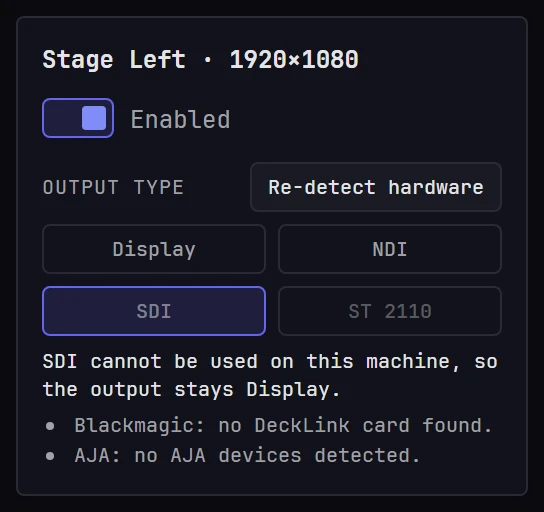
When a type is greyed out
An output type the machine can't produce stays visible and grayed out, so you can tell what the machine can't do from a control you haven't found.
Click a grayed-out type to see why. The card lists the reasons in place of its fields, one line per driver, and the output keeps its current type. Click the current type to get its fields back. The reason is also the button's tooltip.
| Reason | What it means |
|---|---|
| Checking what this server supports… | The show machine hasn't answered yet. Only Display is offered until it does, usually a second or two after a project opens. |
| Not supported by this version yet. | ST 2110, on every machine. |
| Your TouchDesigner license does not include NDI output. | The TouchDesigner or TouchPlayer license on the show machine doesn't include NDI. |
| NDI is unavailable on this machine. | NDI couldn't start on the show machine. |
| Your TouchDesigner license does not include video device output. | The TouchDesigner or TouchPlayer license on the show machine doesn't include SDI. |
| No SDI output device was detected on this machine. | The drivers responded but found no output device. |
| BlackMagic driver not found. Please ensure BlackMagic Driver 16.0 or later is installed. | Blackmagic Desktop Video isn't installed. Install it from Blackmagic, then press Re-detect hardware. |
| No AJA devices detected. | The AJA driver responded but found no card. |
| No BlueFish444 device detected. | The same, for BlueFish444. |
| VideoMasterHD.dll not found, ensure the Deltacast VideoMaster drivers are installed. | The Deltacast runtime isn't installed. Derivative has deprecated Deltacast, so choose another card if you can. |
| Capture-card detection is only implemented on Windows so far, so this machine was not checked. | The show machine is a Mac. This version looks for SDI cards on Windows only, so SDI stays grayed out on a Mac. |
| This TouchDesigner license limits output to 1280×1280, and no signal format on this device fits. | A card is installed, but the license limits every image to 1280 × 1280 and no SDI format is that small. See below. |
When SDI is unavailable, its line lists each of the four drivers with its reason, separated by ·, so you can tell a driver problem from a hardware problem.
These messages come from the drivers
Each reason is the driver's own message, worded by its manufacturer. Paste it into a support ticket or a search engine to find the manufacturer's answer.
The free TouchDesigner license cannot run a real output
The Non-Commercial license limits every image to 1280 × 1280. That's smaller than 1920 × 1080, so it can't produce an HD display output, and it rules out every SDI signal format. An installed card still shows as unavailable, with a reason that names the license instead of the driver. See What you need.
Re-detect hardware
The button beside Output Type makes the show machine look for video hardware again.
Moonshine checks for video hardware when the server starts and whenever a display is connected, disconnected or rearranged. It doesn't check while you edit an output, because detection can cost a frame on the wall. If you install an SDI card while the show machine is running, press Re-detect hardware. The button then counts down 10 seconds before you can press it again.
Display outputs: the canvas
The canvas is a scale map of the displays connected to the machine running Moonshine, arranged as the operating system arranges them. It shows display outputs only; the other types have no rectangle (see Outputs with no rectangle).
| Element | Meaning |
|---|---|
| Large rounded rectangle | One physical display, labeled Monitor and its number, counting from Monitor 0 |
| Line under the monitor label | The display's size in pixels, and its device name when the machine reports one |
| Primary badge | The operating system's primary display |
| Small colored rectangle | One projector's output, at the size it covers on the display, in the projector's color and labeled with its name |
Two buttons at the start of the canvas toolbar, at the top center, change what the rectangles show:
| Button | What it does |
|---|---|
| Video | Draws each projector's picture in its rectangle, through its warp, as the projector sends it. The displays' fill clears and the rectangles keep only a light tint of their color. The arrow beside it sets how much of the picture shows (all of it at first), separately from the Warp and Mask tabs' settings. It's the same switch as Video on those tabs, and starts off because drawing the pictures costs an extra render. |
| Projector ID | On by default: each rectangle's name and color. Turn it off to keep only the outline, so the picture underneath is easier to see. You can still select and drag the rectangle. |
The rectangle's size comes from Resolution on the projector's Settings page: a 1920 × 1080 projector draws a 1920 × 1080 rectangle. An output that's turned or scaled draws the size it covers and shows the change under its name: 90° · 150%.
Moving around the canvas
The canvas opens fitted to all the displays. With several displays, or a small output on a large one, zoom in to place it:
| Input | Action |
|---|---|
| Left-drag on empty canvas | Pan |
| Middle-drag | Zoom about the point you pressed: right or down zooms in, left or up zooms out |
| Scroll wheel | Zoom about the cursor |
| Magnifier − and + buttons | Zoom out and in, about the middle of the view |
| Fit view button | Show all the displays again |
The buttons sit in the canvas toolbar, after Video and Projector ID. These are the gestures of TouchDesigner's network editor. Dragging an output rectangle moves the output, not the view, and snapping is measured on screen, so it stays precise at any zoom.
Rectangle states
| Appearance | State | What it means |
|---|---|---|
| Solid outline, strong fill | Enabled | The output is live on that display at that position |
| Dashed outline, faded fill | Disabled | The position is set, but the output is switched off |
| Thick dashed outline, + Click to enable label | Unassigned (ghost) | This projector has no output at all (see below) |
| Red dashed outline | Warning | The rectangle hangs off the display, or overlaps another enabled output |
| Faded, cursor blocked | Locked | Another operator is editing this projector: see Locks |
A new projector comes with a Display output already placed in the first free space on your displays, switched off. Switch Enabled on, or click the projector's Output pill, to turn it on where it is.
Where rectangles overlap, the projector higher in the list is drawn on top, and the selected projector is always on top. To reach a covered rectangle, select its projector in the list, then drag.
The ghost rectangle
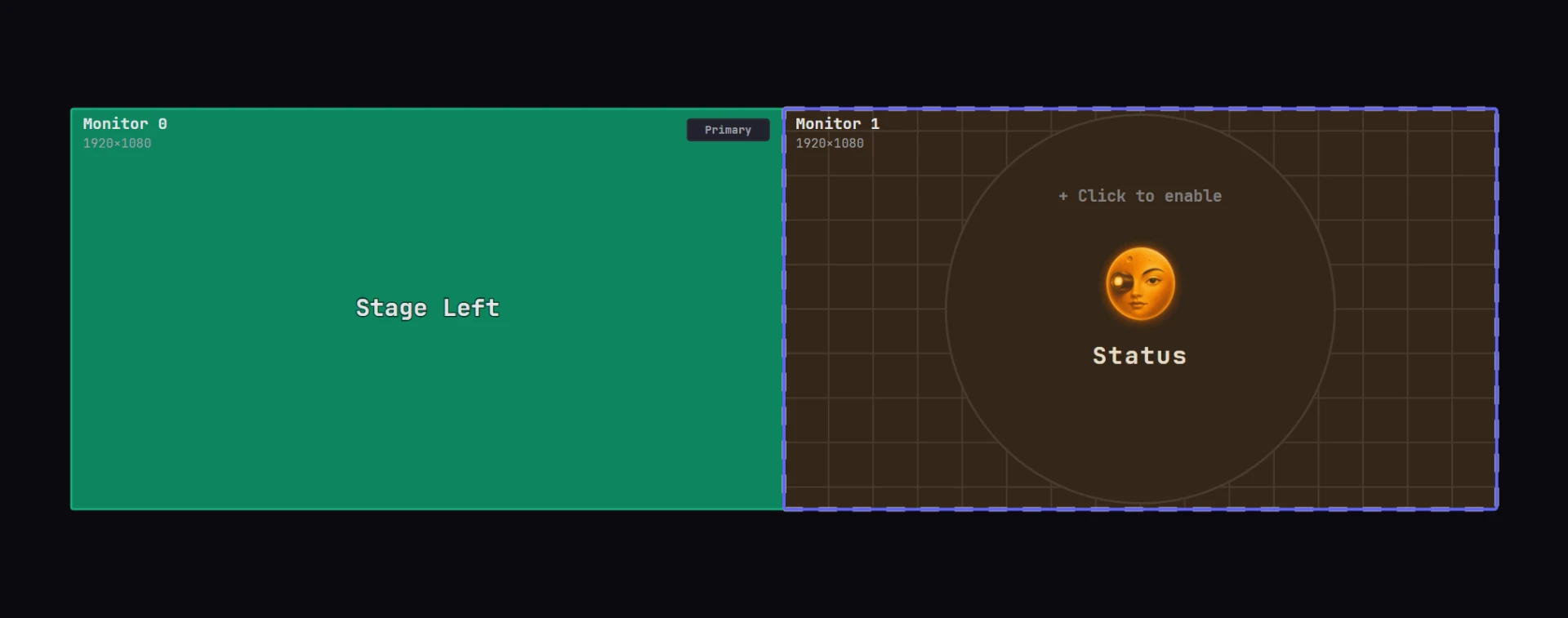
A projector with no output at all, such as one from a project made in an older version, appears as a ghost: a thick dashed rectangle labeled + Click to enable in the first free slot on your displays. Each projector without an output gets its own slot.
To turn the ghost into a real output:
- Press and hold on the ghost rectangle.
- Drag it to the display and the rough position you want.
- Release. The output is created, enabled and assigned to the display under the rectangle's center.
Warning
A click without a drag only selects the projector. On the canvas, you have to drag the ghost to create the output.
To create the output without dragging, use the Enabled switch on the output card or the Output pill on the projector's card in the list. Both create a display output at 0, 0 on the first display, for you to move.
Move an output
Drag any rectangle to move it. While you drag:
- The rectangle follows the pointer anywhere on the canvas, including over other displays.
- It snaps when an edge comes near a display edge or another output's edge on the same display. The snapping distance is measured on screen, so it feels the same however large the desktop is.
- Positions are whole pixels.
The rectangle snaps to:
- the left and top edges of the display (position 0, 0);
- the right and bottom edges of the display, so you can push an output exactly into a corner;
- every edge of every other output on the same display, so you can butt two outputs together with no gap and no overlap.
When you release, the output goes to the display under the rectangle's center. If the center isn't over a display, the output stays on the display it started on.
Type exact positions
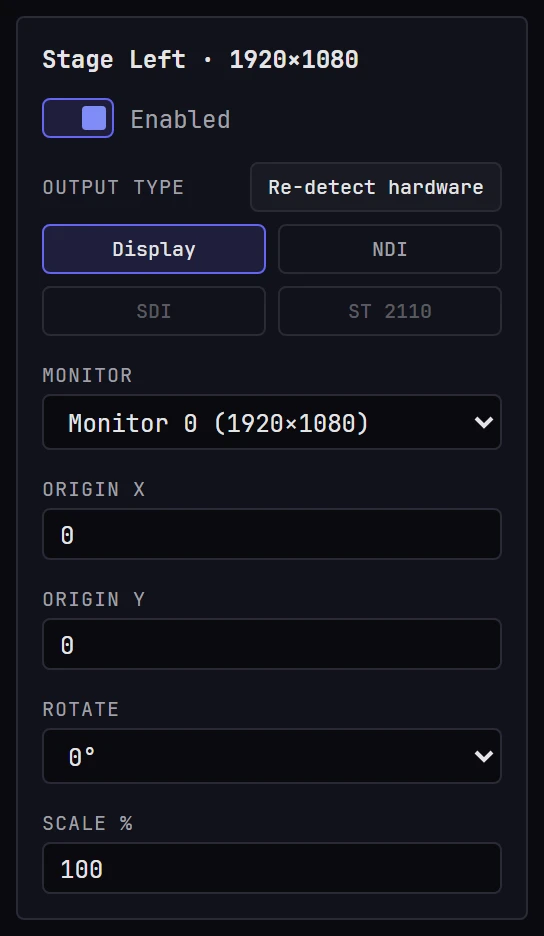
With Display selected, the output card has six fields.
| Field | Effect |
|---|---|
| Monitor | Moves the output to another display, adjusting the position so the rectangle stays fully on it. |
| Origin X | The distance in pixels from the display's left edge to the output's left edge. |
| Origin Y | The distance in pixels from the display's top edge to the output's top edge. |
| Rotate | Turns the picture a quarter turn at a time: see Turn or scale an output. |
| Scale % | Draws the picture larger or smaller than the projector's resolution, from 10 to 400. |
| Enabled | Switches the output on or off. |
Note
Origin X and Origin Y keep the value you type. A value that pushes the rectangle past the edge of the display isn't pulled back; the rectangle turns red. An overhang is allowed, but always flagged.
Turn or scale an output
Most outputs need neither. A display output leaves at the projector's resolution, the right way up, which is what you want when the projector connects straight to the show machine.
Use Rotate or Scale % when the equipment between the show machine and the projector expects something else:
- The display is turned. The operating system has it in portrait, or a video wall controller or matrix takes its input on its side. Turn the output to match.
- The display's size isn't the projector's resolution. For example, a 4K output feeding a 1080p projector through a scaler, a video wall controller that splits one large canvas into tiles, or a router that passes only one format. Scale the output to fill the space it's given.
| Field | Choices | What the output then covers |
|---|---|---|
| Rotate | 0°, 90° clockwise, 180°, 90° counter-clockwise | At 90° either way, width and height swap: a 1920 × 1080 projector covers 1080 × 1920 |
| Scale % | 10 to 400, in whole percent | Both sides times the scale: at 150, a 1920 × 1080 projector covers 2880 × 1620 |
When an output is turned or scaled, the card shows the size it covers under the two fields, and the rectangle on the canvas is that size. The name is drawn the way the picture stands, so an output turned 180° shows its name upside down. Snapping and both warnings go by the size the output covers.
Rotation and scale are applied last, after warp, mask and blend. Everything you set up in Warp and Mask stays in the projector's own pixels, and a test pattern turns and scales with the picture.
Scale % applies when you press Enter or leave the field; Escape cancels.
A scaled picture is softer
Turning only rearranges pixels, so it costs no quality. Any scale other than 100 resamples the picture. Whole multiples (200, 300, 400) repeat each pixel and stay sharp; anything else is smoothed, which softens fine lines, small text and the edges of a blend. If the display is a different size, set the projector's Resolution to match and leave Scale % at 100 for a sharper picture.
For a projector mounted on its side
For a projector mounted in portrait or hung upside down, set its Rotation in the Scene, and Moonshine renders for it as it hangs. Rotate here is for the signal path, after the picture is made.
Changing Rotate, Scale % or Monitor pulls the output back onto its display if it would hang off the right or bottom edge. An output larger than its display can't fit and turns red.
NDI and SDI outputs don't have these fields. Their size comes from their own settings.
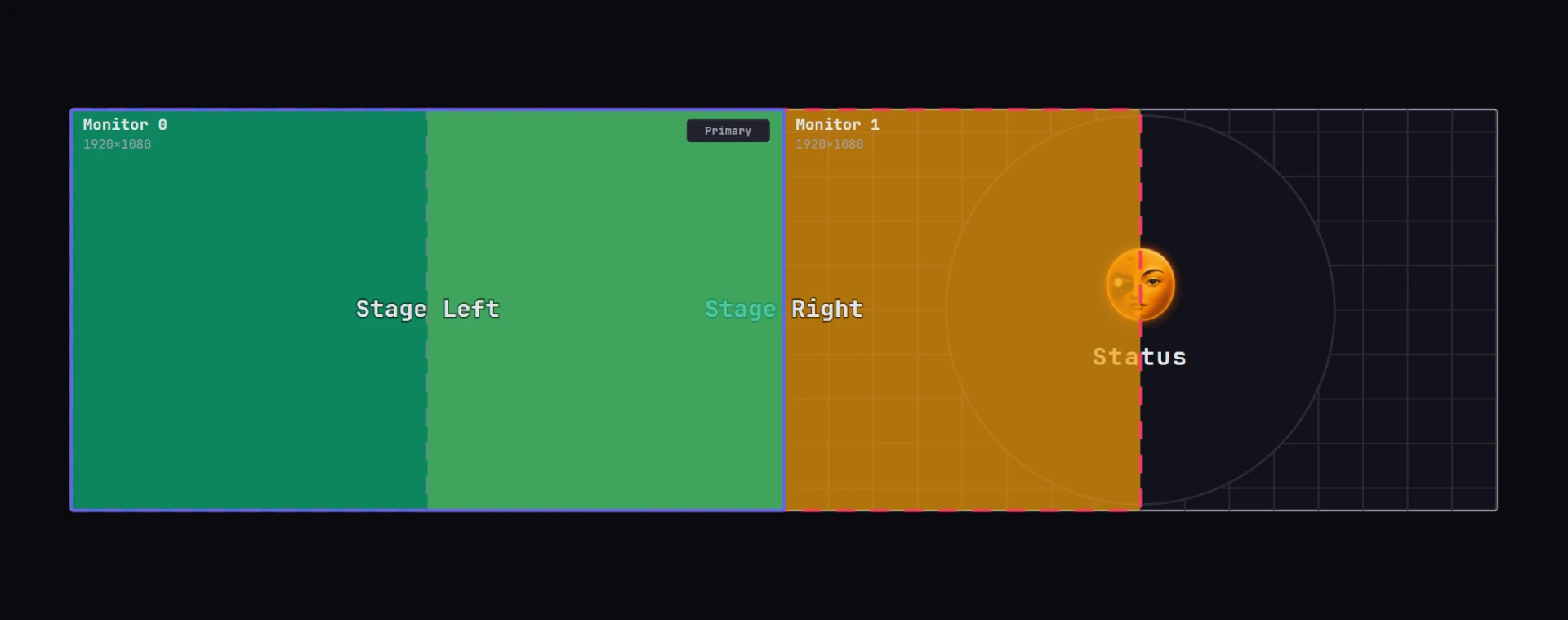
Red rectangles
An output turns red and dashed when:
- it hangs off the display, so some of its pixels have nowhere to go; or
- it overlaps another enabled output on the same display. Two projectors writing to the same pixels is almost always a mistake. For edge blending, place the outputs side by side and blend in the projected image.
Overlap is flagged only between two enabled outputs. Hanging off the display is flagged whether the output is enabled or not.
Outputs with no rectangle
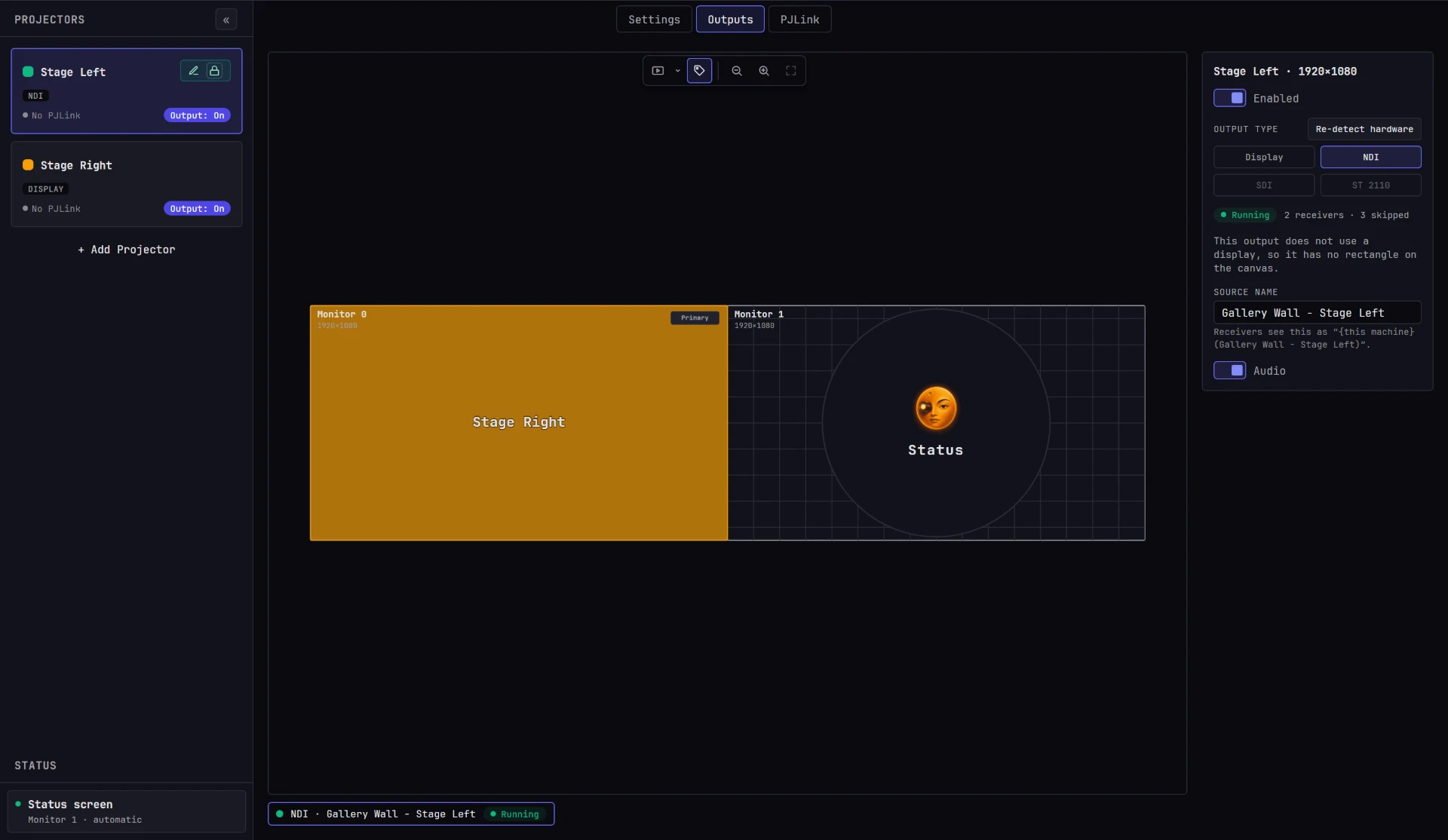
NDI and SDI outputs don't use any part of a display, so they have no rectangle. Instead, each enabled one gets a chip in the strip under the canvas, with the projector's color dot, the type, the destination and a live status badge. Click a chip to select its projector. A disabled NDI or SDI output has no chip; find it in the projector list.
| Type | What the chip shows after the type |
|---|---|
| NDI | The source name |
| SDI | The device, then the signal format |
An empty canvas can still have outputs running
If all of a machine's outputs are NDI or SDI, the canvas shows No projector outputs to these displays. Check the chip strip underneath before you decide the show isn't outputting.
NDI output settings
NDI has one setting.
| Field | Effect |
|---|---|
| Source Name | The name receivers see for this stream |
Receivers list the stream as MACHINE (Source Name): the show machine's name, then your name in parentheses. NDI adds the machine name, so you don't need to type it.
Leave Source Name blank to use the projector's name. The stream list on a receiver then reads SHOWPC (Projector 1), SHOWPC (Projector 2).
SDI output settings
Every option here comes from the card, so you can only choose a device and a format the card reports.
| Field | Effect |
|---|---|
| Driver | Which manufacturer's card. Always lists Blackmagic, BlueFish444, AJA and Deltacast (deprecated); a driver with no card is grayed out, with its reason. |
| Device | Which card, and which connector on it, from the devices that driver reported. |
| Signal Format | The raster and frame rate the card sends, for example 1080p59.94. Available once a device is chosen, since each device has its own list. |
| Pixel Format | Default, 8-bit, 8-bit + 8-bit key, 10-bit or 12-bit |
| Color Format | Default, YUV 4:2:2 or RGB 4:4:4 |
| Sync | Locks this output to the card's synchronized-outputs group. Requires TouchDesigner Pro. |
| Sync Group | Which group, once Sync is on |
Changing Driver clears the device and the signal format.
The signal format sets the output raster
On a display output, the projector's Resolution is what leaves the machine. On SDI, the card's Signal Format is. Set a projector to 3840 × 2160 with a signal format of 1080p59.94, and the cable carries 1080p.
Keep the two matched unless you have a reason not to. The projector's Resolution still sets the image's aspect ratio and the projector-eye view, so a mismatch also throws off your alignment.
A card that is no longer there stays selected
If you open a project on another machine, or remove a card, the device shows as (missing) … and stays selected, with the note "This machine does not report …. The output is kept as saved; pick another device to run it here."
Moonshine doesn't switch to another card for you, because on a machine with several cards that could send the show to the wrong connector. Pick the replacement device yourself.
Sync outputs needs TouchDesigner Pro
On any other license the switch is grayed out, with TouchDesigner's message under it: "Using Synchronized Outputs requires a Pro license." SDI output itself doesn't need Pro, only this setting. A project saved with Sync on a Pro machine ignores it on a machine with a lower license.
Status badges
NDI and SDI outputs report their status about once a second. The badge appears on the chip under the canvas, and with more detail on the output card.
| Badge | Meaning |
|---|---|
| Running (green) | The output was created and reports no error |
| Running (amber) | Running, but the card reports it isn't genlocked |
| Not running (red) | The output couldn't be created, the card reports an error, or the card reports nothing is connected |
| No badge at all | Nothing has been reported for this output |
No badge doesn't mean healthy. A Display output has no stream to report on, so it normally has no badge, and gets a red one only if it couldn't be created. A stream output with no badge hasn't reported yet.
Next to the badge, the output card shows what the hardware reports:
| Detail | Where it comes from |
|---|---|
N receivers |
NDI. How many machines are receiving this stream. 0 receivers is normal: nobody is watching yet. |
| genlocked / no genlock | SDI. Whether the card is locked to a house reference signal. |
N dropped |
Frames the card couldn't send. |
N skipped |
Frames held back because the destination couldn't keep up (on NDI, a busy network). |
Dropped and skipped counts appear only when they're above zero.
A blank genlock status means the card can't report it
A card without a reference input can't report genlock, so the output card shows no genlock status for it. no genlock appears only when the card reports that it's out of lock.
When an output can't be created at all, the badge turns red immediately and the reason appears under it. Common reasons:
| Reason | What to do |
|---|---|
| No device selected. | Choose a device on the output card. |
| Please select a signal format | Choose a signal format. |
| Video device "…" is not present on this machine. | The saved card isn't in this machine. Choose one that is. |
| The video device reports no connection. | The card is there and the output is created, but nothing is attached. Check the cable at both ends. |
| A reason from the grayed-out types table above | The type became unavailable: a driver was uninstalled, or the project was opened on a machine without the hardware. |
Audio on a stream output
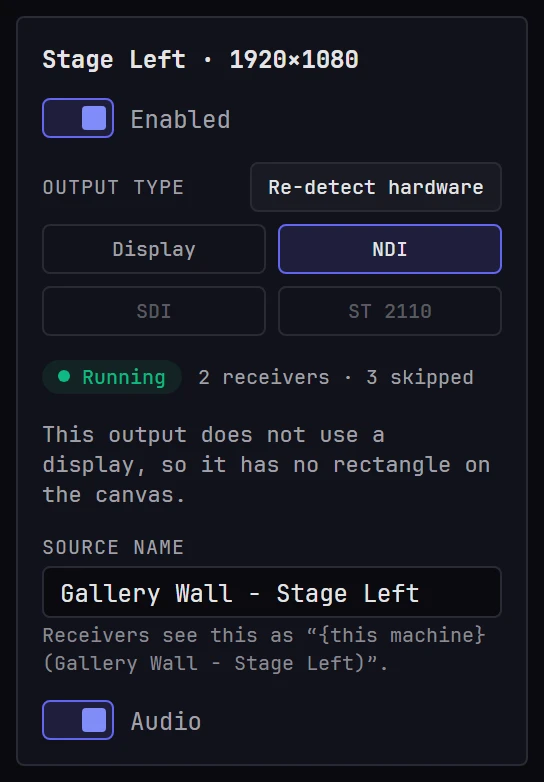
NDI and SDI outputs have an Audio switch, on by default. When it's on, the stream carries Moonshine's master audio bus, so the receiver or SDI device gets picture and sound together.
Display outputs can't carry audio. The show machine's own sound output is set up in Sound.
Frame rate
Every output renders at the project's frame rate, 60 or 30 frames per second. Set it in Settings → Project → Video → Frame rate.
- Each project keeps its own rate, and opening a project sets it on the show machine.
- Every output, the browser preview and every server in the show follow it.
- At 30, the show machine renders half as many frames, leaving more headroom for a heavy show. Motion is less smooth.
- Clips play in real time at their own rate either way. For even motion, encode them at the project's rate: see File formats.
- Run the displays at 60 Hz at either rate. At 30, each frame is held for two refreshes.
When no displays are listed
Until the show machine reports its displays, the Outputs view shows Waiting for display info from the show machine... instead of the canvas, chips and output card, and no output can be set up. The display list arrives automatically once the connection is up, usually within a second or two of opening a project.
If the message doesn't clear, your app or browser isn't reaching the show machine: check Network.
In a show across machines, each machine sends its own displays. The view shows Waiting for STAGE-PC's displays... until they arrive, or says the machine is offline or has left the show. Click another machine in the Machines list to switch.
Multiple operators
Outputs follow the same locks as everything else. When another operator holds a projector, its rectangle is faded, the cursor shows as blocked, dragging does nothing and the output card is read-only. You can still select it to inspect its settings. See Locks.
Where to go next
- Projectors: resolution, throw ratio and the rest of the projector this output feeds
- What you need: which TouchDesigner or TouchPlayer license a show needs
- Projector health: network control and live status from the projector itself
- Network: when your app or browser can't reach the show machine