Network
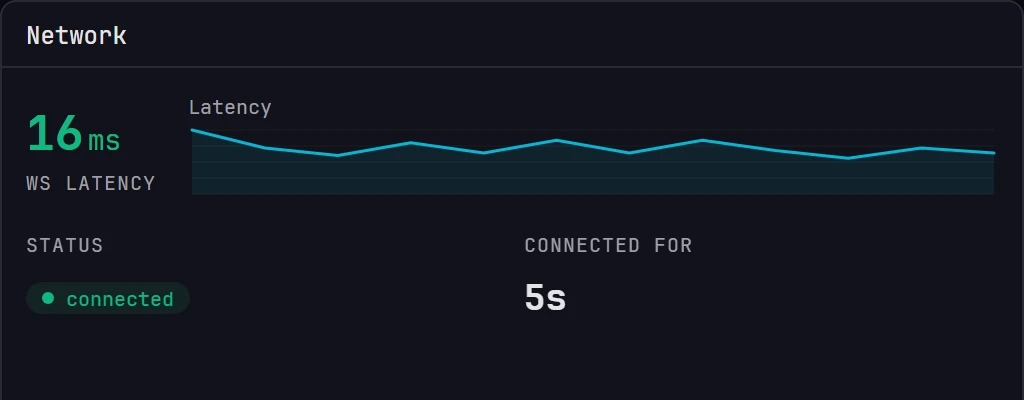
The Network panel shows the quality of the connection between your device and the show machine. This page explains its readings and what to do when the connection drops.
What the Network panel shows
The Network panel sits beside the Engine panel on the Monitor tab, or below it in a narrow window.
| Reading | What it is |
|---|---|
| WS Latency | The large number, in milliseconds: the round-trip time of the latest heartbeat between this device and the show machine. |
| Latency | The sparkline beside it. It holds the last 60 heartbeats, so it covers roughly the last ten minutes. It scales to the values it shows, so read its shape rather than its height. |
| Status | A badge reading connected, connecting, reconnecting, disconnected or stale. |
| Connected for | How long this device's current connection has lasted, as 45s, 12m 30s or 2h 5m. It reads — while there's no connection. |
Until the first heartbeat comes back, the panel reads Waiting for heartbeat... in place of the latency.
These figures describe this device
Latency is measured from the device you're looking at. A tablet on Wi-Fi and a laptop on a cable show different numbers against the same show machine, which tells you which device has the weaker connection.
Connected for starts again each time the device connects, so a long time means an unbroken connection. How long the show machine itself has been running is Uptime, in the Engine panel.
Latency is as of the last heartbeat
Status and Connected for are live. The latency and its sparkline update only when a heartbeat comes back, every ten seconds, so while the connection is down they keep their last values.
Reading the latency
| Latency | Color | What it means |
|---|---|---|
| Under 50 ms | Green | Normal for a wired network. Dragging warp points, scrubbing and cue buttons respond immediately. |
| 50–149 ms | Amber | Usable, but you'll notice it. Expect a delay between releasing a control and other users seeing the change. |
| 150 ms and above | Red | Interactive work is hard and editing with others gets confusing. Move to a wired connection or a better access point before you continue. |
A single red spike isn't a problem, and the sparkline lets you tell a spike from a trend. If the line drifts upward through a rehearsal, fix it before the show.
Status values
| Badge | Meaning |
|---|---|
connecting |
The device is opening a connection and hasn't received any data yet. |
connected |
Data is arriving. The badge changes to connected only once data arrives, so a show machine that accepts the connection but never responds doesn't show it. |
stale |
The connection is still open, but nothing has arrived for 15 seconds. |
reconnecting |
The connection was lost, and the device is waiting before it tries again. |
disconnected |
There's no connection and no retry. You see it before the first connection, and after Moonshine closes a connection itself, for example while the page is closing. |
stale is usually brief. Within a few seconds of the show machine going quiet, the device drops the connection and moves to reconnecting. If the badge stays on stale, look into it.
The status bar along the bottom of the window shows the same information on every tab: a colored dot, then Connected to and the show machine's name, Connecting…, Reconnecting…, Disconnected, or Unresponsive for the stale state. The dot pulses while connecting, reconnecting or unresponsive. When more than five seconds have passed since anything arrived on an open connection, the bar also shows how long, such as (12s ago) or (3m ago). On a new connection that hasn't received anything yet, it shows (awaiting data...).
The other people connected appear in the top bar, one avatar each. See Presence.

What happens automatically when the link drops
You don't need to reconnect by hand. When the connection fails:
- The device sends a heartbeat every ten seconds. If one goes unanswered for about eight seconds, the device closes the connection.
- It then retries. It waits about a second before the first attempt and doubles the wait after each failure, up to 30 seconds. It keeps trying for as long as the page is open.
- When the connection is back, your session is restored and the device loads a fresh copy of the project, so what you see matches the show machine.
- Changes you make while disconnected are sent once the connection is back. If it stays down for over a minute, they're discarded, and a message tells you how many weren't sent.
- While you're disconnected, any locks you held are released, unless you have the project open on another device. This keeps a colleague from being blocked by a lock nobody is using. Select the item again after you reconnect to take the lock back, if it's free.
The show keeps running. Playback, outputs and warping all run on the show machine, so a device losing its connection doesn't black out the projectors. You lose control until it reconnects, and the show carries on.
When the connection drops or goes unresponsive
Work down this list. The most common causes come first.
- Wait ten seconds. Moonshine retries automatically, and a brief network glitch usually clears by itself. Watch the status bar: when
Reconnecting…changes back toConnected to, the connection is restored. - Check the device you're on. A laptop that went to sleep, dropped off Wi-Fi or switched access points is the usual cause, especially if the projectors are still showing the right picture.
- Reload the page. This opens a fresh connection and loads a fresh copy of the project.
- Check the network and the address. If you joined from another device, the address must still be the show machine's. See Join from another device.
- Check the show machine. If every device shows
UnresponsiveorReconnecting…at the same time, the problem is at the show machine. Make sure it's awake, powered and still running Moonshine.
Unresponsive is not the same as disconnected
Unresponsive means the connection is still open but nothing is arriving. The network may have gone silent, or the show machine may be too busy to answer. If the Engine panel was already red before the connection went quiet, check the show machine first.
Before a show
- Watch the latency sparkline for a couple of minutes with the rig running. It should be flat and green.
- If you'll run the show from a tablet or a second laptop, check the latency on that device, not in a browser on the show machine.
- Use a cable for the device you'll run cues from, and Wi-Fi for devices that only watch.
- Check Users and sessions to see who else is connected and holding locks before the run starts.