Command palette
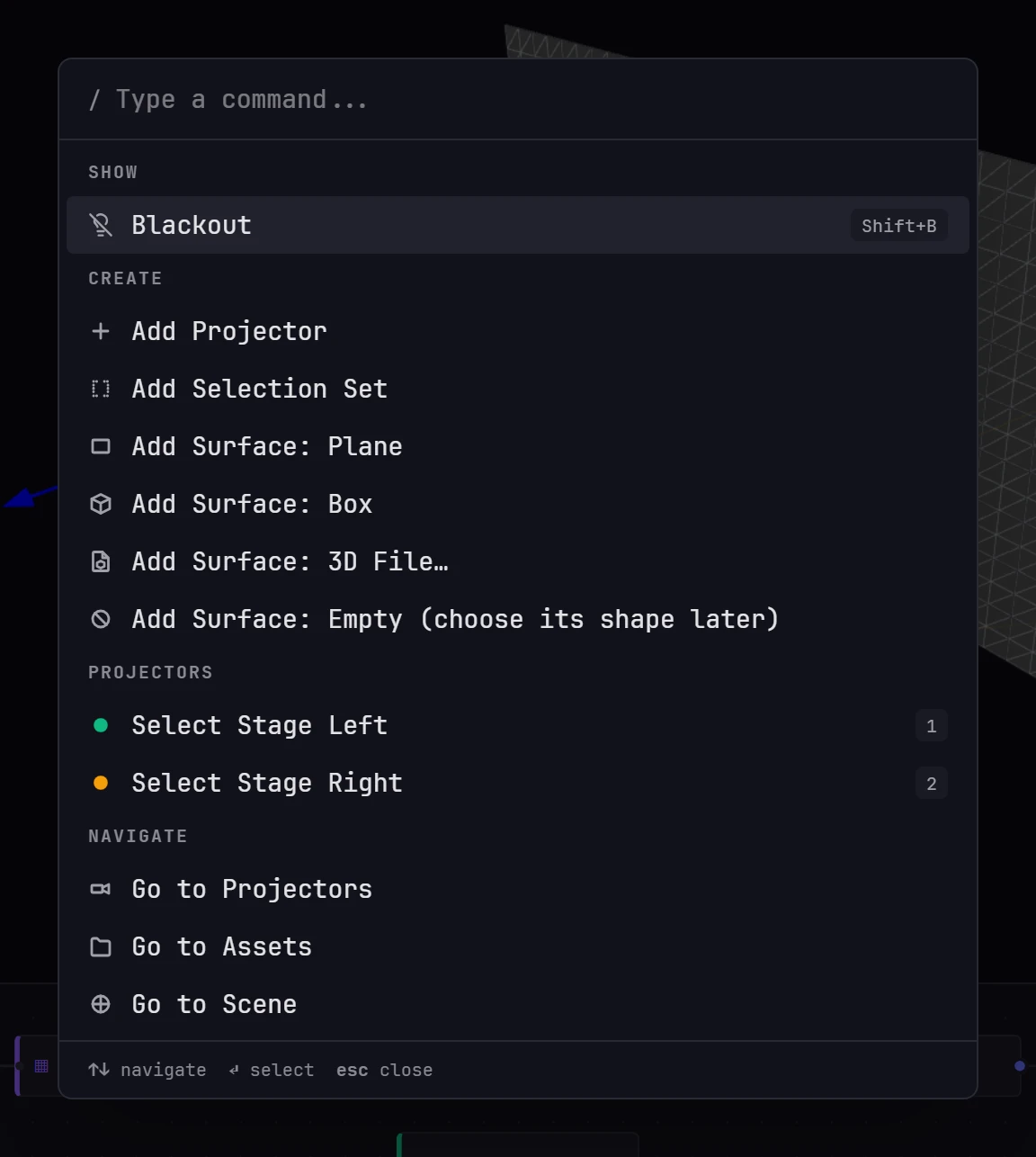
The command palette lets you find and run any command by typing part of its name.
Press / anywhere in the app, start typing, then press Enter to run the highlighted command.
Using it
- Press /. The palette opens with the cursor in the search box and every available command listed.
- Type part of a command's name. The palette lists every command that contains what you type, so
warpfinds Warp tool, Go to Warp, Warp: 4-Corner and Warp: Bezier Mesh, whilebezfinds only Warp: Bezier Mesh. - Move the highlight with Up / Down, or point at a command with the mouse.
- Press Enter to run it. The palette closes.
To close the palette without running anything, press Esc or click outside it. If nothing matches, the palette reads No matching commands.
Search covers more than the visible name
The palette also matches the group heading a command is listed under, and related search words. For example, keystone finds Warp: 4-Corner and Go to Warp, fbx finds Add Surface: 3D File…, midi finds Go to Control, and a projector's name finds its Select command. Type a group name, such as create, navigate or toggle, to list everything in that group.
/ doesn't open the palette while you're typing in a text field, so renaming a cuelist or typing a file name never opens it by accident.
Find a node on the scene graph
What you type also finds scene graph nodes by name. They're listed after the commands, under Show in Scene Graph, each with its kind: surfaces, materials (as Surface · Material), selection sets (as Surface · Set), projectors, cuelists, assets and folders. Up to 30 nodes are listed, and only once you've typed something. Choose one, and the scene graph opens, any collapsed folder around the node opens, the view moves to the node, and it's selected as if you had clicked it.
The commands
The palette lists its commands in these groups, in this order.
Show
Always listed first.
| Command | Shortcut | What it does |
|---|---|---|
| Blackout / End Blackout | Shift+B | Takes every projector to black, or back, while the show keeps running. Also found by typing black, dark or outputs. See Blackout |
Create
Listed only when a project is open.
| Command | What it does |
|---|---|
| Add Projector | Opens the Add Projector window, where you choose the make and model or enter them by hand. See Adding a projector. |
| Add Selection Set | Creates a selection set on the current projector and surface, named after the projector (Projector A, then Projector A 2 and so on), holding every point of the surface that the projector lights (see Several materials on one surface). Listed only when the scene has a surface and either a single projector or a selected one. |
| Add Surface: Plane | Adds a built-in flat plane in the middle of the Scene's view, and selects it. |
| Add Surface: Box, Pyramid, Cylinder, Cone, Sphere, Dome, Curved screen, Disc | Adds that built-in shape in the same way. |
| Add Surface: 3D File… | Asks for an OBJ, FBX, glTF or GLB file, uploads it to Assets, and adds a surface from it once the upload finishes. |
| Add Surface: Empty (choose its shape later) | Adds a surface with no geometry yet. Give it a shape or a model later with Change Source. |
| Add Material: Surface | Adds another material to that surface, mapped by UV across the whole surface, and selects it. There's one command for each surface with room for another material, except on a phone and on surfaces someone else is editing. Set its mapping and limit in its Properties. Type material to list them. |
The Scene's + adds the same things, and more. See Adding projectors and surfaces.
These commands create a starting point. Set the resolution, throw ratio, position and the rest in the projector's settings or on the Scene tab. Running one doesn't change tabs: the palette closes and you stay where you were.
Projectors
One command for each projector in the project, with its color dot:
| Command | What it does |
|---|---|
| Select (projector name) | Makes that projector the active one, so the warp, mask and output views all work on it. The first nine show their key, 1 to 9. |
1 to 9 select the first nine projectors directly, without the palette. For the tenth and beyond, or when you don't remember the order, type any part of the projector's name.
Scene
Listed when a project is open. These do what the Scene toolbar's buttons and keys do.
| Command | Shortcut | What it does |
|---|---|---|
| Object tool | V | Switches to the Object tool |
| Point Select tool | E | Switches to the Point Select tool |
| Warp tool | W | Switches to the Warp tool |
| Map tool | U | With a Material selected: Resize, then Crop, then off |
| Gizmo: Move | M | Moves what's selected |
| Gizmo: Rotate | R | Rotates what's selected |
| Gizmo: Scale | S | Scales what's selected |
| Gizmo: Pivot | L | Turns the pivot tool on, or back off |
| Display: Mesh, Display: UV, Display: Lux, Display: Beams | Switches the Scene's view mode | |
| Snap | N | Turns snapping on or off |
| Local / World | O | Switches the gizmo between World and Local |
| Projector view | P | Looks through the selected projector, or goes back to the free camera |
Navigate
| Command | Goes to |
|---|---|
| Go to Projectors | Projector settings for the selected projector |
| Go to Assets | The media library |
| Go to Scene | The 3D scene |
| Go to Warp | The warp editor, in the mode you last used |
| Go to Mask | The mask editor |
| Go to Control | The Control tab |
| Go to Cue | Cuelists and the transport |
| Go to Monitor | Health and status |
| Go to Settings | Settings |
| Go to Settings → Admin | User and session management |
| Warp: 4-Corner | The Warp tab, in the 4-corner editor |
| Warp: Bezier Mesh | The Warp tab, in the bezier grid editor |
The two Warp: commands are listed only when a project is open, and Go to Settings → Admin only for administrators.
Cue
Listed when a project and a cuelist are open. These act on the open cuelist.
| Command | Shortcut | What it does |
|---|---|---|
| Play / Pause | Space | Plays or pauses the cuelist |
| Next cue | Goes to the next cue | |
| Previous cue | Goes to the previous cue | |
| Exit Hold | Lets the show play on through the hold marker it's looping |
View
Listed only while the card is minimized or hidden. Use them to bring back a floating card you closed.
| Command | What it does |
|---|---|
| Show Preview Card | Brings back the floating preview card |
| Show Playback Card | Brings back the floating transport card |
Toggle
| Command | Shortcut | What it does |
|---|---|---|
| Toggle Sidebar | \ | Hides or shows the left sidebar |
| Toggle Scene Graph | G | Opens or closes the scene graph in the panel along the bottom |
| Toggle Timeline | T | Opens or closes the timeline in the panel along the bottom |
| Toggle Control | C | Opens or closes the Control drawer in the panel along the bottom: your pinned controls |
| Keyboard Shortcuts | ? | Opens the built-in shortcut list |
The palette shows each command's shortcut on the right of its row, so you can learn the keys as you go.
Actions
| Command | Shortcut | What it does |
|---|---|---|
| Undo | Ctrl+Z | Undoes your last change, as the key and the top bar's Undo do where you are. See How undo is routed |
| Redo | Ctrl+Shift+Z | Redoes what you undid |
| Delete Selection | Del | Deletes the selected projectors and surfaces. Listed when a project is open and projectors or surfaces are selected, except on a phone |
| New Project | Opens the new-project dialog | |
| Open Projects | Opens the project browser, where you can load, rename or delete a project |