Baking and reverting
Bake the shape you sculpted, roll a surface back to its source model, or discard the sculpting, and know which of these you can undo.
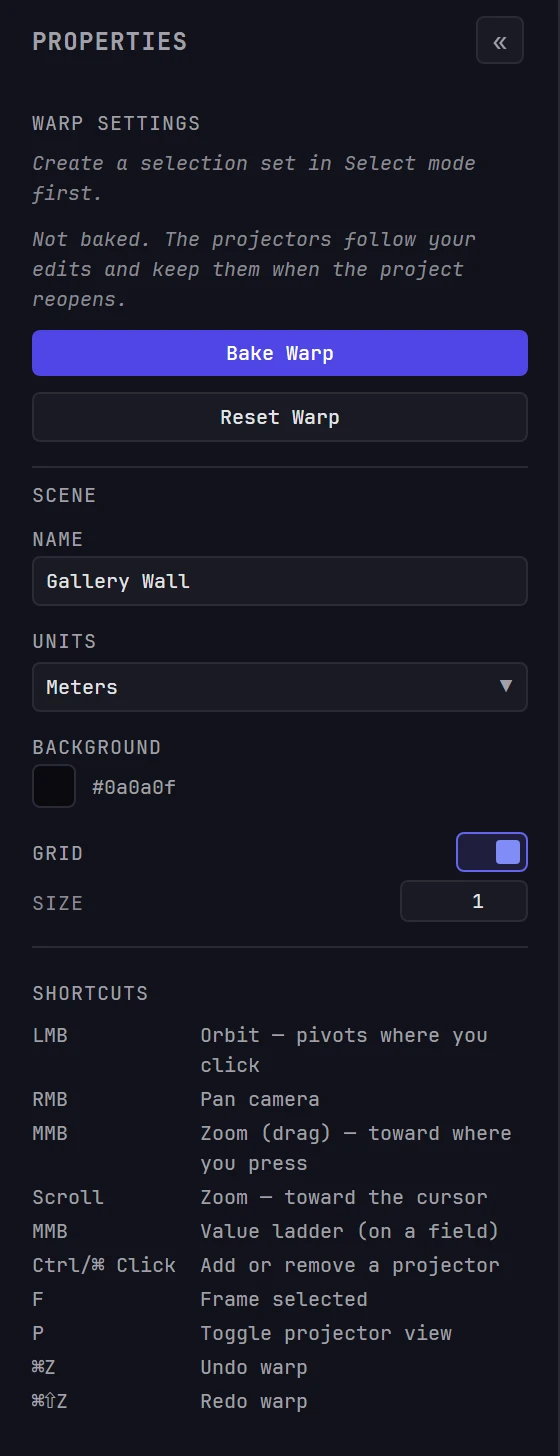
All three are in the Warp Settings panel, which appears in the sidebar when the Scene tab is in Warp mode. They act on the surface you're editing, not on one projector.
What baking changes
Your sculpting reaches the projectors as you work. Every point you move shows on the wall a moment later, whether you've baked or not, and the shape is saved with the project as you go. A bake sets the shape the show machine restores when the project opens: after a restart, an update or a switch back to the project.
| The surface is | When the project opens, the projectors show |
|---|---|
| Never baked | Its latest sculpted shape |
| Baked, with no edits since | The baked shape |
| Baked, then sculpted without baking again | The older, baked shape, while the 3D view shows your later edits. The two agree again after your next edit |
So bake at the end of every pass, and always before the machine restarts or updates.
Know where you stand
Above the buttons, a status line shows whether the surface has a bake:
| Line | Meaning |
|---|---|
| Not baked. The projectors follow your edits and keep them when the project reopens. | This surface has no bake yet. |
| Baked. Reopening the project returns the projectors to the baked shape — Bake again to commit later edits. | A bake exists. This line doesn't show whether you've sculpted since. |
The status dot in the top bar shows that. It turns amber and pulses as soon as you move a point, with the tooltip Warp edits not baked yet. On the Scene tab, choose the Warp tool (W) and press Bake Warp to keep them. It tracks only the edits made on your own device, so a colleague's unbaked sculpting doesn't turn your dot amber. Amber can also mean Saving changes to the project… for a moment after any change, so hover the dot to see which it is.
The three actions
| Action | What it does | Reversible? |
|---|---|---|
| Bake Warp | Records the surface's current shape as the one the show machine restores when the project opens | Yes: bake again to replace it |
| Revert to Source | Discards the bake. The projectors show the model the surface was built from until your next edit | The discarded bake can't be recovered. Your sculpting is untouched |
| Reset Warp | Removes your sculpting and returns every point to its original position, on screen and on the projectors | No |
Bake Warp
Bake Warp saves the shape you can see as the surface's bake: the shape the show machine restores when the project opens.
- Finish the alignment pass so the surface sits on the object.
- Press Bake Warp. The button reads Baking… while it works.
- When the bake is done, a message reports how many points were baked.
Bake at the end of every alignment pass, and always before you hand the show over or leave it. Baking again replaces the previous bake, and you can bake as often as you like.
Once a surface is baked, the status line changes to Baked and Revert to Source appears below the bake button.
Baking does not stop you editing
A bake is a snapshot, not a lock. If you move a point after baking, the top-bar dot turns amber again. The bake is now behind what you see on screen, and the projectors return to it the next time the project opens. Press Bake Warp again to bring them back in line.
If nothing happens
If the show machine doesn't respond within about eight seconds, Moonshine stops waiting and shows a warning. Check the connection on the Monitor tab and try again. Pressing Bake Warp a second time is safe.
Revert to Source
Revert to Source appears only when a bake exists. It discards the bake, and the projectors show the model the surface was built from: the geometry you imported or the primitive you created, with no warp. The status line returns to Not baked, and the button disappears until you bake again.
Your sculpting isn't touched. It stays in the 3D view, and your next edit, or the next time the project opens, puts it back on the projectors. Use Revert to Source to see the source model on the wall or to drop a bake you no longer want. To return the surface itself to its source shape, use Reset Warp, then Bake Warp.
The discarded bake cannot be undone
Ctrl+Z doesn't bring back a reverted bake. If you sculpted after baking, the shape in the 3D view is newer than the bake anyway, and Bake Warp saves it again.
Only one operator at a time can use Revert to Source and Bake Warp. Both are disabled while another operator holds the warp lock for that surface. See Locks.
Reset Warp
Reset Warp returns every point of the surface to its original, unwarped position and discards your sculpting. Moonshine asks first:
Reset Warp Reset all warp modifications? This cannot be undone.
Choose Cancel or Reset. Every operator viewing that surface sees it flatten immediately.
The flat surface reaches the projectors right away, and the top-bar dot turns amber. If the surface has a bake, though, the projectors return to the bake the next time the project opens. To finish the reset:
- Press Bake Warp to bake the flat surface, or
- Press Revert to Source to discard the bake as well.
Reset cannot be undone
Unlike a single point move, a reset isn't on the undo stack. Everything you sculpted on that surface is removed at once. To take back only your last few moves, press Ctrl+Z instead. It steps back through your own edits and leaves other operators' work alone.
Resetting from the scene graph
You can also right-click a surface's Warp node in the scene graph and choose Reset Warp. Each Warp node is labeled with its projector. This selects that projector and resets immediately, without asking. It resets the surface the Scene tab is working on, which may not be the surface the node sits under, so select that surface first.
Which one do I want?
- The alignment is right and I want to keep it: Bake Warp.
- I want to keep the alignment, but the dot is amber: Bake Warp again. You've edited since the last bake.
- This surface's sculpting is a mess and I want a clean surface to work on: Reset Warp, then sculpt again and bake.
- I want this surface back the way it came, bake and all: Reset Warp, then Revert to Source.
- I want to see the source model on the wall and drop a bake I no longer want: Revert to Source.
- I moved one point too far: Ctrl+Z, not any of the above.