Organizing media
The Assets tab holds every file and source in the open project. This page covers folders, filtering, the grid and list views, sorting, and what you can do with a file once it's in the library.
The Assets tab
The tab has three columns:
- Asset Browser (left): the type filter beside the title, the Upload, Add Source and New Folder buttons, and the folder tree.
- File area (middle): a breadcrumb showing where you are, the view controls, and the current folder's subfolders and files.
- Properties (right): the details of whatever is selected, or the upload drop zone when nothing is. The floating Preview and Playback cards stay clear of this column.
On a phone, the files fill the screen. Tap a file to show its action bar (see File actions), and tap Details to open its properties over the files. ‹ All Assets (or the folder's name) at the top takes you back.
Filtering by type
The funnel button at the right of the Asset Browser title opens the type filter, which chooses the types the file area shows. Each type is a toggle: click it to show that type, and click it again to hide it. Any combination can be on. Click outside the filter or press Esc to close it; the selected file stays selected. While a type is hidden, the funnel stays lit, and its tooltip says how many types are shown, for example Filter by type: 4 of 5 shown.
| Button | Shows |
|---|---|
| All | Every type |
| None | No types, so you can then click the one you want |
| Meshes | Models |
| Images | Stills |
| Videos | Movie files |
| Sources | NDI, video device and Spout sources, and web pages; see Live sources |
| Tox | Components (.tox); see A component is code |
A folder whose files are all hidden says how many the filter is hiding. The filter applies only to the grid and list. The folder tree still lists everything, so folder counts don't change when you filter.
No text search
The Asset Browser has no search field. Use folders and the type filter to narrow a large library, and name folders for how you'll look for things later.
Folders
The folder tree
All Assets at the top is the root, and everything sits under it.
- Click a folder to open it in the file area.
- Click the current folder again, or click any folder's chevron, to expand or collapse it. Empty folders have no chevron.
- From the keyboard, Tab to a folder's chevron. Right expands it, Left collapses it, and Enter toggles it.
- The number on the right is how many files are directly in that folder.
- Moonshine remembers which folders you've expanded, for you alone, across sessions.
Folders nest as deep as you need. An expanded folder shows both its files and its subfolders in the tree.
Right-click a folder in the tree for New Folder, Upload… and Add Source… in that folder, plus Rename and Delete. Right-click All Assets for the first three at the top level, and for Expand All, which opens every folder at every depth, and Collapse All, which closes them all back to the top level. Each of these two appears only when it would change something. The folder tree on the Cue tab has them too.
Creating a folder
Use any of these:
- Select the parent folder, click New Folder under the Asset Browser title, type a name and press Enter (Esc cancels). The field says where the folder will go, for example New folder in Loops.
- Right-click a folder in the tree, or All Assets, and choose New Folder. The folder goes inside the one you right-clicked.
- Right-click empty space in the file area and choose New Folder. A folder named "New Folder" appears in the current folder, ready to rename. Type a name and press Enter.
In the file area, the current folder's subfolders come before its files, each showing how many items it holds. Click one to open it, or drop a file on it to move the file there. You can drag folders from the file area as well as from the tree.
Deleting a folder
Right-click the folder in the file area or the tree and choose Delete. Moonshine asks you to confirm and tells you what's affected: every folder inside it is deleted too, and every file in any of them moves to All Assets. The files themselves are kept.
Moving a folder
Drag a folder, in the tree or the file area, onto another folder to move it there with everything it holds. Drop it on All Assets to move it to the top level. The target folder highlights when it can take the folder.
You can't move a folder into itself or into one of its own subfolders. Over one of those, the row turns red and the pointer shows that you can't drop there.
Renaming a folder
Right-click the folder in the file area or the tree and choose Rename, or double-click its name in the tree. Type the new name and press Enter. Esc cancels.
Moving files between folders
Drag a file from the tree, the grid or the list onto a folder in the tree. The folder highlights when it will accept the drop. Drop on All Assets to move a file to the top level.
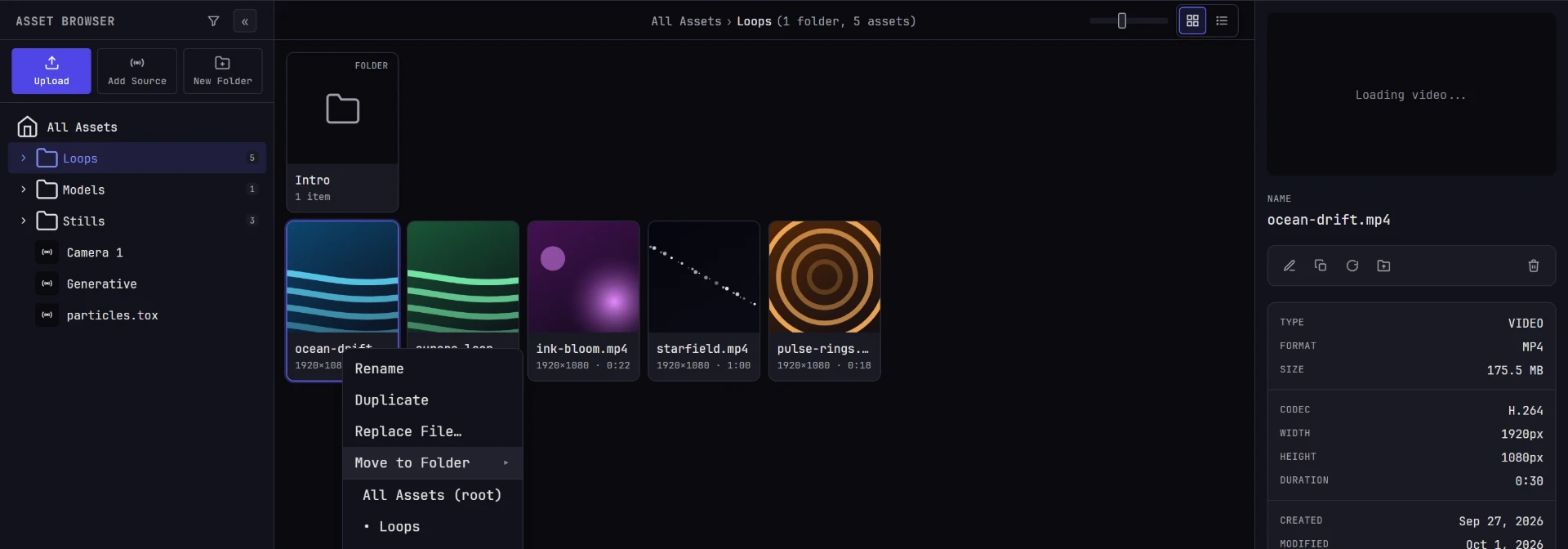
To move a file without dragging, choose Move to Folder from its right-click menu or the details toolbar. It lists the whole folder tree, with a bullet beside the file's current folder.
Drag a folder onto a cuelist
Drag a folder that contains media onto a cuelist to add all of that media at once. Only the files directly inside the folder are added; files in its subfolders aren't. See Cuelists.
Breadcrumbs
The breadcrumb above the file area reads All Assets › Parent › Child, followed by a count of what's shown: the files, and the subfolders if there are any. Click any crumb but the last to jump back up to that folder. The last crumb is where you are.
Grid and list
The two buttons at the far right of the header switch between grid and list views, and Moonshine remembers your choice for you. The button before them sorts the files (see Sorting).
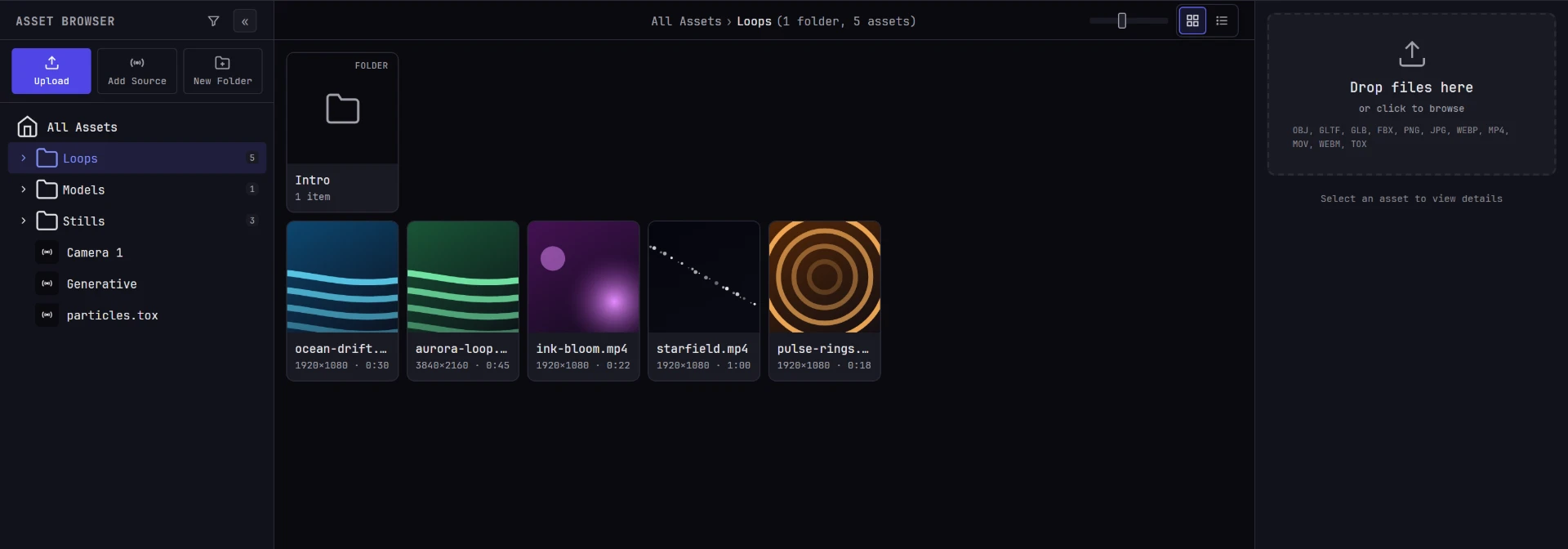
Grid shows a thumbnail for each file, with a type badge in the corner, the name, and one line of detail: pixel dimensions for a still, dimensions and duration for a video, what a live source is and where it comes from, and file size for anything else.
The slider next to the view buttons sets the tile size. Drag it right for bigger tiles or left to fit more on screen; the grid fits as many tiles across as the window has room for. The slider appears only in grid view, and hides when the grid is too narrow for it.
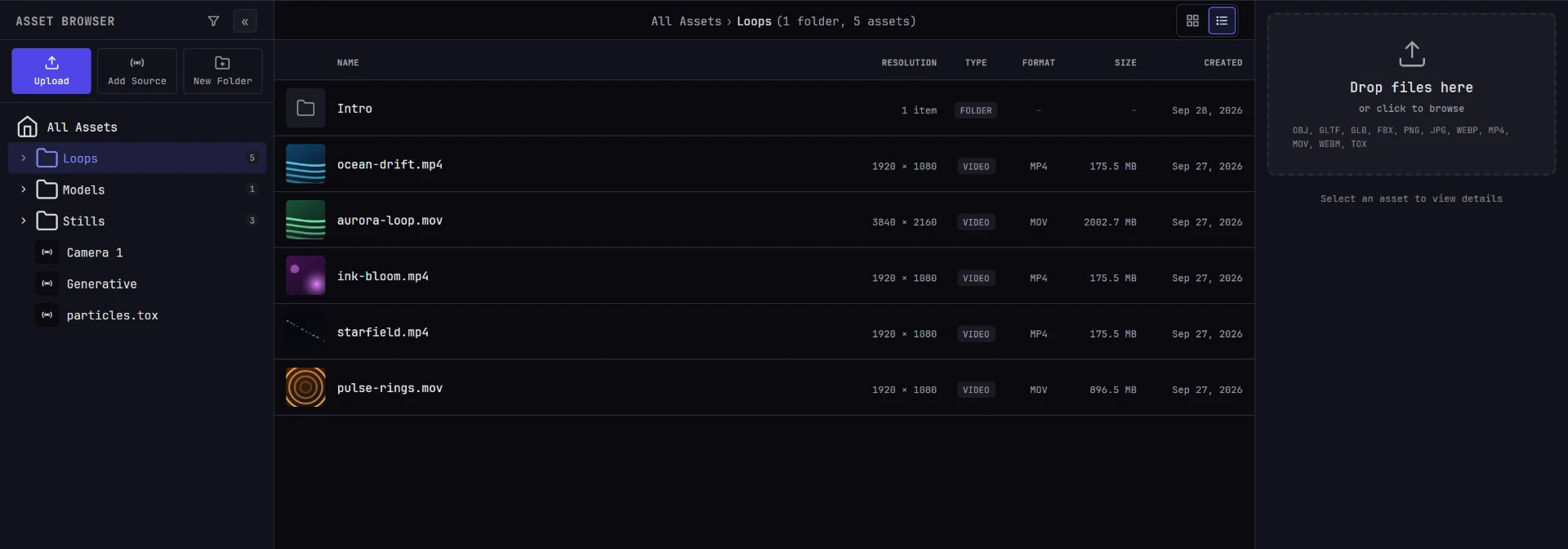
List is a table, useful for comparing files or scanning a large folder:
| Column | Contents |
|---|---|
| Name | The asset name |
| Resolution | Pixel dimensions, vertex count for a model, or the kind of a live source |
| Type | Image, video, mesh or source |
| Format | The file extension, or a dash for an NDI, video device or Spout source or a web page |
| Size | File size |
| Created | The date it was added |
Sorting
You can sort files by any list column, or keep them in your own order.
- In list view, click a column header to sort by it, and click it again to reverse the order. The sorted column is highlighted, with an arrow showing the direction. From the keyboard, Tab to a header and press Enter.
- In either view, the sort button beside the view buttons (up-and-down arrows, with the sort's name when there's room) opens a menu of every sort: Manual, Name, Type, Format, Resolution, Size and Created, then the direction: A to Z or Z to A, Smallest first or Largest first, Oldest first or Newest first.
How each column sorts:
| Sort | Order |
|---|---|
| Name | Alphabetical, ignoring capitals, with numbers in order: clip 2 comes before clip 10 |
| Type, Format | Alphabetical by type, or by file extension |
| Resolution | By number of pixels, so 3840 × 2160 is larger than 3840 × 720 |
| Size | By file size |
| Created | By when the file was added |
Files with nothing in the sorted column, such as a model's resolution or a live source's format and size, go at the end in either direction. Files that sort the same are listed by name. Folders always come first. They're sorted by date when you sort by Created, and by name otherwise.
Moonshine remembers your sort for you, across sessions and devices, and the folder trees on the Assets and Cue tabs use it too.
Your own order
Manual is your own order, and the one a new project starts in. Drag a file onto another file in the same folder to move it there. A line shows whether it will land before or after that file, depending on which half of it you're over. Drag a folder onto the edge of another folder to put it before or after that folder. Dropping a file or folder on the middle of a folder still moves it inside.
The manual order belongs to the project, so everyone working on it sees the same order. Each move is one Undo step. A file moved to another folder, or a new upload, goes to the end of that folder.
You can reorder files only in Manual; while a column sort is on, dragging between files has no effect. On a phone or tablet you can sort by any column, but setting your own order needs a mouse, because you can't drag files by touch.
Selecting and keyboard navigation
Click a file to select it and show its details in the right-hand column. Click empty space to deselect.
When the Assets tab is active and no text field has focus:
| Key | Action |
|---|---|
| Up Down | Move the selection between rows |
| Left Right | Move the selection along a row (grid view) |
| Home / End | Jump to the first or last file |
| F2 or Enter | Rename the selected file in place |
| Esc | Clear the selection |
The selection scrolls into view as it moves.
The details pane
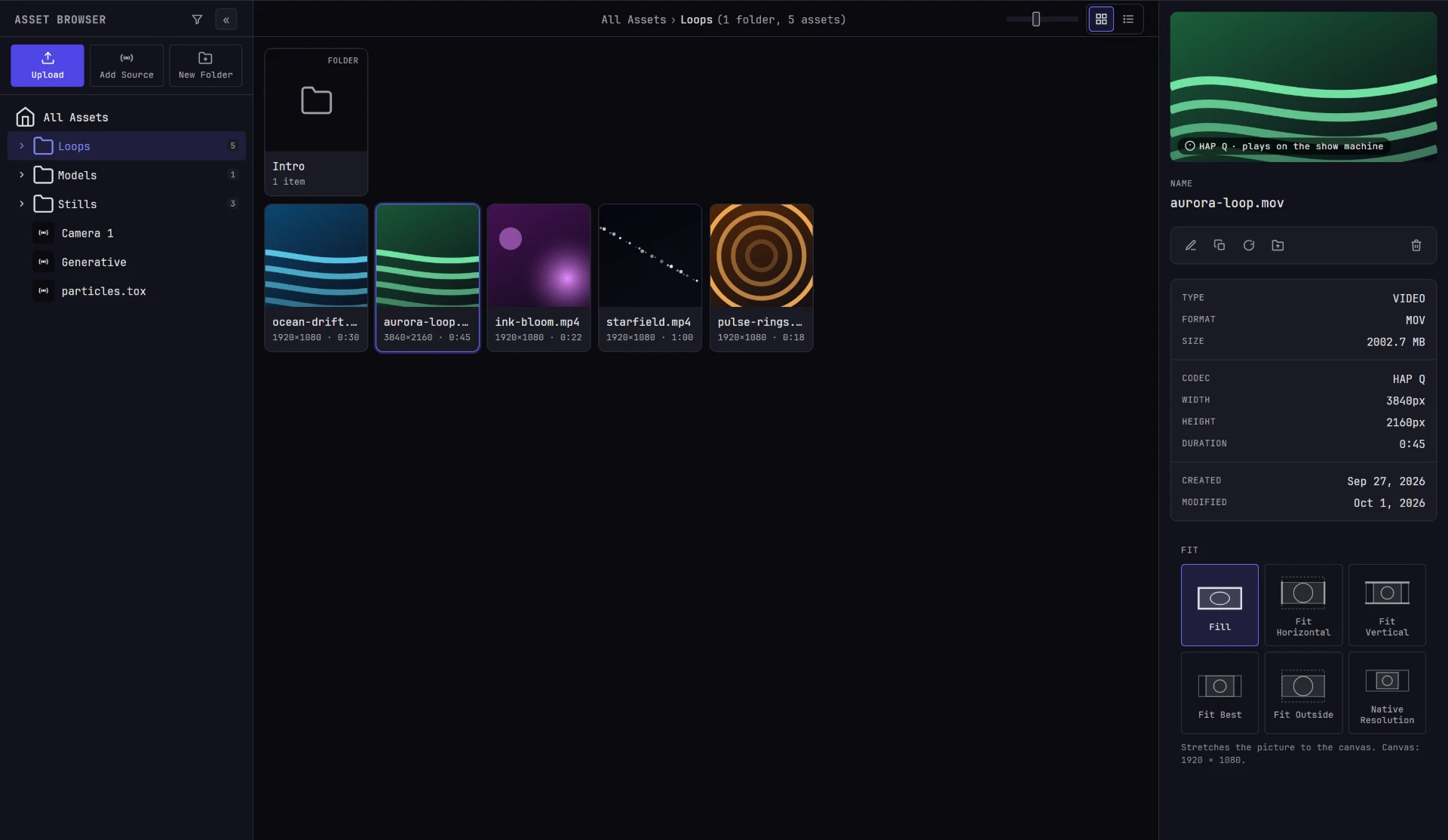
When you select a file, the right-hand column shows:
- A preview: the still itself, a video player, or a 3D view you can orbit for a model. Hover it and click the expand button to view it full screen; Esc closes it.
- The name. Double-click it to rename the file.
- Action buttons: rename, duplicate, replace file, move to folder and delete.
- A metadata table: type, format and size, then details for that type, then when the file was created and last modified.
If your browser can't decode a video, the preview shows its thumbnail and a codec badge in place of a player. See Uploading media.
File actions
On a phone or tablet, tap a file in the file area or the Cue tab's Asset Browser to show a small bar of its most-used actions beside it: Add, Add next, Preview, Details (on a phone's Assets tab), Rename, Delete, and More ⋯, which opens the full menu. Each is an icon over a short word, and the table below describes them. With a mouse, clicking a file shows the same bar as a row of small icons, each named when you hover it. Tap anywhere else, press Esc, or select something else to close the bar.
Right-click a file in the tree or the file area, or press and hold it on a phone or tablet, to open its menu. It lists the bar's actions first, in the same order, followed by the rest of the details toolbar's actions.
| Action | What it does |
|---|---|
| Add to Cuelist | Adds it to the end of the cuelist open on the Cue tab. Shown for images, videos and sources while a cuelist is open. See Add media to a cuelist. |
| Add Next | Adds it after the cue selected in that cuelist, and selects the new cue. Shown while a cue is selected. |
| Preview | Shows it full screen. Press Esc, click Esc at the top left, or click outside the picture to close it. Not available for a live source or a component, which have no picture to show. |
| Details | On a phone's Assets tab: opens its properties over the files. |
| Rename | Makes the name editable where you chose Rename: on the tile or row, in the tree, or at the top of the details pane. Enter saves, Esc cancels. |
| Duplicate | Makes a copy in the same folder, named after the original with copy added. |
| Replace File… | Swaps the file behind the asset, keeping its name, folder and everything it's wired to. The file picker offers only files of the same kind. |
| Move to Folder | Opens the folder list; pick a destination. |
| Delete | Asks you to confirm, then removes the asset and its file. |
Use Replace File… when content changes late. Surfaces and cues that use the asset keep using it, so a new cut of a video drops into an aligned, cued show without any rewiring.
The new file replaces the old one only once it has fully uploaded. If the show machine can't swap it in, nothing changes and a notification says why. If the item is playing, take it off air and replace the file again.
Deleting removes the file too
Delete removes the asset and its uploaded file, and you can't undo it. When you delete from the details pane and the file is the model a surface is built on, the confirmation warns you, because deleting it empties the surface. Cuelists give no warning: a cue whose file was deleted stays in its cuelist and reads Unknown.
Next
- Putting media on a surface: connect a file to something that gets projected
- Surfaces and models: how uploaded models become surfaces you can project onto