Projects
A project holds everything for one show. This page covers creating, opening, downloading, renaming and deleting projects, restoring a snapshot, and how Moonshine saves your work.
What a project holds
Everything you set up in Moonshine belongs to the open project:
- Projectors and their settings
- Surfaces and the models behind them
- Keystone, warp and selection sets
- Masks
- Cuelists and transitions
- Every file you upload, and the folders you sort them into
Projects don't share anything. Media you upload to one project doesn't appear in another, so each project is a complete show on its own.
Opening the project browser
The Projects browser lists every project on the show machine.
- It opens by itself on first launch, and whenever no project is open. It stays open until you pick or create a project.
- When a project is open, click its name in the top bar, next to MOONSHINE.
- Or run Open Projects from the command palette.
Press Esc to close the browser. This works only when a project is already open.
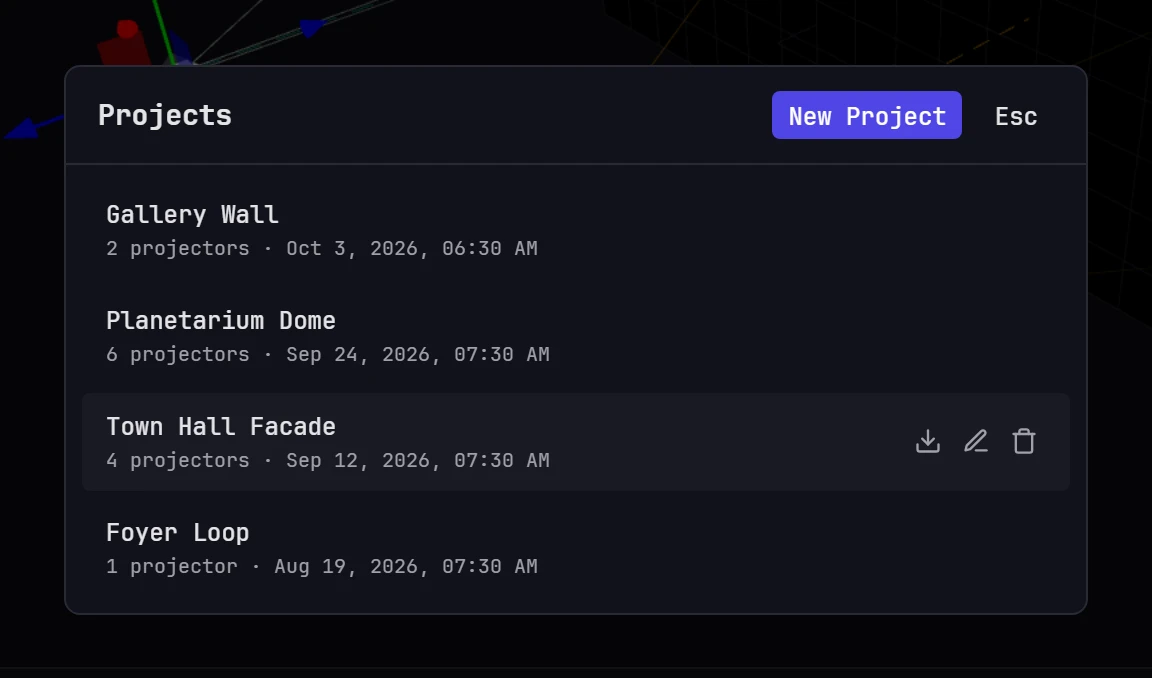
Each row shows the project's name, how many projectors it has and when it was last changed. The most recently changed project is at the top. Click a row to open that project.
Hover a row to show three buttons:
| Button | What it does |
|---|---|
| Download project | Saves the whole project, media included, as a zip on this computer |
| Rename project | Turns the name into a field you can edit |
| Delete project | Asks you to confirm, then removes the project |
Loading a project switches it for everyone
One project is open at a time, and every connected device shares it. When you load a different project, everyone else's screen switches to it too. Before you switch during a show, check who else is connected: see Users and sessions.
Any signed-in account can create, load, rename and delete projects; you don't need to be an administrator. When Moonshine restarts, the show machine reopens the project that was open.
Creating a project
- Click New Project at the top of the browser, or run New Project from the command palette.
- Fill in the dialog and click Create.
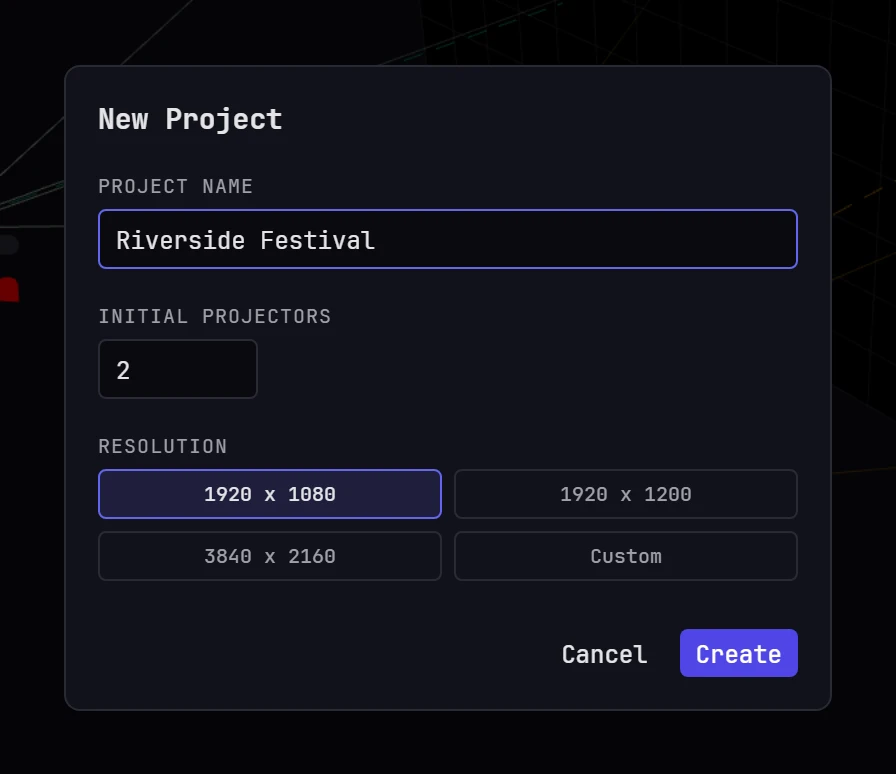
| Field | Notes |
|---|---|
| Project Name | Required. You can rename the project at any time. |
| Initial Projectors | How many projectors to create, from 1 to 48. Starts at 2. You can add or remove projectors later. |
| Resolution | The output resolution of those projectors: 1920 x 1080, 1920 x 1200, 3840 x 2160, or Custom with your own width and height. |
The new project opens as soon as it's created, for you and for everyone else connected. It opens on the Scene tab with a layout ready to project onto:
- A screen: a flat surface named Screen, 4.5 m high and as wide as the projectors' combined picture (14.4 m for two 1920 × 1080 projectors). Its bottom edge is 0.5 m above the floor.
- The projectors side by side, aimed square at the screen at a throw ratio of 1.5 (12 m back for 16:9 projectors). Each image fills the screen's height, and neighboring images overlap by a fifth.
- A blend across each overlap, calculated by Moonblend.
- A moon test card on the screen: a grid, color bars and gray steps in each projector's image, the overlaps marked, and a photograph of the Moon (NASA/GSFC/Arizona State University, public domain) across the middle. It matches the size of the combined picture (3456 × 1080 for two 1080p projectors). It's added to the project's media as Moon test card and set as custom test pattern 1.
- A test movie in the project's media, named Test movie: 20 seconds of moving color bars with running timecode, a frame count and a 440 Hz tone, at 1280 × 720 and 60 frames per second. Wire it to the screen or add it to a cuelist to check playback.
With one projector you get the same layout without the blend. Move anything you like; the layout is only a starting point.
Projectors are named Projector 1, Projector 2 and so on, each with its own color. To set position, throw ratio and the rest, see Projectors.
Press Esc to cancel the dialog.
Downloading a project
- Hover the project's row and click the download button.
- In Chrome, Edge and the Moonshine app, choose where to save the file. Other browsers save it to your downloads folder.
The show machine packs the project first. The row reads Preparing download… with a percentage, then Downloading… while the file transfers. A project with a lot of media can take a few minutes. You can close the Projects browser and keep working while it runs. If the download fails, a notification says why.
The zip is named after the project and the date, for example Town Hall Facade-2026-10-14.zip. It holds the whole project, media included. Keep it as a backup, or use it to move the show to another machine (see Restoring a project).
Snapshots
Every 15 minutes, the show machine takes a snapshot of each project's setup: projectors, surfaces, cuelists, settings, masks, warps and blend layers. Snapshots don't include media, so back up your media separately; a downloaded project includes it. An administrator chooses where snapshots are stored, and can take one at any time, in Settings → Admin → Server → Snapshots (see Snapshots).
To restore the open project to an earlier snapshot:
- Open Settings → Project → Snapshots. The project's snapshots are listed newest first, in your local time. A snapshot in which this project hadn't changed since the one before is marked no change.
- Click Restore… on the snapshot you want.
- Read what will change, and click Restore.
When you restore:
- The project's setup goes back to the snapshot for everyone working on it: projectors, surfaces, cuelists, settings, masks, warps and blend layers. Every open view redraws, as it does when a project opens.
- Media stays as it is. Files the snapshot doesn't include move to the project's trash.
- Before anything changes, Moonshine saves the current project as a new snapshot, so you can undo the restore by restoring that one. The page tells you which snapshot it is.
You can't restore while someone else is editing the project. Moonshine tells you who it is.
Renaming a project
- Hover the project's row and click the rename button.
- Type the new name.
- Press Enter or click away to save it. Press Esc to cancel.
The new name appears in the top bar on every connected screen.
Deleting a project
- Hover the project's row and click the delete button.
- The row's buttons change to Delete and Cancel. Click Delete to confirm.
If you delete the open project, the show machine is left with no project open. The Projects browser opens on every connected device and stays open until someone picks a project.
Deleting is permanent
A deleted project takes its projectors, alignment, masks, cuelists and uploaded media with it. You can't undo a delete or recover the project afterward.
Saving
Moonshine saves your work automatically, so there's no Save button or shortcut. A couple of seconds after you change something, the show machine saves the whole project.
The save indicator is a small amber dot in the top bar. It pulses while changes are being saved, or while warp edits are waiting to be baked; hover it to see which. When everything is saved, the dot disappears.
To see when the project was last saved, open Settings → Project → General and look for Last saved on the About card.
If the tooltip says warp edits aren't baked, your 3D surface sculpting is on the projectors and saved, but it may not be the shape the show machine restores when the project opens. See Baking and reverting.
If a save fails, a notification gives the reason and stays on screen until you dismiss it. Check the show machine's free disk space before you carry on; see Logs.
Closing the browser tab is safe
The project is saved on the show machine. Closing a tab, losing Wi-Fi or walking away mid-edit doesn't lose work that has reached it. When the last device disconnects, any save in progress is written at once.
Two people editing at once
Everyone connected works on the same live project. Edits appear on every screen as they happen, and the automatic save covers everyone's work, so there's no personal copy to merge later.
If two people change the same value, the last change wins. Where that matters, Moonshine locks what's being edited: the first person to take a projector, a warp or the playback transport holds it, and everyone else sees it as read-only until it's released. See Locks.
Before the app is connected
Until the app reaches the show machine, the Projects browser shows a Waiting for the show machine… banner, and New Project and the row buttons are disabled. Wait for the banner to clear. If it doesn't, see First launch.
Next
- Uploading media: get images, videos and models into the project
- Organizing media: folders, views and file management
- Putting media on a surface: get that media onto a projected surface