AI assistant (MCP)
Ask an AI assistant such as Claude or ChatGPT to set up and run projection mapping for you: "add three projectors along the front of the stage and aim them at the wall", "put the intro video on the main screen", "plan tonight's alignment around sunset".
The assistant works like another operator. It acts with your account and role, sees the same project as everyone else, and leaves alone anything someone else is working on. Everything it does appears in every open Moonshine window as it happens, and while it works, it appears among the people in the session.
Your show machine works as an MCP server. MCP (the Model Context Protocol) is the standard that AI apps use to connect to other software. You connect your AI app once, from Settings → User → MCP.
What it can do
| Area | For example |
|---|---|
| Projects | List them, create one with projectors and a screen already laid out, open another |
| Projectors | Add, move, aim at a screen, change the lens, resolution and output, close the shutter, delete |
| The projectors themselves | For projectors with a PJLink address: read their power, shutter, input, lamp hours and faults, and switch power, input and sound, for one projector or all of them |
| Screens | Add flat screens, boxes and 3D models from your media, size and place them, delete |
| Test patterns | Solid colors, ramps and alignment grids, on some projectors or all |
| Alignment | Read where a projector's corners and warp points are, pin its corners, and resize and bend its warp grid, while you watch the wall and tell it what you see |
| Masks | Black out parts of a projector's picture, such as light spilling onto a ceiling or the audience, with soft or hard edges. You can keep painting over its mask in the Mask tab |
| Blending | Turn Moonblend on or off and set its uniformity. It tells you when the blend is up to date, or why it couldn't be calculated |
| Media | Add NDI and Spout sources. You add files, video devices and web pages yourself, on the Assets tab |
| The scene graph | Connect a screen to media or a cuelist, disconnect it, change the scene's name, background and grid |
| Cuelists | Create and change them: cues, timing, sound, loop mode and transitions |
| Playback | Put a cuelist or a single media item on air, pause, resume, stop, skip, clear |
| Show control | Map OSC, MIDI or timecode to playback or to a component's parameters, send OSC when a show starts or ends, and map the button you just pressed. You turn OSC on, choose the MIDI input and choose the timecode source yourself, in Settings → Project → Control |
| Components | Set a .tox's own parameters, either right away wherever it plays or each time it loads |
| Your screen | With your permission, look at your Moonshine window to see what you see |
| Moonshine itself | Restart the show server (administrators only) |
It also includes guides on the craft: designing a rig, stacking projectors, aligning, blending, the science of light (brightness, contrast, ambient light, what the eye sees), mapping domes and objects, building a show, show control over OSC, MIDI and timecode, and working on site (sunset and twilight, weather, overnight crews, keeping equipment healthy). It can read this documentation too. Ask it about any of these.
It can't add files, change licensing, users or sessions, delete projects or media, schedule anything for later, or see your projectors. It checks with you before anything that changes what everyone sees. It knows only what Moonshine reports, so when something should look right on the wall, it asks you to look.
Connect an AI app
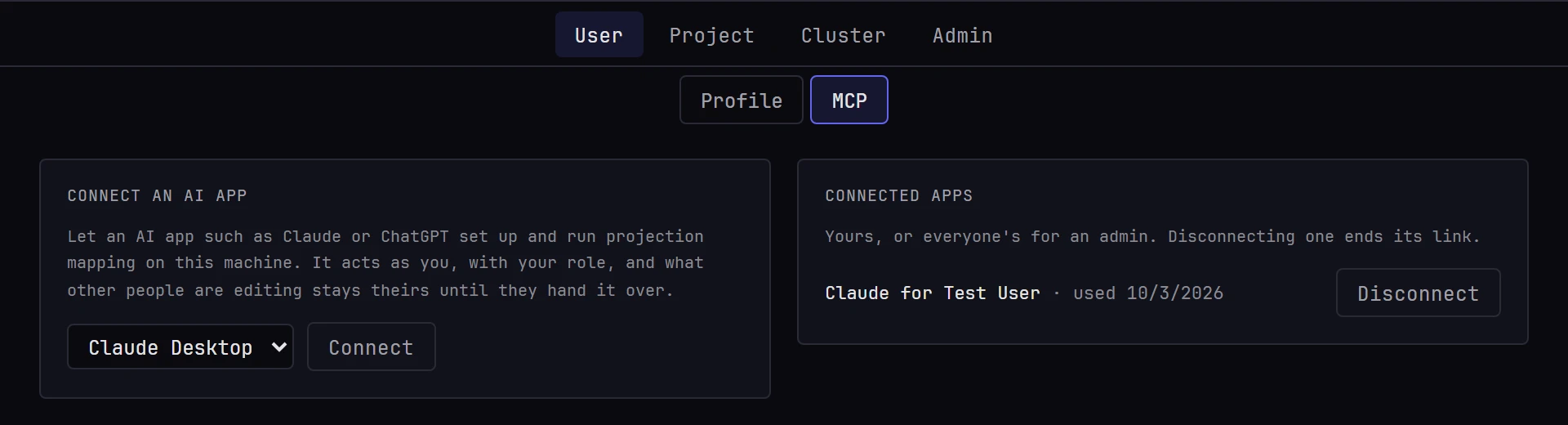
- In Moonshine, open Settings → User → MCP, choose your app, and click Connect.
- Moonshine shows a link, once. Copy it and give it to your app, following the steps for your app below. Anyone with the link can act as you in Moonshine, so give it only to that app.
- Start a new conversation and ask, for example, What's open in Moonshine?
Click Download for Claude Desktop and open the file. Claude Desktop offers to install the Moonshine extension. Paste the link when it asks for it. It's stored in your computer's secure storage.
In the ChatGPT desktop app, in Work or Codex mode, add an MCP server of the Streamable HTTP type, and paste the link.
Click Add to Cursor, Add to VS Code or Add to LM Studio, and confirm in the app. Or add the link to the app's MCP settings yourself: Settings → User → MCP shows what to paste.
Any app that accepts an MCP server over Streamable HTTP takes the link as it is.
Your app must be on the same network as the show machine. On the show machine itself, Moonshine also shows a link that works only on that machine.
Assistants in a web browser cannot reach it
chatgpt.com, claude.ai and other assistants that run in a web page work from their own servers, which can't reach a show machine on your network. Use the app on your computer instead.
Disconnecting
Settings → User → MCP lists the apps you've connected, and when each was last used. Disconnect stops that app's link working immediately. An administrator sees everyone's connected apps and can disconnect any of them.
Letting it see your screen
The assistant can ask to see your Moonshine window, to check what you're seeing. The first time, Moonshine asks you to choose Share or Not now. In a browser, the browser then asks what to share: choose this Moonshine tab. Only a Moonshine tab is ever sent, never another window or your whole screen. The desktop app shares its own window without asking again.
While your window is shared, the status bar shows Sharing with and the app's name, and the assistant can look again without asking. Click it, or sign out, to stop sharing.
Working with it
- It looks before it changes anything, and tells you what it found: the open project, who else is working, and what they're editing.
- It asks first before anything that changes what everyone sees: opening or creating a project, putting something on air or taking it off, switching projectors off, or restarting.
- People come first. If someone is working on what it needs, such as a projector they've selected or playback while they're on the Cue tab, it tells you who and waits. With your go-ahead, it can ask them to hand it over. They see the request on their screen and choose Grant or Deny. What they hand over returns to them after the assistant's change, or after a minute, or right away if they ask for it back.
- You check the result. The assistant can't see the projection, so when it matters, it asks you to look. You can ask it to show a test pattern first.
When something goes wrong
| The assistant says | What to do |
|---|---|
| It can't reach Moonshine | Check that the show machine is on and that your computer is on the same network |
| The link no longer works | The app was disconnected, or the account that created the link was removed. Connect again from Settings → User → MCP |
| You have to change your password first | Sign in to Moonshine in a browser and choose a new password |
| Someone is editing that | Wait for them, or let the assistant ask them to hand it over |
| That needs an admin | Restarting Moonshine needs an administrator account |
| Moonshine is not licensed | See Install and activate |
| This server follows its leader | In a show across several servers, the leader plays and changes the show. Connect your app to the leader's Moonshine instead |