Join from another device
Open the same Moonshine session on a phone, tablet or laptop, so you can align from where the projection lands.
Any device on the same network as the show computer can join. It runs the same interface and sees the same project. It also counts as another user in the session, with its own locks and its own presence marker.
On a computer, there is a shortcut
The desktop app, for Windows and Mac, shows the live video preview without any certificate setup, which is otherwise the hardest part of joining from a second computer. Everything else works the same as in a browser.
Open the Share dialog
In the top bar, click the QR code button (its tooltip reads Share / connect a device). The Share Moonshine dialog opens. To close it, click Esc in its top-right corner, press Esc, or click outside it.
The button is hidden on phone-sized screens. Open the dialog from a laptop, a tablet or the show machine, or scan the QR code on the show machine's own screen, which shows the secure address when the machine has one.
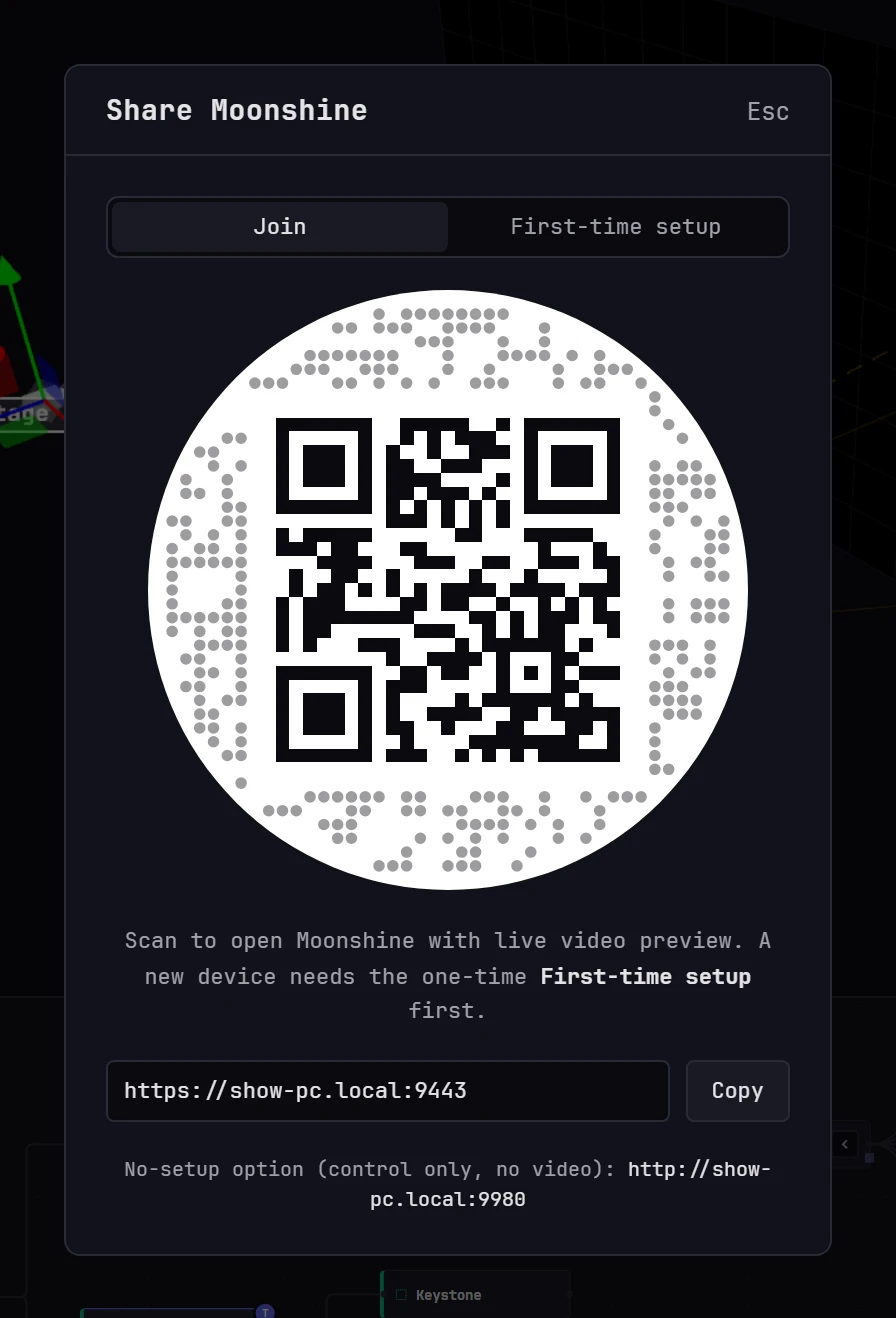
There are three ways to get the address onto the other device:
- Scan the QR code with the device's camera. The code is the black square in the middle of the moon. The gray dots around it are decoration.
- Copy the address and send it however you like. The button briefly reads Copied.
- Read it out. The address is in the field next to the button. Click the field to select the whole address.
Two addresses, one session
Depending on how the show computer is set up, the dialog offers up to two addresses. Both reach the same session and the same project. The difference is whether the device can show live video.
| Address | What works | Setup needed on the device |
|---|---|---|
| Secure address (the one in the QR code, offered as Join) | Everything, including the live video preview | A one-time certificate install (see below) |
| No-setup option (control only, no video), shown in small text underneath | Everything except the live video preview | None |
Give the second address to someone who only needs to trigger playback or nudge a corner and doesn't need to see the video preview. They can skip the setup. It's shown as text only, because the QR code, the address field and Copy all use the secure address, so read it out or type it.
If the show computer has no secure address, the dialog shows a single QR code with the line Scan to open Moonshine on another device on this network. That address works like the no-setup one: everything except the live video preview.
Why the video preview needs the secure address
Browsers allow live video decoding only on a connection they trust. On the plain address, the interface works but the video panes stay empty. Everything else is available.
If the show computer has no network address to share, the dialog says so in amber, and the link it shows works only on that machine. Connect the show computer to the same network as everyone else, then open the dialog again.
First-time setup on a new device
Before a device can show video on the secure address, you need to install the Moonshine certificate on it, once. In the Share dialog, switch to the First-time setup tab. The QR code now points at the setup page, and the caption reads Scan on a new device to install the Moonshine certificate (one-time). Then switch to Join.
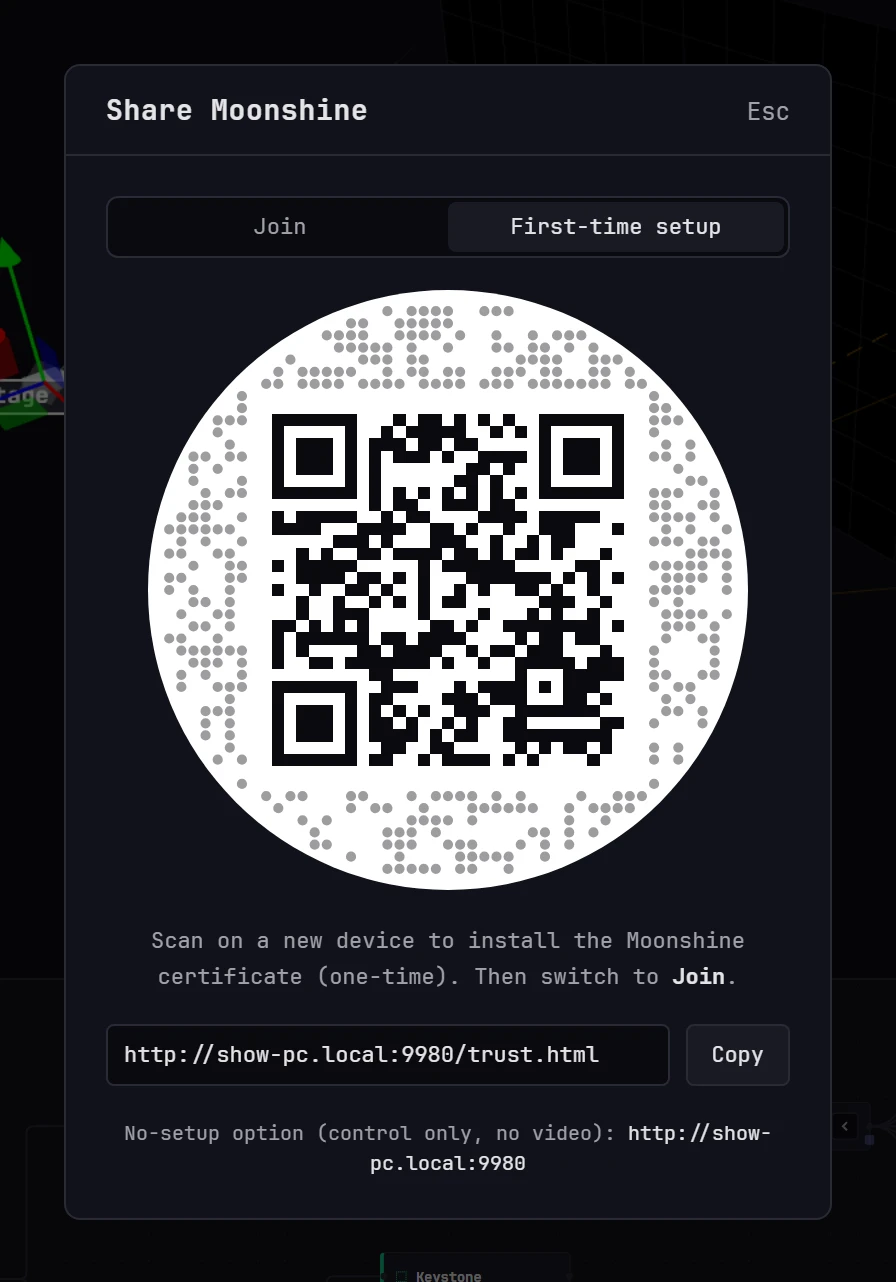
Scan that code on the new device. The page that opens is titled Enable video preview on this device, with a Download certificate button and instructions for each platform. Download the certificate first, then follow the steps for your device.
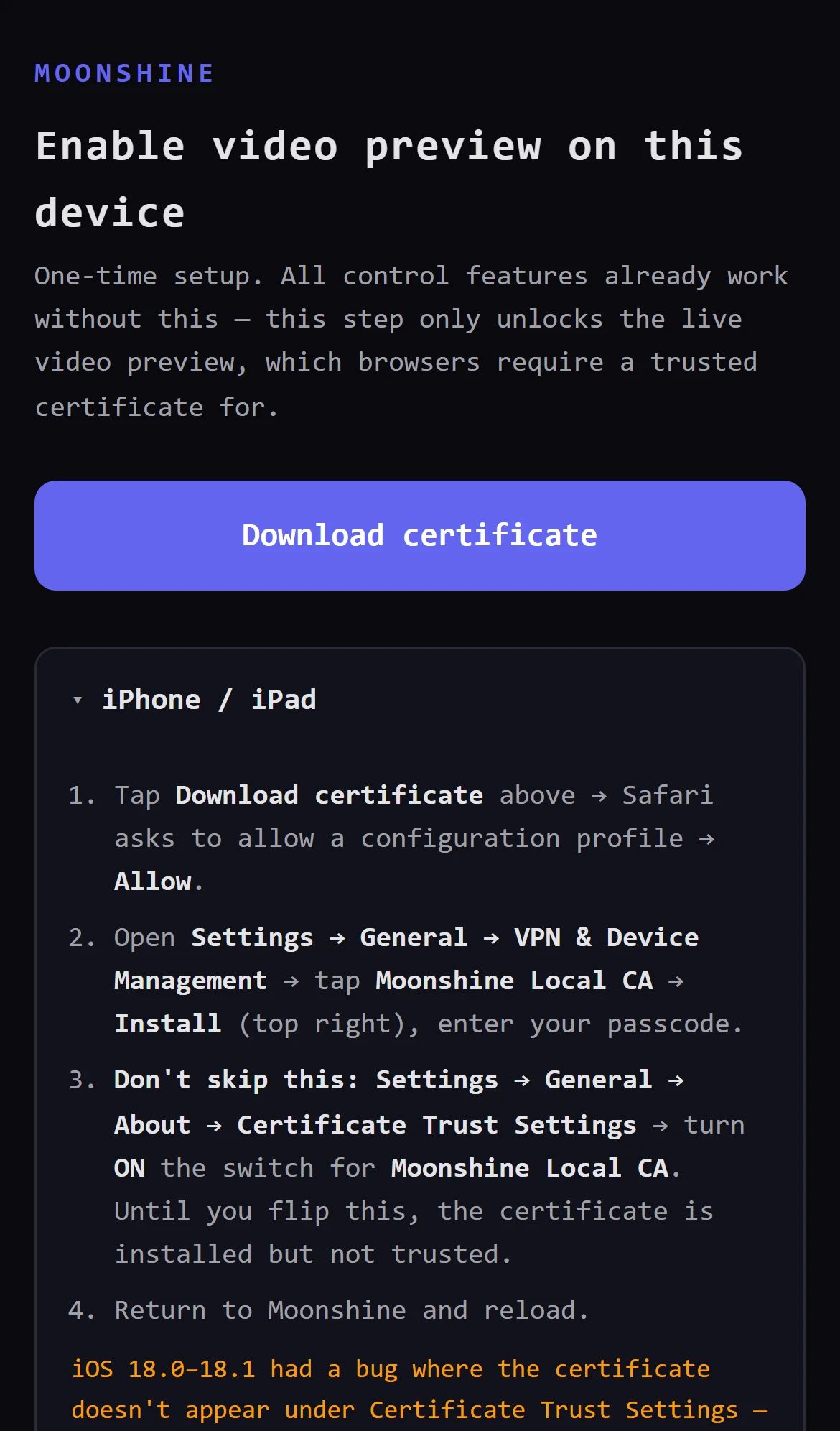
- Tap Download certificate. Safari asks to allow a configuration profile. Tap Allow.
- Open Settings → General → VPN & Device Management, tap Moonshine Local CA, then tap Install (top right) and enter your passcode.
- Don't skip this step. Go to Settings → General → About → Certificate Trust Settings and turn on the switch for Moonshine Local CA. Until you do, the certificate is installed but not trusted, and video won't appear.
- Return to Moonshine and reload the page.
iOS 18.0–18.1
In these two releases, a bug keeps the certificate from appearing under Certificate Trust Settings. If this happens to you, update to iOS 18.2 or later.
- Tap Download certificate.
- Go to Settings → Security & privacy → More security settings → Encryption & credentials → Install a certificate → CA certificate, then choose the downloaded file. Choose CA certificate, not the VPN or app option.
- Reload Moonshine in Chrome.
Android shows a permanent "Network may be monitored" notice for any certificate you install yourself. This is expected.
- Download the file, then double-click it → Install Certificate → Current User → Place all certificates in the following store → Trusted Root Certification Authorities → Finish.
- Quit and restart the browser completely. Reloading the tab isn't enough.
- Download the file and double-click it. Keychain Access opens. Find Moonshine Local CA in the System (or login) keychain.
- Double-click it, expand Trust, set When using this certificate to Always Trust, then close the window and enter your password.
- Reload Moonshine.
Firefox has its own certificate store, so the operating system steps above don't apply to it. On any desktop operating system, do this instead:
- Settings → Privacy & Security → Certificates → View Certificates → Authorities → Import, choose the downloaded file, and select Trust this CA to identify websites.
- Reload Moonshine.
Import the certificate rather than adding a site exception. An exception covers only one port, and the interface and the video stream use different ones.
Once the certificate is installed, switch the Share dialog back to Join, scan that QR code (or open the secure address), and sign in. The video preview appears.
Signing in on the joined device
Joining doesn't sign you in. The device opens the same sign-in screen as any other, and you need an account.
One account, one session
Signing in with the same account on a second device ends the session on the first. The first device returns to the sign-in screen without a message. If two people are working at once, give each of them an account (see Users and sessions).
On a phone
A phone opens on the work area, in portrait or landscape, with the sidebar and the bottom panel closed and the Preview and Playback cards minimized. Whatever you open stays open.
- Sidebar: tap the » button at the top left to open it over the work area. Tap beside it to close it.
- Status bar: shown as icons. The show machine's name and dot are on the left, then the Preview and Playback cards, the Scene Graph, the Timeline and the Control drawer. Tap a card's icon to bring the card back.
- Hover controls: controls that appear when a mouse hovers, such as a projector's rename and delete buttons, are always shown on a touch screen. Tap the projector name in the top bar to open the projector list.
- Right-click menus: long-press, holding your finger still for half a second. If your finger moves first, it drags, orbits or scrolls as usual. Once the menu is open, the rest of that touch doesn't move anything.
- Toolbars: a toolbar too wide for the screen wraps onto a second row. The Warp and Mask toolbars show the projector as its color dot.
- Mask editor: the toolbar also switches between Brush and Pen, and between Paint and Erase, so you can paint without opening the sidebar. The brush's size, hardness and opacity are in the sidebar.
- Projectors → Outputs: the displays are at the top and the selected projector's output settings are below them. Scroll down to reach the settings.
If it does not work
| Symptom | Likely cause |
|---|---|
| The QR code opens a page that never loads | The device is on a different network from the show computer, such as a guest Wi-Fi network, or on mobile data instead of Wi-Fi |
| The interface loads but the video panes stay empty | The device is using the no-setup address, or the certificate setup isn't finished. On an iPhone, check the Certificate Trust Settings switch |
| It worked yesterday but not today | The show computer's address has changed. Open the Share dialog again and scan the current code |
| The dialog warns there's no network address | The show computer isn't on a network the other devices can reach |
Next: Tour of the interface.