Tour of the interface
Learn the parts of the window that are always there, so you know where to look when other pages mention the sidebar or the status bar.
Moonshine has a single window. The main pane changes with the tab you choose, and everything around it stays in place.
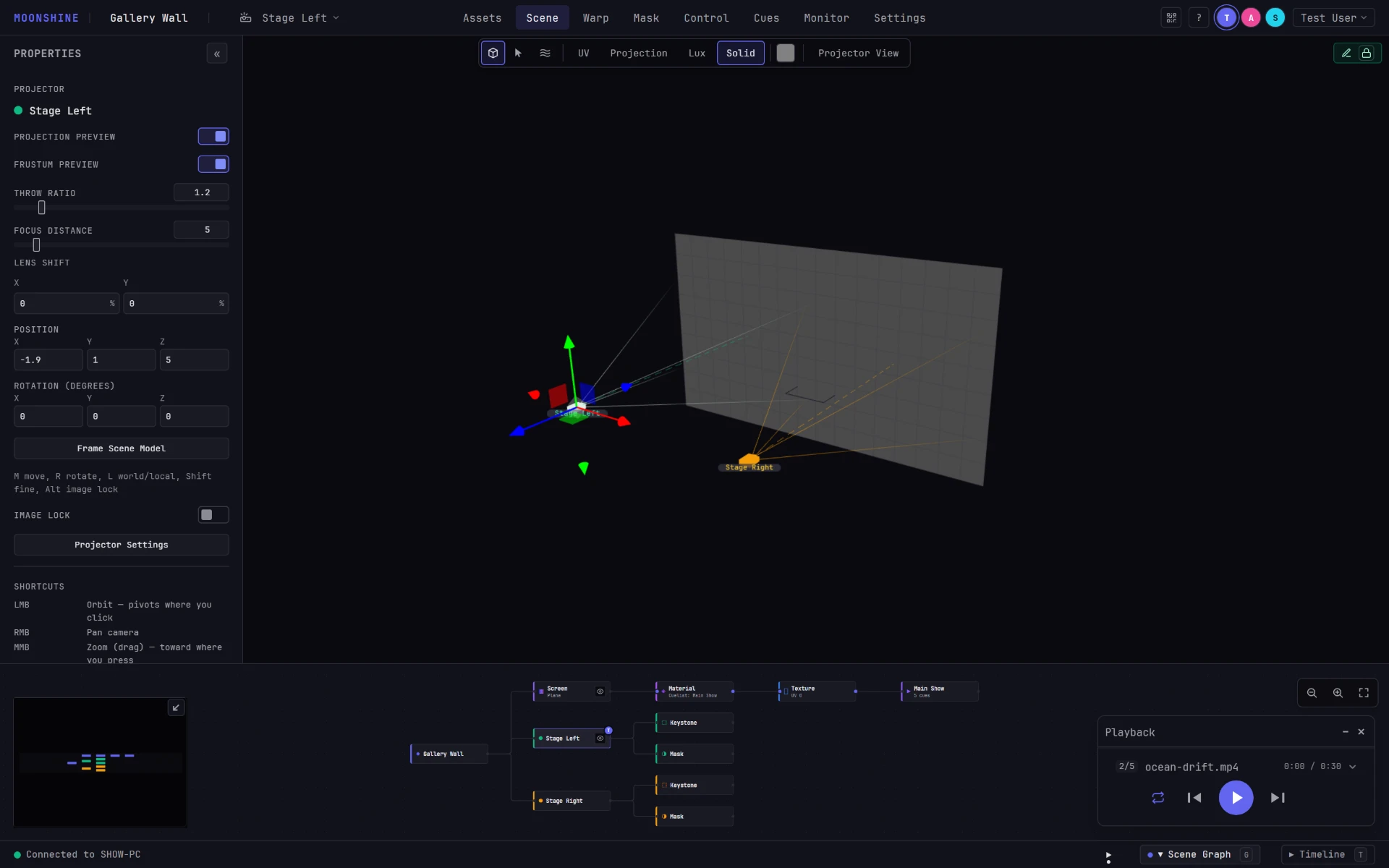
| Region | Where | What's there |
|---|---|---|
| Top bar | Across the top | Project, projector, tabs, blackout, save state, undo, sharing, help, who else is here, your account |
| Sidebar | Left, collapsible | Properties and lists for the current tab |
| Main pane | Center | The tab itself |
| Scene graph | Bottom, collapsible | The node view of the project |
| Status bar | Bottom edge | Connection, timecode, card dock, the bottom panel's drawers |
| Floating cards | Anywhere over the main pane | Preview and Playback, which you can drag |
The top bar

From left to right:
MOONSHINE: the wordmark.
Project name: click it to open the Projects window and switch to another project.
Projector selector: a projector icon and the name of the selected projector, or Projectors when none is selected. Hover over the name to open the list, headed Select Projector. Each row shows the projector's color, its name, a lock icon if someone else is holding it, and a check mark if it's the current one. Click Manage Projectors at the bottom of the list, or click the name itself, to open the projectors view and edit their settings. The icon turns into a gear when you hover over it, and clicking it goes straight to Manage Projectors.
The selected projector matters. The Warp tab, the Mask tab and much of the Scene tab act on the projector selected here.
Tabs: the views.
| Tab | What you do there |
|---|---|
| Assets | Upload, organize and preview media and models (see Projects & Media) |
| Scene | Place surfaces and projectors in 3D and choose display modes (see Building the Scene) |
| Warp | Align each projector in 2D, with 4-corner and bezier mesh warping (see Alignment) |
| Mask | Mask each projector (see Masking) |
| Control | Set up show control: what OSC, MIDI or timecode does, and what is sent when a show starts or ends (see Show control) |
| Cue | Build and play cuelists, each shown as a list beside a 3D view of the surface, with a timeline in the bottom panel and the transport (see Cuelists) |
| Monitor | Check the connection, projector health and logs (see Monitoring) |
| Settings | Settings for you, the open project, the servers on the network and, for administrators, users and the show machine (see below) |
Settings has four groups:
- User: Profile (the name others see for you, and your password; also available under your username at the top right) and MCP (your AI apps).
- Project, for the open project: General (its name, and whether it plays when it opens), Audio, Video (the status panel, the canvas every asset is fitted into, and the live sources it receives), Control and Snapshots.
- Cluster, for every Moonshine server on the network, which administrators can change: Servers (each server's license, its name on the Transmission board, which server leads, and the size of the browser preview streams), Transmission, and Advanced, for the show the servers play together.
- Admin, for administrator accounts only: users, sessions, and the show machine's diagnostics and restart.
Tabs stay loaded once you've visited them, so switching back and forth keeps your place.
Settings can be read-only while a colleague has it open
A page of Settings → Project takes the project's settings lock while it's open, and an administrator on Settings → Cluster takes the machine settings lock. If someone else got there first, the fields are grayed out for you until they leave the page. The lock indicator, at the right end of the page's tabs, shows who holds it.
On the right side of the top bar:
Blackout: takes every projector to black, and back again. The shortcut is Shift+B. See Blackout.
Save dot: a small amber dot that appears while your changes haven't yet reached the show computer. No dot means everything is saved. Hover over it for details:
| Dot | Tooltip | Meaning |
|---|---|---|
| Amber, pulsing | Saving changes to the project… | Changes are on their way |
| Amber, pulsing | Warp edits not baked yet. On the Scene tab, choose the Warp tool (W) and press Bake Warp to keep them. | Warp changes are waiting for a bake (see Baking and reverting) |
| None | Everything is saved, or nothing has been edited |
Saving is continuous, so there's no Save button or save shortcut. The green dot at the bottom left shows the connection, not the save state.
Undo and Redo: the same as Ctrl+Z and Ctrl+Shift+Z, for a touch screen or a mouse.
Share button (QR icon): opens the dialog for connecting another device. See Join from another device.
Help button (?): a menu with Keyboard Shortcuts, which opens the full shortcut list (also ?), and Docs, which opens this documentation in your browser. Below them, the menu shows the version of Moonshine on the show machine and, in the desktop app, the app's own version.
Presence avatars: one circle for each signed-in person, with their initial and color. Yours has a ring around it. Click someone else's avatar to follow their Scene camera. A Following chip with their name appears, with an ✕ to stop. See Following an operator.
Your username: click it for the account menu, with Profile… (which opens Settings → User → Profile) and Logout.
Narrow windows
When the window is too narrow for the tabs, the project name and the tabs move into a ☰ menu, which also shows the name of the current view. In narrower windows, the projector selector moves into that menu too, and the share button, help button and presence avatars are hidden. In the narrowest windows, the MOONSHINE wordmark and the view name beside ☰ are hidden as well.
When the show machine has an update to report, a strip appears under the top bar in every signed-in browser and app (see Updating Moonshine).
The sidebar
The left panel holds the controls for the current tab and whatever you've selected:
| Tab | Sidebar |
|---|---|
| Projectors | Projectors: the list of projectors, which you can drag to reorder, and + Add Projector |
| Assets | Asset Browser: a type filter button beside the title (All / None / Meshes / Images / Videos / Sources / Tox, each a toggle), then Upload, Add Source and New Folder, then the folder tree. The upload drop zone, or the selected asset's details, is in a column on the right of the tab |
| Scene | Properties: the properties of whatever is selected, and controls for the active mode |
| Warp | Properties: the 4-Corner / Bezier Mesh switch and that mode's controls |
| Mask | Properties: mask tools and layers |
| Cue | Cuelists at the top, Asset Browser below |
| Control, Monitor, Settings | None. These views use the full width |
- Collapse it with the « button on its edge. Expand it again with the » at the left end of the view's top row. \ does the same from the keyboard.
- Resize it by dragging its right edge. Moonshine remembers the width.
- Panels that someone else has locked are dimmed and don't accept edits.
The bottom panel
The panel along the bottom of the window has three drawers: the scene graph, the timeline and the Control drawer. Each one opens and closes independently. Open drawers sit side by side, in that order, sharing the width in halves or thirds, with a divider between them that you can drag.
Each tab keeps its own panel. The panel starts open, with the scene graph, on Scene and Cue, and closed on the other tabs, where you can open it when you need it. The Control drawer starts closed on every tab. Whatever you open or close on a tab stays that way on that tab, and is remembered on this device. On a phone, the panel starts closed on every tab.
- Scene graph: the Scene Graph pill in the status bar, or G.
- Timeline: the Timeline pill beside it, or T.
- Control: the Control pill beside that, or C. It holds the controls you've pinned on the Control tab, ready to use from any tab (see The Control drawer).
- Close a drawer with the ✕ at the end of its header, or with its pill or key.
- Resize the panel by dragging its top edge. Until you do, it takes about a third of the window's height. Drag a divider to give one drawer more width than its neighbor. Closing the last open drawer closes the panel.
The Timeline draws the cuelist that's open on the Cue tab to scale, with a line at the playback position, and lets you move, trim and add cues with the mouse. See The timeline on the Cue tab's page.
The scene graph
The scene graph shows the whole project as nodes: the scene, its surfaces and their materials, the projectors with their warps and selection sets, every cuelist, and every asset in its folders.
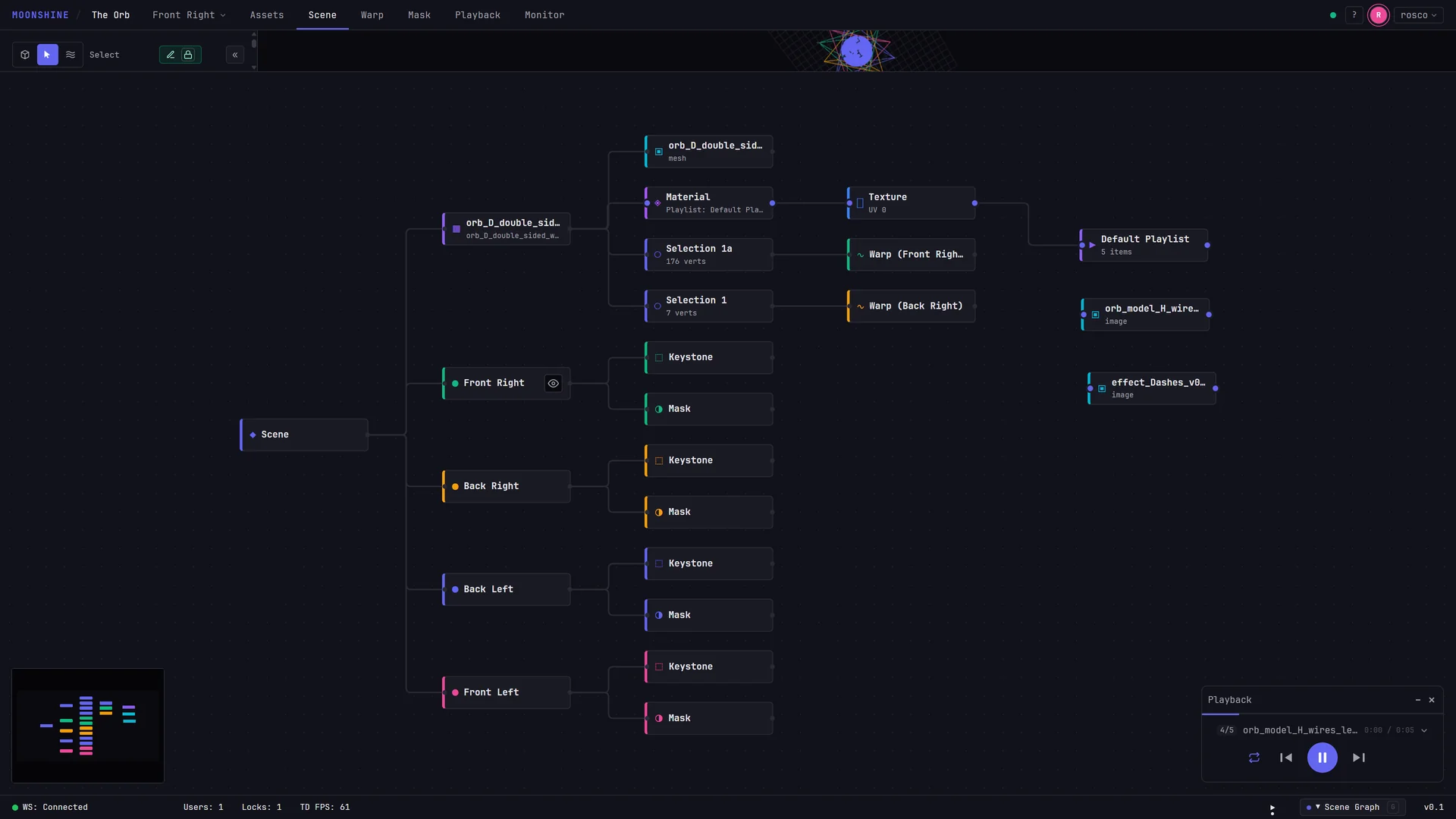
- Right-click empty space or the Scene node (on a touch screen, long-press) for Add (projectors, planes, boxes and 3D models; see Adding projectors and surfaces), Show Asset (with a search field for finding a file) and Add Cuelist. Right-click a node for the actions that apply to it. An item with ▸ opens its submenu when you rest the pointer on it, or when you click or tap it. With the keyboard, Right opens a submenu, and Left or Esc closes it.
- With the pointer over the graph, F fits everything into view.
The graph is also where you attach media to a surface. See Putting media on a surface and The scene graph.
The status bar
First launch describes the status bar in detail. In short, the connection state is on the left (in the desktop app, click the show machine's name to switch to another), followed by the project's timecode when it has one. On the right are the card dock and the Scene Graph, Timeline and Control pills, one for each drawer of the bottom panel. The top bar shows who else is signed in, and the Monitor tab shows the engine's frame rate.
Floating cards
Two cards float over the main pane, so you can watch the render and the transport from any tab:
- Preview: a small 3D view of the whole show, with every surface in place and what the projectors put on it.
- Playback: the transport, with progress, the current cue, play/pause, previous/next and loop.
They work like small windows:
- Move a card by dragging its title bar. Release it near an edge or corner of the window, the edge of a panel, or the other card, and it docks there. Anywhere else, the card stays where you release it.
- A docked card moves with what it's docked to. Drag the bottom panel taller and the card rises with it. Close the panel and the card drops to the bottom of the window. On a tab without the panel it was docked to, the card sits at the window's edge on that side.
- Resize a card from its bottom-right or top-left corner. Preview resizes in both directions, up to two thirds of the window. Playback resizes only in width.
- Minimize (–) parks a card in the dock, and Hide (✕) closes it.
- The dock icons in the status bar bring cards back. A dot under an icon means the card is on screen, and a dimmed icon means it's hidden. Clicking an icon switches the card between minimized and visible.
- On a phone or tablet, or in a window narrower than 1280 pixels, the cards start minimized so they don't cover your work. Once you show, minimize or hide a card, it stays that way.
- A card is hidden on a tab that already shows the same thing: Preview on Scene and Cue, whose panes show the same 3D view, and Playback on Cue. Its dock icon is hidden too. The card returns as you left it on the next tab.
The Preview shows every visible surface, whichever one is selected, with all its materials as the projectors draw them. Double-click inside the Preview card to fit the whole show into it, seen from your current angle. Right-click for Home (the same fit), Auto-rotate (on or off, with the current state shown beside it), Refresh stream (requests the video feed again if it has stalled) and Open in Scene. If the card reads No scene mesh, the project has no surface yet.
Getting around faster
- / opens the command palette. Type a few letters to go to a tab, add a projector or surface, select a projector by name, show or hide panels, or open the project browser. See Command palette.
- 1 to 9 select projectors by their position in the list.
- Ctrl+Z undoes and Ctrl+Shift+Z redoes (Cmd+Z and Cmd+Shift+Z on a Mac). Masking and warp sculpting keep their own histories, so the same keys undo within whichever one you're working in.
- ? opens the full list of keyboard shortcuts. See Keyboard shortcuts.
Single-key shortcuts and text fields
Shortcuts like G and \ are ignored while the cursor is in a text field, so naming a projector "Garden" won't toggle any panels.
Undo history is not permanent
Switching projects or reloading the page clears it. A connection that drops and comes back keeps it.
Next: Your first mapping.