Uploading media
Bring images, videos and 3D models from your computer into the open project's library.
Where uploads go
Uploads belong to the project that's open, and they go into the folder selected in the Asset Browser sidebar. With All Assets selected, they go to the top level.
Select the folder before you upload. You can move files afterward (Organizing media), but choosing the folder first saves a step.
Two ways to upload
The Upload button
On the Assets tab, click Upload under the Asset Browser title. Pick one or more files and confirm. The file picker offers only the types Moonshine accepts, and the files go into the current folder. To upload into a different folder, right-click it in the folder tree and choose Upload….
Drag and drop
Drag files from your desktop and drop them anywhere on the Assets tab: the file area, the header or the right-hand column. While you drag, the tab is outlined and shows which folder the files will go to.
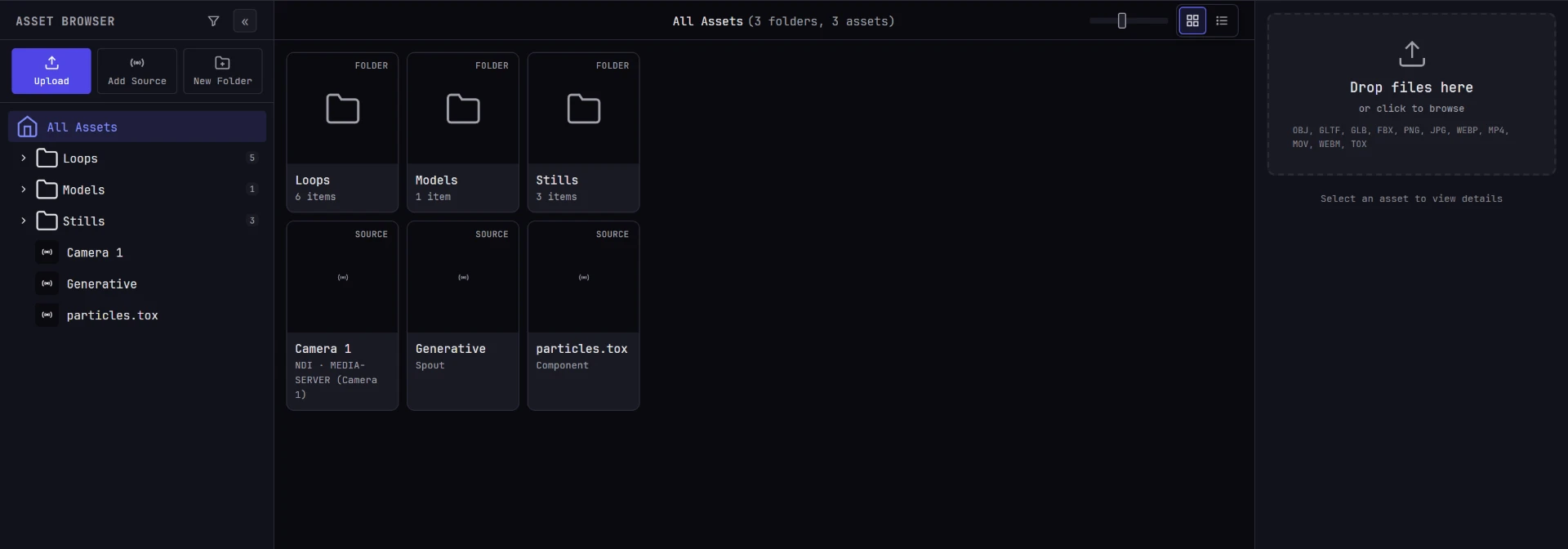
When nothing is selected, the right-hand column also shows a dashed drop zone reading Drop files here / or click to browse. Click it to open the same file picker as Upload.
You can drop a whole batch at once. Files upload in parallel, and you can keep adding more while earlier ones are still going; the drop zone shows how many are in progress.
Supported formats
| Kind | Extensions |
|---|---|
| Models | .obj, .gltf, .glb, .fbx |
| Images | .png, .jpg, .jpeg, .webp |
| Video | .mp4, .mov, .webm |
| Components | .tox, administrators only; see Live sources |
Files with any other extension are ignored: they don't appear in the library, and no message is shown. If a file doesn't show up, check its extension first.
If an operator uploads a .tox, a notification refuses it: Couldn't upload, the file name, and Only an admin can add or replace a component (.tox): a component is code, and it runs on the show machine.
A file's container and its codec are different things. A .mov can hold anything from H.264 to ProRes, HAP or DNxHR. They all upload, but they preview differently in your browser (see below).
For what each format is good for, see File formats.
What happens during an upload
- Your browser reads the file's dimensions, duration or vertex count, and makes a thumbnail.
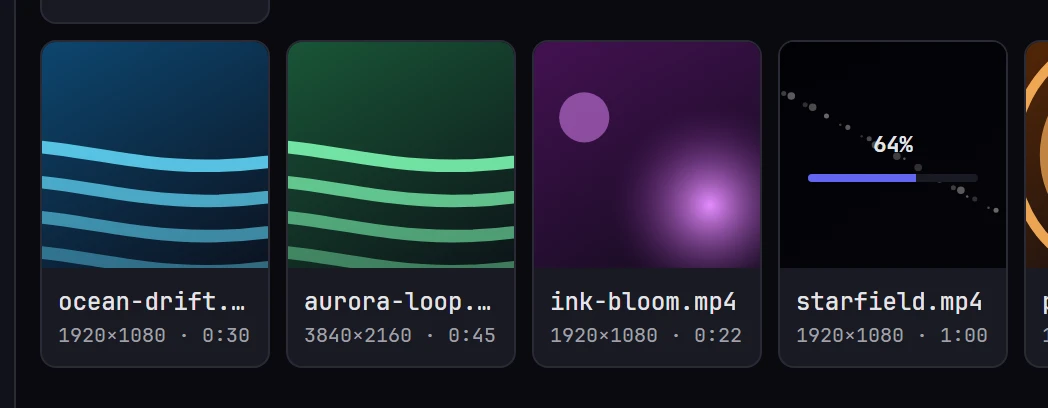
- A tile for the file appears in the library at once, showing a percentage and, in grid view, a progress bar over the thumbnail.
- The file is sent to the show machine. It becomes an asset only once all of it has arrived.
- When the upload finishes, the progress overlay clears and the asset is available to everyone connected.
What's recorded depends on the type:
| Kind | Recorded |
|---|---|
| Image | Width, height, file size |
| Video | Width, height, duration, file size, and the codec for video your browser can't preview |
| Model | Vertex count (.obj only), file size |
All of it appears in the properties column when you select the asset, and list view shows the main figures as columns.
Thumbnails and previews
Thumbnails for images, models and video your browser can play are made in your browser, so they appear as soon as the tile does. You can orbit a model in the preview pane.
Your browser can't decode some codecs, such as HAP, HAP Q and ProRes. These files upload and play on the projectors normally (Codecs the show machine plays), but your browser can't play them inline. For these files:
- The show machine makes the thumbnail, and it arrives shortly after the upload finishes.
- The preview in the properties column shows that thumbnail with a small badge naming the codec, in place of a video player.
Only the preview in your browser is affected; the file plays normally on the projectors.
Large files
- Each file can be up to 5 GB. A larger file gets a tile, then is refused before any of it is sent.
- Upload speed depends on the network between your device and the show machine. A 40 GB folder of ProRes over hotel Wi-Fi will take a long time, so use a wired connection or upload from the show machine's own browser.
- If an upload fails partway or is refused, its tile is removed, so a partly sent file doesn't leave a broken asset behind. A notification shows Couldn't upload, the file name and the reason. Drop the file again to retry.
- An upload belongs to the project that was open when it started. If someone opens another project before it finishes, the upload fails with Another project was opened while this uploaded. Add it again.
You can't cue a clip that's still uploading
The show machine can play a clip only once all of it has arrived. If you cue one that's still uploading, a warning names the clip and shows how far the upload has got. Try again when it finishes.
Upload media ahead of time
Uploading is the slowest part of preparing a show, and it doesn't need projectors or a dark room. Create the project and upload the media the day before, so alignment can start with real content.
Next
- Organizing media: folders, renaming, replacing and deleting
- Putting media on a surface: wire an image, a video or a cuelist to a surface