Moonshine
Moonshine is projection mapping software for artists, designers and anyone who has ever wanted to projection map without limits. It makes professional mapping accessible at any skill level, and it stays intuitive from your first surface to a full multi-projector show.
Line up projectors on a building, a set piece or a curved wall, blend their edges, mask them and play your content, all from one interface. Your whole team can work on the same show at once, from a laptop at the desk or a phone up on the ladder.
How it works
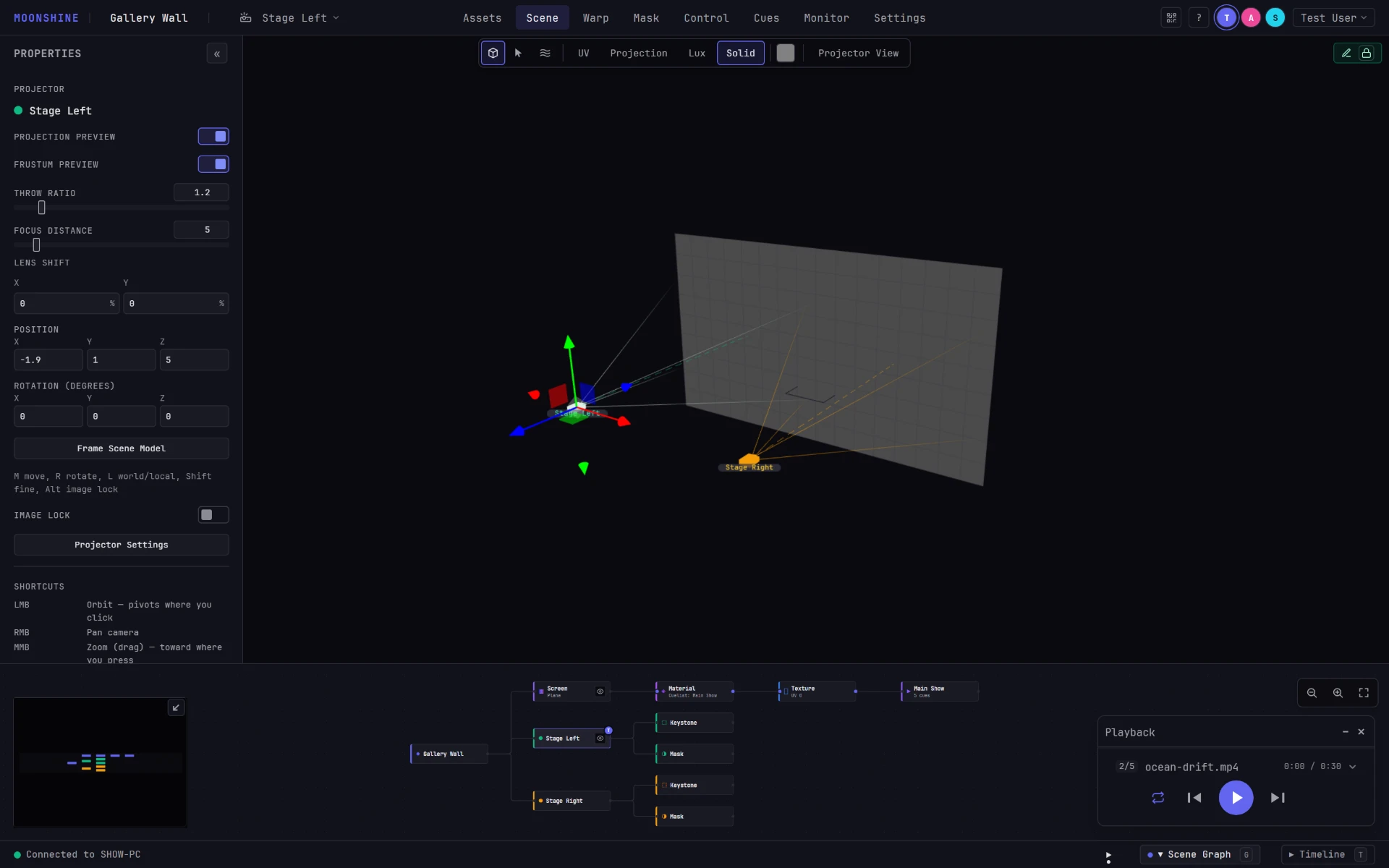
One show computer, a Windows PC or a Mac, renders the show with TouchDesigner and serves the interface. Everyone else signs in from the Moonshine desktop app or a browser on the same network and works on the same project: the surfaces, where each projector sits, how its image is warped and masked, and what plays.
You never need to open TouchDesigner to run a show. If you already know it, it's there when you want to go further, and any TouchDesigner component can play as a live source.
Who it's for
If you're new to projection mapping, you can have a surface mapped and playing in your first session. If you've mapped large shows before, the tools you expect are all here: mesh warping, edge blending, masks, cuelists, timecode and MIDI/OSC show control.
Moonshine is at its best when:
- several projectors cover one surface and their edges have to blend;
- the surface isn't a flat screen, but a set piece, a building, a sculpture or a curved wall;
- you're aligning on site, from a ladder or the middle of the room, with a phone or tablet in hand;
- several people are aligning at once and nobody can afford to overwrite anyone else's work.
Start here
Install and activate: install the show server, connect the desktop app or a browser, and activate the show machine.
Your first mapping: about ten minutes from start to finish. Create a project, add a projector and a surface, put media on it, align it and play it.
Join from a phone or tablet: scan a QR code to open the same session on another device, so you can align from where the light lands.
Find your way around
New to the interface? The tour of the interface covers the parts that are always there: the top bar, the sidebar, the scene graph panel, the status bar and the floating cards.
| Section | What it covers |
|---|---|
| Projects & Media | Creating projects, uploading media and models, putting media on a surface |
| Building the Scene | Surfaces, projectors, display outputs, view modes, the scene graph |
| Alignment | 4-corner keystone, bezier mesh, sculpting the 3D surface, baking |
| Masking | Vector masks and layers, per projector |
| Playback | Cuelists, transport, transitions, image adjustments, sound, the Transmission control board |
| Working Together | Locks, following another operator, co-sculpting, users and sessions |
| Monitoring | Engine performance, the show machine's own screen, network health, projector status, logs |
| Reference | Shortcuts, command palette, file formats, glossary, FAQ |
One project, many screens
The show computer holds the project. Every app and browser that connects shows that same project, so there's no local copy to merge later and no Save button. Your changes appear on everyone's screen as you make them, and the dot in the top bar shows when they've been written to the show computer.
When you start editing something, such as a projector, a warp or the playback transport, Moonshine locks it to you so nobody else can change it at the same time. See Locks.
For bigger shows, several show computers can play one show together, each driving its own projectors. See More than one show machine.