Projector health
See what each projector reports about itself (power state, lamp hours, shutter, input and faults) and control its power, input and sound from Moonshine.
This needs network-controllable projectors
Everything on this page needs projectors that support PJLink and that the show machine can reach over the network. A projector without network control, or with it switched off, reports nothing and doesn't appear in the Projectors panel. Check the projector's manual for PJLink support and how to turn it on.
Set a projector up for telemetry
- Select the projector in the top bar. The button there shows the current projector's name, or Projectors when none is selected. Click it to open the projector pane, or hover over it and choose from the Select Projector list.
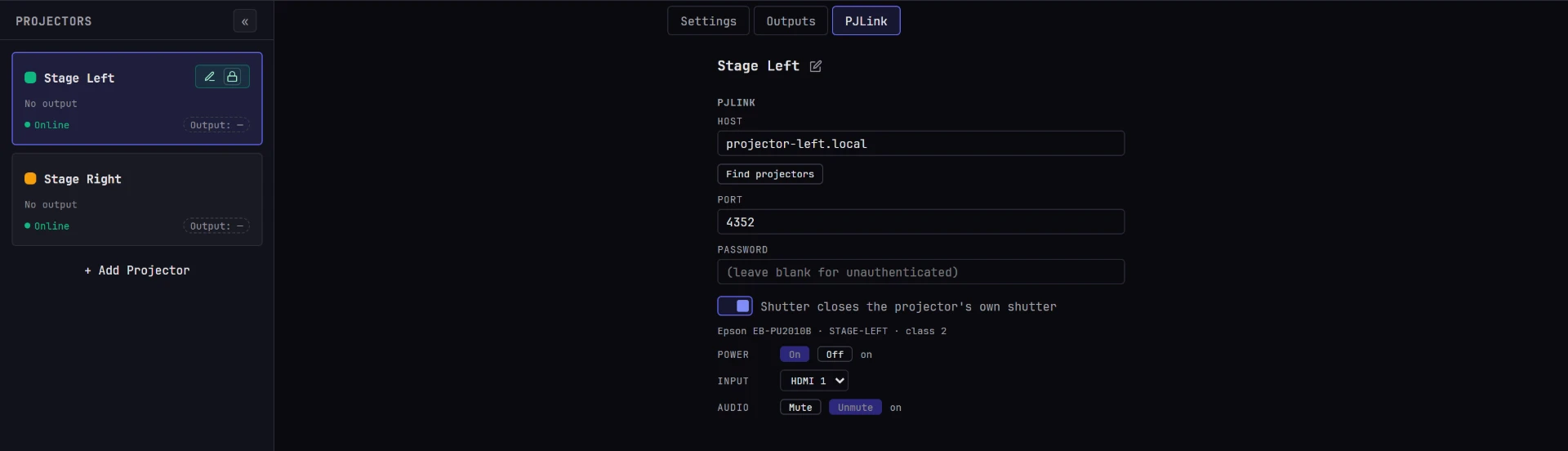
- Open the PJLink sub-tab, between Outputs and Test Pattern.
- In Host, enter the projector's network address, for example
192.168.1.42. Or click Find projectors and pick it from the list (below). - Leave Port empty unless the projector uses a non-standard port. Empty means the standard port,
4352. - Enter a Password only if the projector requires one. Leave it empty for a projector without authentication.
You don't choose a PJLink class. Moonshine asks the projector whether it supports class 1 or class 2 and uses the right one.
The control strip appears below as soon as Host has a value. Until the first successful poll, it reads No PJLink telemetry yet — set host above and wait one poll cycle. Moonshine polls every few seconds, so allow about five. Once the projector answers, the top line of the strip shows how it identifies itself: its make and model, its own name and its class. Check that it's the projector you meant.
To stop polling a projector and remove its PJLink settings, clear Host.
If it stays unreachable
PJLink endpoint unreachable, followed by a reason, means the show machine couldn't talk to the projector at that address.
- Timed out or refused: check the address, that the projector has mains power, that it's on the same network as the show machine, and that PJLink is turned on in the projector's menu (it may be called network control or standby network).
- Authentication failure: check the password. Some recent projectors accept only the SHA-256 sign-in from PJLink 2.10, which Moonshine doesn't support yet, and they show the same error.
Passwords stay with the show machine
A PJLink password is saved with the project, stored so that only the show machine that saved it can read it. If you move or copy a project to another show machine, enter its PJLink passwords again there.
Find projectors on the network
Find projectors asks every projector on the show machine's networks to identify itself. It takes about ten seconds, and the button counts down while it listens.
Each projector that answers is listed with its make and model, its name, its address and its MAC address. Click one to use its address as Host.
- A projector that requires its password before it identifies itself is listed as such, with its address only.
- An address that another projector in the project already uses is marked with that projector's name.
- Only PJLink class 2 projectors can be found. Class 1 has no search, so older projectors don't appear, and an empty list doesn't mean there are none. Enter their addresses by hand.
- The search runs from the show machine, so it finds projectors on the show machine's networks, not your laptop's. A firewall on the show machine that blocks incoming UDP on port
4352hides every answer.
The health grid
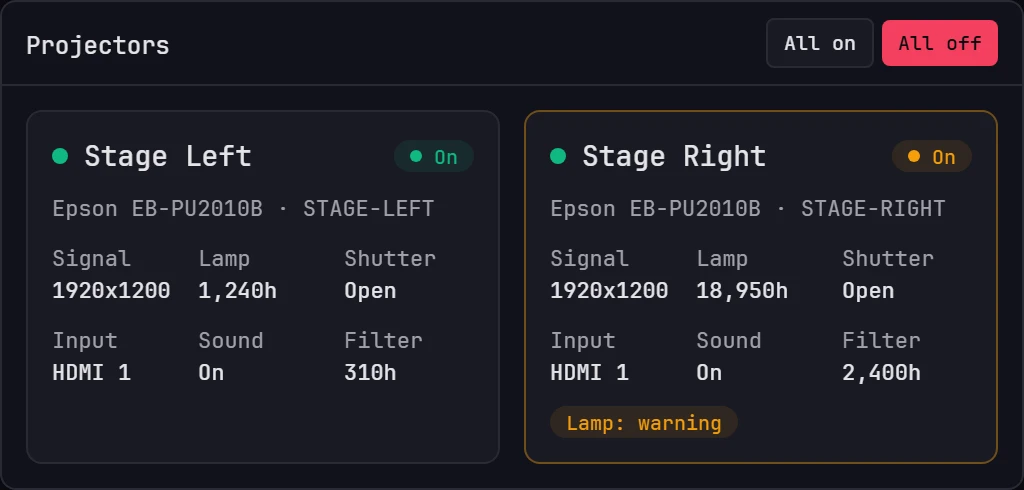
The Projectors panel on the Monitor tab shows a card for each projector that's reporting. With none set up, it reads No projectors reporting. When several show machines play one show, only the leader polls the projectors, so check their health on the leader.
Each card starts with a dot, green if the show machine reached the projector at the last poll and red if it didn't. Then comes the projector's name, with a status badge on the right. Under the name is how the projector identifies itself: its make, model and own name. A card for a projector that can't be reached says why.
The status badge reads:
| Badge | Meaning |
|---|---|
On |
Powered and running. |
Off |
In standby. |
Warming |
Powering up. |
Cooling |
Powering down. |
Unknown |
Reachable, but it didn't report its power state. |
Disconnected |
The show machine couldn't reach the projector at the last poll. |
The readings follow. A reading the projector can't give is left out or reads —.
| Reading | What it is | Needs |
|---|---|---|
| Signal | The resolution of the picture arriving at the projector, such as 1920x1080, or No signal in amber. |
Class 2. A class 1 projector reads —. |
| Lamp | Total hours on the light source, added up across every lamp the projector reports. Reads 0h if the projector doesn't answer the lamp query. |
|
| Shutter | Closed or Open: the projector's own shutter. — in standby, and on a projector with no picture mute. |
|
| Input | The input the projector is on, by the name the projector gives it or by its code. | Names need class 2. |
| Sound | Muted or On. |
|
| Filter | Hours on the filter. | Class 2, and a projector with a filter. |
There is no temperature reading
PJLink can't report a projector's temperature, only a temperature fault, which appears among the fault badges below. To see degrees, use the projector's own display or web interface.
A card's border turns amber when the projector reports any fault, and red when it's unreachable or reports an error-level fault. If the projector refused the last command it was sent, the card names the command and the reason.
Fault badges
When a projector reports a fault, badges at the bottom of its card name the part and the severity, such as Fan: warning, Lamp: error, Temp: warning, Cover: error, Filter: warning or Other: error.
| Badge | Usually means |
|---|---|
Fan |
A cooling fan is failing or has failed. Treat an error here as urgent: projectors shut down to protect the light source. |
Lamp |
The lamp or light source has a fault or is at the end of its life. |
Temp |
The projector reports a temperature fault. This is the only temperature information Moonshine shows. |
Cover |
A cover or lens door is open. |
Filter |
The filter needs cleaning or replacing. |
Other |
A fault the projector didn't classify. Check its own display or web interface. |
A warning means the projector has spotted something that needs attention soon. An error means it has a problem now. A warning during load-in, such as a filter due for service, is something to schedule. Fix an error before the show.
How to read the grid at a glance
- Every card
On, with a green dot and no fault badges: every projector is powered, reachable and reporting no faults. Disconnectedwhile the image is still on the wall: the control connection is down, but the video is fine. The projector keeps showing its picture, but you can't see its telemetry or control it. Check the network to the projector, not the video chain.Onbut nothing on the wall: check the card's Shutter and Signal first. A closed shutter shows black.No signalpoints to the cable, the projector's input, or the display outputs assignment for that projector.Unknownon a reachable projector: the projector answered, but Moonshine didn't recognize the power state it reported. Check the projector's own display.- Fault badges on several projectors at once: look for a shared cause, such as the room's air, a power event, or filter service coming due across the rig.
Power for every projector at once
All on and All off, at the top of the Projectors panel, switch every projector that's reporting.
- All off asks you to confirm first. The picture leaves every projector, for everyone, and a projector has to cool down before it can be switched on again, which takes minutes.
- A projector that's already in that state, or on its way there, isn't sent the command.
- A projector that can't be reached, or that someone else is editing, is skipped. The line under the buttons names each projector that was skipped and why, and each one that refused.
Moonshine doesn't schedule power. To switch projectors on or off at set times, use the projectors' own timers or the venue's control system.
Remote control
The control strip is on the projector's PJLink tab, not the Monitor tab. Select the projector in the top bar and open PJLink.
| Control | What it does |
|---|---|
| Power: On / Off | Powers the projector up or puts it in standby. The current power state appears beside the buttons. |
| Input | A dropdown of the inputs the projector reports. It appears only when the projector reports its inputs. A class 2 projector names them. On a class 1 projector, each shows its type, number and PJLink code, such as Digital 1 (31): check the projector's manual for which socket that is. |
| Audio: Mute / Unmute | Mutes and unmutes the projector's audio. The button for the current state is lit, and the state appears beside them. |
The projector's shutter isn't in this strip. The Shutter switch at the top of the same form controls it: it blacks out the picture and closes the projector's own shutter together. See Shutter. To have Shutter black out the picture without closing this projector's own shutter, turn off Shutter closes the projector's own shutter, above the strip.
Moonshine checks each projector's shutter on every poll, so the switch shows what the projector last reported. If Shutter is closed but the projector reports its shutter open (for example, it was off or unreachable when you closed it, or has been power-cycled since), Moonshine closes it again, up to three times. Moonshine never opens a projector's shutter on its own: a shutter closed at the projector stays closed until you open it.
Before you rely on these controls in a show, know how they behave:
- Buttons are unavailable while a command is running, and become available again when the projector answers. If it doesn't answer, the strip shows
timeoutin red after about eight seconds. Other failures show the projector's own reason, for exampleauthentication errorfor a wrong password, orunavailable timewhen the projector can't accept the command in its current state. - A power button is unavailable when it would do nothing. While a projector is
Cooling, only On is available; while it'sWarming, only Off. - When a command finishes, Moonshine polls the projector right away, so the card and the power state update within a second or two.
- Commands go from the show machine to the projector, not from your device, so remote control works the same from a tablet across the room.
- If another user is editing this projector, the whole settings section is dimmed and the controls don't respond, and All on and All off skip it. See Locks.
- The AI assistant (MCP) can read all of this, and can switch power, input and sound when you ask it to.
Rehearse the controls
During load-in, press each control once and watch the projector. The readouts show what the projector reported a few seconds ago, not what it's doing at this instant.
What this panel is not
- It doesn't show whether Moonshine is sending an image to a projector. That's in Outputs.
- It doesn't measure the show machine. Frame rate and load are in the Engine performance panel.
- It doesn't tell you whether the alignment is right, only that the projector is reachable, powered and not reporting a fault.