Locks
Moonshine lets one person at a time edit things like a projector or a cuelist. This page explains how those locks work, and how to take over something you need.
Some things are safe for several people to edit at once: a surface can be sculpted by several people together. Others aren't. If two people dragged the same projector's keystone or reordered the same cuelist, they would undo each other's work. Moonshine protects these with a lock: one person holds the editing rights, and everyone else sees the same controls but can't change them until the lock is released.
You rarely need to claim a lock yourself. Moonshine claims locks for you based on what you select and which tab you open.
What claims a lock
| Doing this | Claims |
|---|---|
| Selecting a projector | That projector |
| Selecting a surface in the Scene | That surface: its position, rotation, scale and source |
| Selecting several projectors and surfaces (Ctrl- or Shift-click, Cmd-click on a Mac) | Each of them |
| Opening the Warp tab with a projector and surface active | The warp on that surface, covering the corners and grid of every projector on it |
| Opening the Mask tab | The selected projector's mask |
| Opening the Cue tab | The playback editor |
| Opening the Control tab | The project's show control |
| Opening a page of Settings → Project | The open project's settings |
| Opening a page of Settings → Cluster, as an administrator | The machine settings |
| Selecting something while the scene graph panel is open | Its node |
Moonshine claims the lock as soon as you select or open the item. If someone else already holds it, you get the read-only view described below.
A projector or surface someone else holds can still be one of several you select. It shows orange in the 3D view and the scene graph. When you move, edit or delete the group, that item stays as it is, and a message says who has it: Moved 2 of 3 — Projector C is held by Dana.
Note
Selecting a surface locks where it is and what it is, but not its shape. Anyone can select points and shape the geometry at the same time; see Editing a surface together. Actions that change the whole surface, such as baking a warp, are still protected by the warp lock.
Reading the indicator
A lock indicator is a small pill next to whatever it protects: in a sidebar header, on a projector row in the selector, on a card title, or in the top-right corner of an editor.
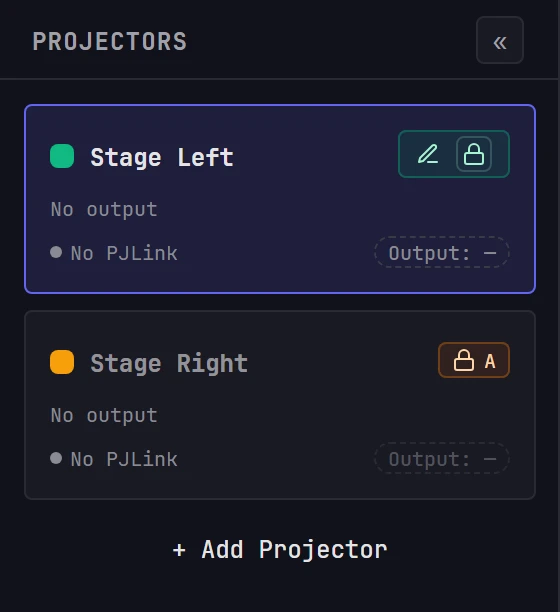
| Pill | State |
|---|---|
| Amber, pulsing dot, Acquiring lock... | Your claim is in progress and resolves in a moment. Where space is tight, it reads Acquiring... |
| Green, pencil icon and padlock button | You hold the lock. The pencil means You're editing this; click the padlock to release it. |
| Orange, name is editing and Request access | Someone else holds the lock. This version appears where there's room: the Cue tab's title row, the scene graph, a Settings page. |
| Orange padlock with an initial | Someone else holds the lock, where space is tight: the Projectors list, the projector selector, a sidebar or card title, and the top-right of the Scene view and the Warp and Mask editors. Hover the initial for the person's name, and click it to request access. |
| No pill | Nobody holds it or is claiming it. |
When someone else holds a lock, the controls it protects are dimmed and don't respond, so you can't make a change that would be lost. You can still look around: you can view a locked projector's settings, but not edit them.
Releasing a lock
All your locks are released when you sign out, close the window or lose your connection, so a closed laptop doesn't leave a projector locked. Until then, each lock is released at a different point:
| Lock | Released when |
|---|---|
| A projector | You select a different projector |
| A scene-graph node | You select something else, or close the scene graph panel |
| A warp on a surface | You leave the Warp tab |
| A projector's mask | You select a different projector |
| The playback editor | You leave the Cue tab (but see the warning below) |
| The show control | You leave the Control tab |
| The project's settings | You leave Settings → Project |
| The machine settings | You leave Settings → Cluster |
Click the padlock on the green pill to release a lock at once, wherever you are. Use it to hand something over without leaving the tab or signing out.
You hold at most one lock of each kind. When you take a second projector, your lock on the first is released.
Tip
A mask lock isn't released when you leave the Mask tab, only when you select a different projector. If someone can't paint on a projector you were masking earlier, select a different projector or click the padlock on the green pill.
The playback editor can come back to you from another tab
Once you've opened the Cue tab in a session, Moonshine claims the playback editor for you again whenever it's free, and after your connection drops and returns, even while you're on another tab. If a colleague on the Cue tab finds it read-only with your name on it, click the padlock on the lock pill in the title of your floating Playback card to hand it over, or reload your page.
A warp lock covers the whole surface
Two people can't align two different projectors on the same surface at the same time. Whoever has the Warp tab open on a surface holds its warp for every projector on it, which also disables Bake Warp and Revert to Source for everyone else. Leave the Warp tab when you aren't using it.
Requesting access
When someone else holds what you need, request access from them.
- Find the orange name is editing pill on the item, or the orange padlock with their initial where space is tight.
- Click Request access, or the padlock. The button changes to Request sent and stops responding, and the pill (or the small padlock badge on a card or list row) pulses while you wait.
- Wait for the holder to respond.
The holder gets a notification that stays on screen until they act on it or dismiss it. Dismissing it leaves your request pending.
Your name is requesting edit access to Projector 2
The notification has two buttons, Grant and Deny. The same buttons also appear on the holder's green lock pill, next to your name requests access, so they can respond from wherever they're looking.
| They choose | What happens for you |
|---|---|
| Grant | The lock moves to you at once. The pill turns green and the controls become active. |
| Deny | Nothing changes, and you aren't notified. Your button reads Request access again, so you can ask later or talk to them. |
Each item can have only one pending request. While someone else's request is waiting, your button reads Request pending and is disabled.
If an AI assistant holds what you need, your request is granted at once without asking anyone, because people take priority over assistants.
Warning
A request is granted only when the holder grants it. If they're away from their screen, it waits; there's no timer that grants it automatically. The quickest way to free the lock is to close the browser window they left open, which releases their locks at once. Otherwise, an administrator can revoke their session, which also releases their locks at once.
Messages you may see
| Message | What it means |
|---|---|
| name is editing Projector 1 — switched you to Projector 2 | When you connected, the projector you last had selected was already locked, so Moonshine selected a free one for you. |
| Couldn't update - name is editing this | Someone locked the item between your click and your change reaching the show machine. Nothing was applied; try again once they release it. |
| Lock denied | You asked for access to something no one holds anymore: its holder released it moments before you clicked. It's free, so select it. |
Related pages
- Presence: who is online and what they're looking at
- Editing a surface together: the parts of Moonshine that have no lock
- Users and sessions: revoking a session when the holder can't be reached