Layers and undo
See how the two parts of a projector's mask, painted coverage and vector paths, fit together, and what undo can and can't take back.
One mask per projector
Each projector has one mask, saved with the project, in two layers: Paint, which this page covers, and Moonblend, which Moonshine calculates for overlapping projectors (see Moonblend). The Paint layer matches the projector's resolution and holds two kinds of work:
| Part | Made with | What it is |
|---|---|---|
| Painted coverage | The brush | One painted image at the projector's resolution, holding every stroke you've painted or erased |
| Paths | The pen | Any number of separate shapes, each still editable point by point |
Both are saved together, and both come back when you reopen that projector's mask. The painted coverage is what the projector holds back. Paths control where the brush can paint.
Two layers, and no stack to manage
Paint and Moonblend have no order to manage: the projector holds back whatever either one covers. Recalculating Moonblend leaves Paint as it is, but it does read it. Where you paint one projector out of an overlap, Moonblend has the others light that area instead. Within Paint, the painted image and the paths have no order either.
How the two combine
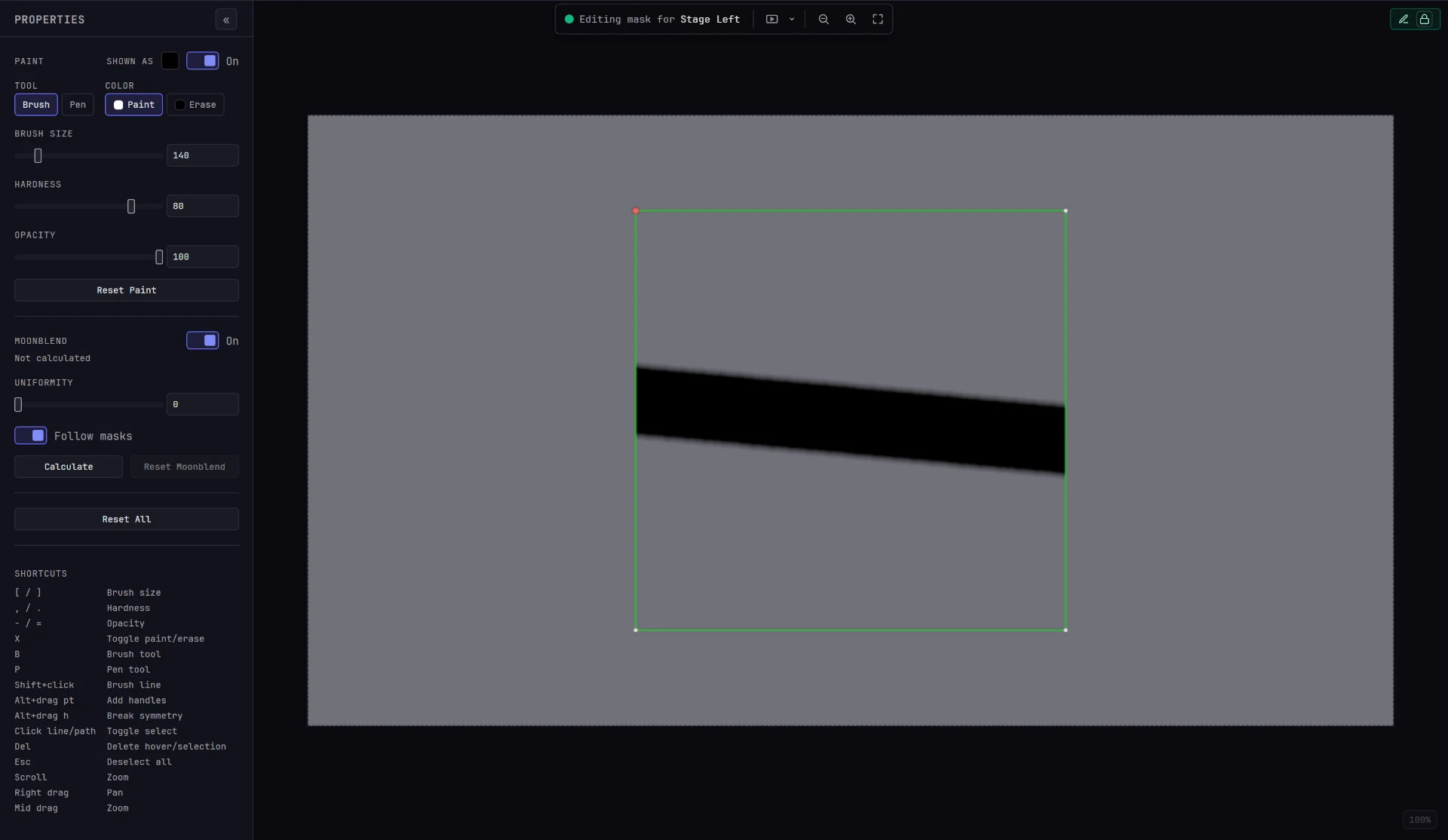
Paths don't sit on top of the painting or hide any of it. In the editor, they constrain the brush:
- A path that is selected and closed works as a stencil. Brush strokes, paint or erase, land only inside it. Several selected closed shapes stencil several areas at once.
- A path that's open, or not selected, doesn't restrict the brush.
- Painting never changes a path. You can paint across a shape and move its points afterward.
So you can work in either order: draw a stencil first and paint into it, or paint roughly and draw a shape later to erase a clean edge.
Opacity
There's no opacity control for each layer. Partial coverage comes from the brush:
- Opacity in the Properties sidebar sets how much coverage one stroke adds. Release and paint again to build it up.
- Hardness sets how the coverage falls off at the edge of the brush.
Both are covered in Brush masking.
Switching projectors
Selecting a different projector swaps the whole mask. Moonshine saves your work on the previous projector first, then loads the new projector's painting and paths. Each projector's mask is stored separately.
What is saved, and when
The Mask tab has no save button. The painting and paths are saved together, as one mask for that projector:
- a moment after you stop painting or stop dragging a point (edits are grouped, so a long pass isn't saved stroke by stroke), and
- when you select a different projector, for the projector you're leaving.
A projector's mask is saved only after it has loaded in the Mask tab, so switching quickly between projectors can't blank one. Anything you paint before the mask has loaded is replaced when it arrives, and isn't saved.
Your last change reaches the show machine a second or two after you make it, so you can close a browser mid-session without losing work.
Undo
Ctrl+Z steps back through your work in the Mask tab, newest first, and Ctrl+Shift+Z steps forward again. There's no undo or redo button.
Undo follows the order you worked in. Brush strokes, path edits (placing a point, dragging a point or handle, deleting, closing a shape) and changes to Moonblend's Uniformity share one history, whichever tool is selected. Paint a stroke, lower Uniformity, then place a point, and three presses of Ctrl+Z undo the point, then the Uniformity change, then the stroke. Redo brings them back in the same order until you make a new change.
Paint keeps up to 50 steps. Brush strokes keep fewer on a large mask, because each step stores a copy of the whole frame: about 30 at 1920 × 1080, and 8 at 3840 × 2160. One stroke, from press to release, is one step, and so is one drag of a point or handle. Erasing counts as a stroke like any other. Steps past the limit are skipped, and undo moves on to the next change it can still take back.
What clears the history
Strokes and path edits leave the history whenever a mask loads, which happens when you:
- open the Mask tab for the first time after starting Moonshine,
- switch to a different projector, or
- receive another operator's saved changes to the mask you're viewing.
After any of these, there's no painting to step back through, though the mask itself is intact. Reset Paint and Reset All clear it the same way. Uniformity changes stay in the history through all of these. Opening another project clears the whole history.
Only the Mask tab reaches it
The Mask tab keeps its own history, and Ctrl+Z reaches it only while the Mask tab is open. On another tab, Ctrl+Z undoes that tab's own edits, not your mask or its Uniformity.
Reset Paint
Reset Paint, below the brush controls in the Properties sidebar, clears both parts of the selected projector's mask. The confirmation says that it clears all brush strokes and vector paths and can't be undone. Reset All does the same and clears Moonblend too. Ctrl+Z after a reset doesn't bring the painting back; it moves on to an earlier Uniformity change, if there is one. Use Reset Paint when you want a blank mask for that projector.
To fix a mistake, press Ctrl+Z before you do anything else.
Working with other operators
Only one person can edit a projector's mask at a time, and opening it takes the lock. Your undo history is yours alone. It isn't shared, and taking over a mask from another operator doesn't give you their history. While someone else holds the mask you're viewing, Ctrl+Z in the Mask tab does nothing, including for Uniformity. See Locks.
Where to go next
- Brush masking: the brush, its controls and its shortcuts.
- Vector masks: drawing and editing paths, and using them as stencils.
- Keyboard shortcuts: every shortcut in one list.