Supported file formats
The file types Moonshine accepts when you add media, and which formats work best on site.
The full list
| Kind | Extensions |
|---|---|
| 3D models | .obj .gltf .glb .fbx |
| Images | .png .jpg .jpeg .webp |
| Video | .mp4 .mov .webm |
| Components | .tox (administrators only) |
A .tox is a TouchDesigner component that renders live, not a media file. See Live sources. NDI, video device and Spout sources are added by name, and web pages by their address, so they have no file format.
The drop zone in the media library shows a short version of this list under the Drop files here prompt. You can drop or choose several files at once, and they upload together. Files you drop while others are still uploading start straight away, and the prompt shows how many are uploading.
Anything else is ignored without a message
The file picker shows only the extensions above, and an unsupported file you drag in is ignored: no item appears and no error is shown. If a file you dropped never shows up in the library, check its extension first. (A .tox dropped from an Operator account is refused with a notification.)
3D models
Use .glb, .fbx or .obj. The projectors draw all three. A GLB keeps all its geometry inside the one file you upload.
A plain .gltf comes in as a placeholder box
A plain .gltf is a JSON file that usually points to a separate binary file and separate textures, and Moonshine uploads only the one file. Any .gltf, even one with its data packed inside, appears in the scene as a placeholder box, and no projector draws it, although its thumbnail in the library may still show the model. Export as GLB (binary glTF) instead.
A compressed GLB is not drawn by the projectors
The show machine can't read a GLB whose geometry is compressed (Draco or meshopt), so the surface doesn't appear on the projectors. Export without mesh compression.
What comes across
| Carried over | Not carried over |
|---|---|
| Geometry (positions and faces) | Materials |
| Normals, when the file has them | Textures and image maps |
| UV coordinates, when the file has them | Lights, cameras, animation |
| Vertex colors (glTF/GLB) | |
| Each mesh's name (FBX, GLB) or object's name (OBJ), as a part of the model you can hide |
Moonshine shades every model with a plain, neutral surface. What appears on it comes from the media you assign, not from the file's own materials. See Putting media on a surface.
Practical guidance
- Export UVs if you plan to use the UV view mode or map media by the model's own coordinates. A model with no UVs still warps and still receives projected light, but UV mapping has nothing to work from.
- Include only the geometry you project onto. Extra set dressing adds loading time and clutters the viewport.
- Watch the density. Warping moves the model's vertices, so the mesh resolution sets how finely you can shape a surface. A four-vertex plane bends only at its corners; a subdivided one bends anywhere.
- Model in the units you'll work in. Moonshine doesn't rescale the file.
- OBJ files also show a Vertices count in the media library, a quick way to check that you exported the density you expected.
Images
Moonshine reads .png, .jpg / .jpeg and .webp directly. On upload, it reads the image's pixel dimensions and makes a thumbnail. The Width and Height rows in the item's details show what it found.
Use PNG for crisp edges or an alpha channel, and JPG for photographs where file size matters.
Video
The three accepted containers, .mp4, .mov and .webm, can hold many different codecs. A .mov may hold anything from H.264 to ProRes to a HAP variant. The codec decides whether the show machine plays the file (see Codecs the show machine plays) and whether your browser can preview it.
What your browser can decode doesn't affect playback. It doesn't affect the live preview of the output either, which the show machine sends in its own codec whatever the file's codec is (see Will the video preview work here?). Your browser's codecs only change what the media library can show you:
| Case | What you see in the library |
|---|---|
| Codec your browser can decode | An inline video preview, a thumbnail taken from the file, and Width / Height / Duration read directly |
| Codec your browser can't decode | A still frame made by the show machine, and a badge naming the codec and noting that it still plays on the show machine |
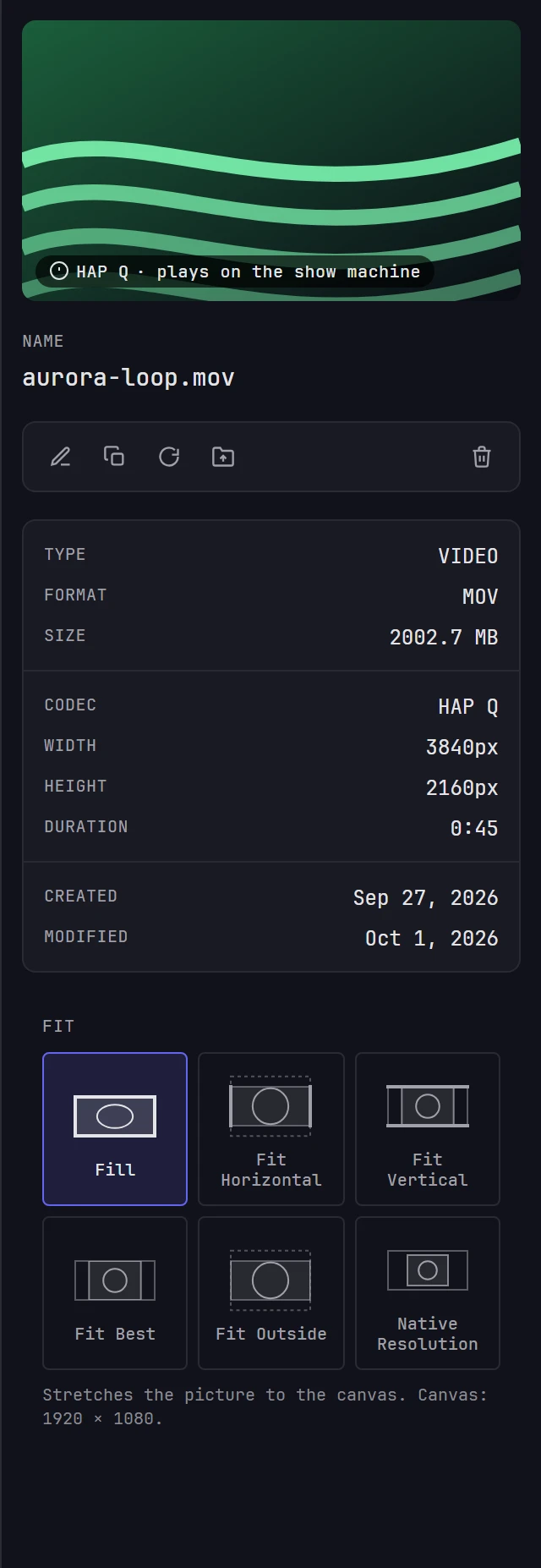
Put the codec in the file name
While a file uploads, Moonshine looks for codec names in the file name. Names containing HAPQ, HAP_Alpha, HAP, ProRes, ProRes_4444, DNxHR or MJPEG get a codec label straight away. Once the show machine has the file, the Codec row shows what the show machine found, for video your browser can't preview. Naming the codec is a good habit anyway: it's the only way to tell two .mov files apart at a glance.
Codecs the show machine plays
Encode for the show machine, not for your browser. It plays these codecs:
| Codec | Windows (NVIDIA) | Mac (Apple silicon) | Notes |
|---|---|---|---|
| HAP, HAP Q | Yes | Yes | Decoded mostly on the GPU, so it's light on the CPU. HAP Q looks much better than HAP, and its files are about twice the size. Best for high resolutions, if the clip fits in 5 GB (see below). |
| HAP Alpha, HAP Q Alpha | Yes | Yes | The same, with an alpha channel. A HAP Alpha file is twice the size of plain HAP. |
| NotchLC | Yes | Yes | Hardware-decoded. Better picture than HAP Q, with 10-bit color, but it needs more from the GPU and CPU, and its files are bigger. Best when picture quality comes first. |
| Apple ProRes: the 422 family, 4444 and 4444 XQ | Yes, on the CPU | Yes, in hardware | Less work to decode than H.264 or H.265, but bigger files. 4444 and 4444 XQ can carry alpha. ProRes RAW doesn't play. |
| H.264 | Yes, in hardware | Yes, in hardware | Small files. Decoded by the NVIDIA card, including 10-bit, 12-bit and 4:4:4 on cards that support them. A file the card can't decode is decoded on the CPU instead. Best for long clips. |
| H.265 / HEVC | Yes, in hardware | Yes, in hardware | As H.264. |
| AV1, VP9 | Where the card can decode it | Where the Mac can decode it | Depends on the exact hardware. Test the file on the show machine before you rely on it. |
| GoPro Cineform | Yes, on the CPU | No | Doesn't play on Apple silicon. |
On a Mac, which codecs the hardware decoder covers depends on the model.
On a Windows show machine with an AMD card, H.264 and H.265 are decoded on the CPU, so prefer HAP or HAP Q for large or numerous clips (see Graphics).
Choosing a codec
- High resolution or a demanding clip: HAP Q. Choose NotchLC when picture quality matters more than file size. Both decode mostly on the GPU, but they read a lot of data, so keep the project on an NVMe SSD (see What you need). Encode high-resolution HAP in chunks (ffmpeg's
-chunksoption, set to at least the show machine's number of CPU cores) so that several cores can share the decoding. - Long clips and small files: H.265 or H.264. Both are decoded in hardware on either platform, as far as the hardware supports the file.
- Encode at the canvas size. Every clip is scaled to the project's canvas (Settings → Project → Video) on its way to a surface, so pixels beyond the canvas size are decoded and then discarded. See How a picture fills the surface.
- Encode at the show's frame rate. The show renders at 60 or 30 frames a second, as set in Settings → Project → Video → Frame rate. A clip plays in real time at its own rate, so a 60 fps clip in a 30 fps show shows every other frame, and a 30 fps clip in a 60 fps show shows each frame twice. Matching the two keeps motion smooth. See Frame rate.
- Allow for two clips at once. Any transition longer than a cut plays the outgoing and incoming clips together, and a Movie Matte transition also plays its matte clip. A file that barely plays on its own can stutter during a dissolve.
- Use alpha on lanes. A clip on a lane above the base is laid over the lanes below it, and its alpha channel lets them show through, so a logo, a lower third or a keyed camera keeps its transparency. HAP Alpha, HAP Q Alpha, ProRes 4444 and 4444 XQ carry alpha in video, and PNG and WebP stills carry it too. On the base, a cuelist's own row of cues, there's only black under a clip, so leave alpha out there: it makes the file bigger and shows nothing through. A transition between two clips mixes them with its own pattern, not their alpha.
- Sound comes from the file. A clip plays its own audio track. See What actually has sound.
5 GB holds very little HAP
Each file can be up to 5 GB. HAP Q at 1920 × 1080 and 30 fps reads about 60 MB a second, so 5 GB holds about a minute and a half. At 3840 × 2160 and 60 fps it's about 500 MB a second, so 5 GB holds about ten seconds. NotchLC is similar. For anything longer, use H.265 or H.264.
What to avoid
- Cineform on a Mac. It doesn't play on Apple silicon. Convert to ProRes, HAP or NotchLC.
- DNxHR and DNxHD. They aren't among the codecs the show machine plays. Convert to ProRes or HAP before you upload.
- ProRes RAW. Export a standard ProRes flavor instead.
- AV1 or VP9 you haven't tested on the show machine itself.
- Other containers. Only
.mp4,.movand.webmupload. Export.mxf,.mkvor.avifiles again as.movor.mp4. - Image sequences. Moonshine can't play a folder of numbered frames as one movie: each frame would be a separate still. Render the sequence to a movie first.
Replacing a file
To change an item's content, you don't need to delete it and upload again. Select it and use Replace File…. The name, the folder and every place the item is used stay as they are; only the file changes. The picker accepts only the same kind of file, so you can replace a video only with another video. See Uploading media.