Transport controls
Start, pause and step through a cuelist. A cuelist plays only once it's connected to a surface, so connect it first.
Playback follows the scene graph
Moonshine plays one cuelist at a time, on every surface. A cuelist goes on air through the surface Material it's wired to in the scene graph, so a cuelist that isn't wired to a Material can't reach the outputs.
If you press Play on an unwired cuelist, playback doesn't start, the output doesn't change, and a warning naming the cuelist appears in the top-right corner:
"Main Show" isn't linked to a material in the scene graph — it won't play back. Link it to a Material node first.
The same check applies to Previous, Next and triggering a cue.
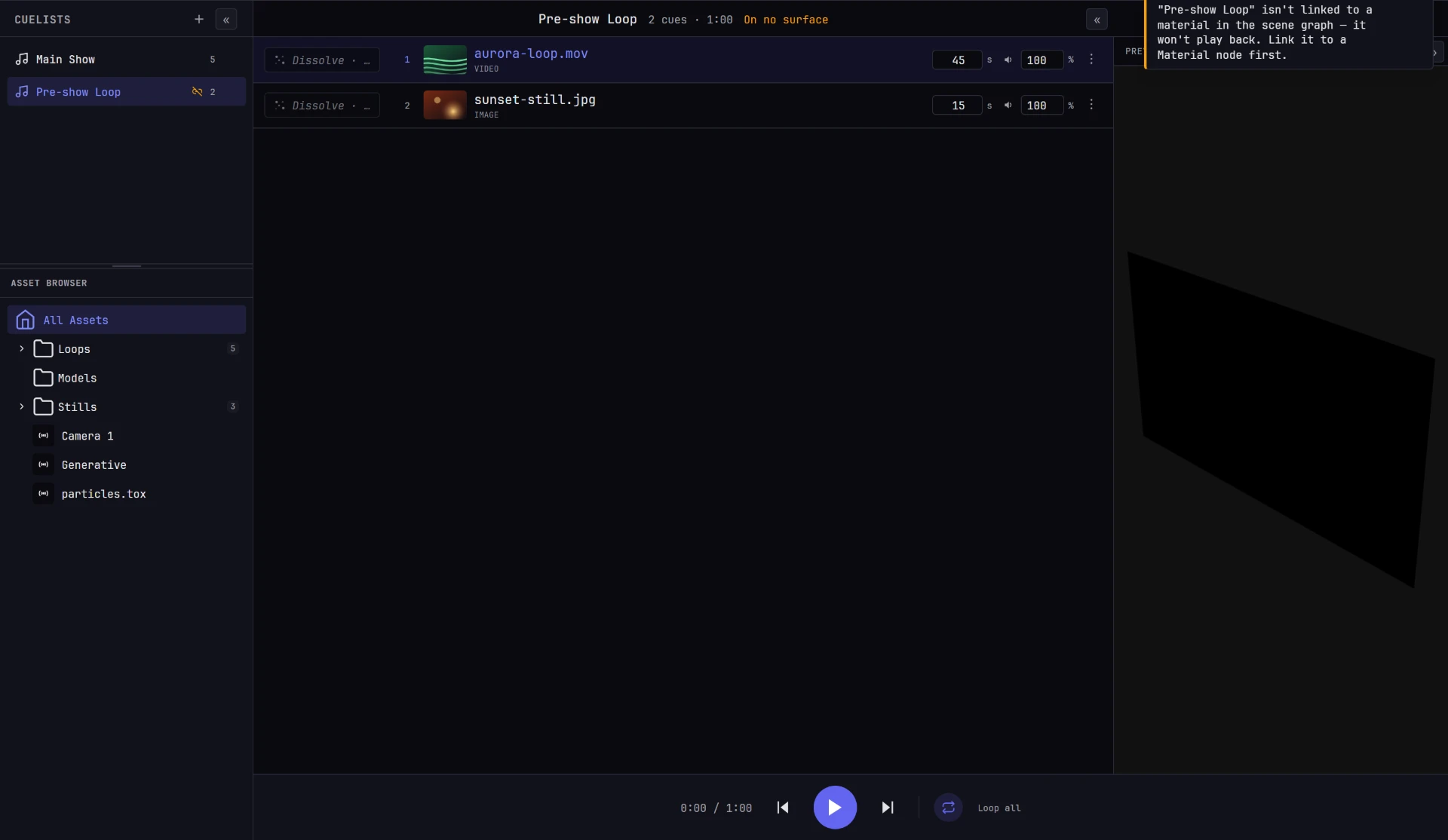
If play seems to do nothing, read the warning
An unwired cuelist is the most common reason playback seems dead. Check that the cuelist is connected to a surface before you look for a media, format or connection problem.
Connect a cuelist to a surface
Open the scene graph: click Scene Graph in the status bar at the bottom of the window, or press G. It stays open when you switch tabs, so you can wire from the Cue tab.
There are two ways to connect a cuelist.
Drag it in
- Drag a cuelist row from the Cuelists sidebar into the scene graph. A node for that cuelist appears where you drop it.
- Drag from the cuelist node to the Material node of the surface you want it on.
Or set it from the surface
- In the scene graph, find the surface and its Material node.
- Right-click the Material node, choose Set Cuelist, and pick the cuelist from the submenu. A node for it is placed next to the Material, already connected.
Either way, playback starts as soon as the connection is made; you don't need to press play. The exception is while another operator holds the playback lock: the connection is still made, but playback doesn't start, and you see Couldn't update - followed by who is editing. In the Set Cuelist submenu, a bullet marks the cuelist currently on that Material, and Unlink on the same menu disconnects it.
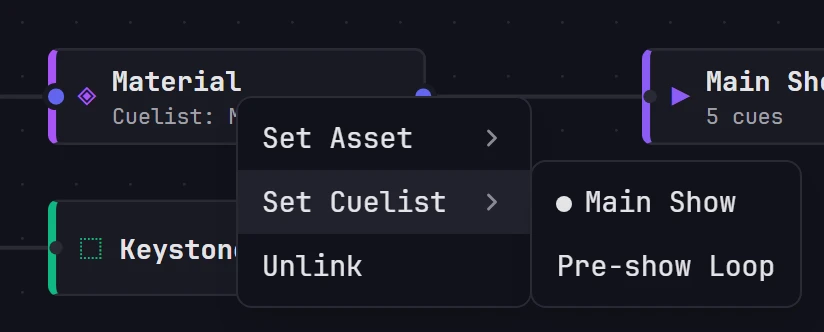
Since only one cuelist plays at a time, connecting and starting a second cuelist takes over from the first.
For more about the graph, see The scene graph.
The transport bar
The transport bar runs along the bottom of the cuelist on the Cue tab. While the timeline is open, the same controls move to the timeline's top row, left of the cuelist's name, on whichever tab you're on, and the bar under the cuelist is hidden. There's only ever one transport on screen.

| Control | What it does |
|---|---|
| Time readout | Time from the start of the whole cuelist (where the timeline's playhead is) and the cuelist's total length. Click it to switch between minutes and seconds (0:25 / 1:35), frames (750 / 2850) and timecode (00:00:25:00 / 00:01:35:00); hover it to see which comes next. Frames and timecode use the project's timecode rate from Settings → Project → Control (30 unless you set one). At 29.97 the timecode is drop-frame, with a ; before the frames: 00:01:34;29. Moonshine remembers your choice on every device you use. |
| Previous | Steps back one cue. What happens at the start of the list depends on the loop mode. |
| Play / Pause | Starts the cuelist, or pauses it where it is. Space does the same wherever the transport is showing: on the Cue tab, and on any tab while the timeline is open. It doesn't work while you're typing in a field, while a button has focus, or while a menu or dialog is open. Disabled while the cuelist is empty. |
| Next | Steps forward one cue. What happens at the end of the list depends on the loop mode. |
| Loop | Cycles through No loop, Loop all and Loop one. |
The playing row is highlighted, and a progress bar fills along its bottom as its length runs.
Trigger a specific item
Double-click a row to put that cue on air immediately, without stepping through the cues in between. Double-clicking the cue that's already playing replays it from the start, with its transition. If the cuelist is paused, a double-click moves to that cue and stays paused.
A single click only selects a row, which is outlined; nothing on air changes. Up and Down move the selection, and Enter plays the selected row, as a double-click does. On a touch screen, choose Play from the row's menu: press and hold the row, or tap its ⋮. A component's parameters are in the same menu.
Clicking a row's own controls (the length box, the transition chip, the speaker and volume controls and the ⋮ menu) edits the cue instead of selecting or playing it.
A row whose file is still uploading reads Uploading N% - the show machine cannot play it yet. Moonshine refuses to cue it, with a warning, until the upload finishes.
The floating Playback card
On every other tab, a small floating card titled Playback gives you the transport, so you can start a clip while you're warping or masking.
The card drives the cuelist selected in this browser
The card controls the cuelist you have selected on the Cue tab, which isn't necessarily the one on air. Its progress stays at zero unless that cuelist is playing. Check the cue name on the card before you press anything mid-show.
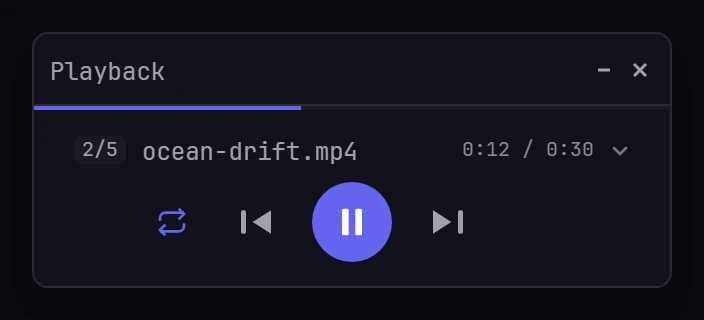
The card shows:
- a progress bar for the current cue across the top,
- the current cue's position (such as
3/12), its name, and its own elapsed and total time, not the whole cuelist's, - loop, previous, play/pause and next buttons.
Click the cue name for a list of every cue in the cuelist, and choose one to jump to it.
| Action | How |
|---|---|
| Move it | Drag the title bar. It snaps to the window corners and stacks against the Preview card. |
| Change its width | Drag the corner handle. |
| Minimize or hide it | Use the buttons in the card's title bar. |
| Bring it back | Click the playback icon in the status bar at the bottom of the window. |
The card is hidden on the Cue tab, which has the full transport bar. Moonshine remembers its position, size and state on this device.
Everyone sees the same playback
Play, pause, the current cue and its progress are shared: when one operator starts a cuelist, every browser on the show updates. Which cuelist you have selected isn't shared, so you can look at one cuelist while another is on the output.
You need to be signed in to control playback. A window whose session was revoked or has expired still shows the show, but its play, pause and cue presses are refused without a message. Reload it and sign in again.
Playback can be locked. While another operator holds the playback lock, the cuelist rows and their controls are read-only for you, stepping between cues does nothing, and every control on the floating card is grayed out. See Locks.
Blackout
Blackout fades every projector to black over half a second, and End Blackout fades them back. Only the projectors go dark. The show keeps running underneath, so the cue, the transition and the clock carry on, and ending the blackout shows the show where it has got to.
To change the fade, set Fade (s) under Settings → Project → Video → Blackout, from 0 to 10 seconds in tenths. Type a value, or drag it with the middle mouse button. 0 cuts to black and back instantly. A change applies from the next press; a fade already in progress finishes at its original length. Every show machine in a show uses the same fade.
There's no confirmation either way. Use whichever is closest:
- The Blackout button in the top bar, on every view and at every window size. During a blackout it turns red and reads BLACKOUT, with a slowly pulsing dot. On a phone it's a red icon.
- Right-click the Scene node in the scene graph and choose Blackout or End Blackout.
- Shift+B, anywhere except a text field. (B alone is the Mask view's brush.)
- The command palette: press /, then choose Blackout.
Everyone connected sees the same blackout, whoever started it, and it stays on through a page reload. The show machine keeps it: a machine that restarts during a blackout, after a power cut or an update, comes back black and stays black until someone ends the blackout. With several show machines, the leader blacks out all of them.
Anyone who can play cues can black out. While someone else is working in the Cue view, the button shows who and does nothing.
A blackout covers everything on the outputs: the show, test patterns (including Identify Projectors and Test Pattern on All) and the Syncing screen of a machine copying its leader's show. Each comes back when the blackout ends, if it's still on.
The one exception is the license card: a machine whose license has ended shows it on every output, even during a blackout.
The show machine's own status screen isn't blacked out. During a blackout it shows BLACKOUT before the project's name, so nobody mistakes a dark wall for a fault.
The previews show the blackout too. In the Scene view (and PJ View), the Preview card and the Cue view, the content on the surfaces dims to a tenth of its brightness, with a red BLACKOUT tag in the corner, so you can still see what's underneath. The grid, the projectors and the editing tools stay at full brightness.
Blackout and each projector's Shutter
Blackout takes the picture to black on every projector at once. It doesn't change any projector's own Shutter: a shutter that was closed before a blackout is still closed after it. Because a blackout doesn't close the shutters, each projector still shows its black level, a faint gray in a dark room.
A show on several servers
When several Moonshine servers play one show, one server leads and the others follow it. An administrator sets this up in Settings → Cluster → Servers. Every follower plays the leader's cues in step, on a clock the servers share, so a cut lands on the same frame on every server.
Run the show from the leader, and edit the running cuelist there too. Every follower makes the same change. If you replace the cue on air, the new cue goes on air on every server on the same frame, at the point the show has reached. An edit further down the list plays when the cuelist gets there.
A follower's Moonshine has no Cue tab. Its Show tab names the leader and links to it. A follower refuses play, pause and cue commands from anywhere else, including show control and a Transmission board. If the leader stops responding, a follower keeps playing from its own copy of the show, and its Show tab offers an administrator a button to make it the leader.