4-corner keystone
Drag the four corners of a projector's output until its image squares up on the surface.
This is the quickest correction in Moonshine and the first one to try on any flat wall or screen. It works on one projector at a time.
Open the editor
- Open the Warp tab.
- Choose the projector you want to correct. Until you do, the canvas reads Select a projector to adjust warping. See Projectors for how to choose one.
- In the sidebar, set the mode switch to 4-Corner.
The toolbar at the top of the editor shows which projector you're editing: a dot in the projector's color, Editing warp for and the projector's name. The view and zoom buttons follow.
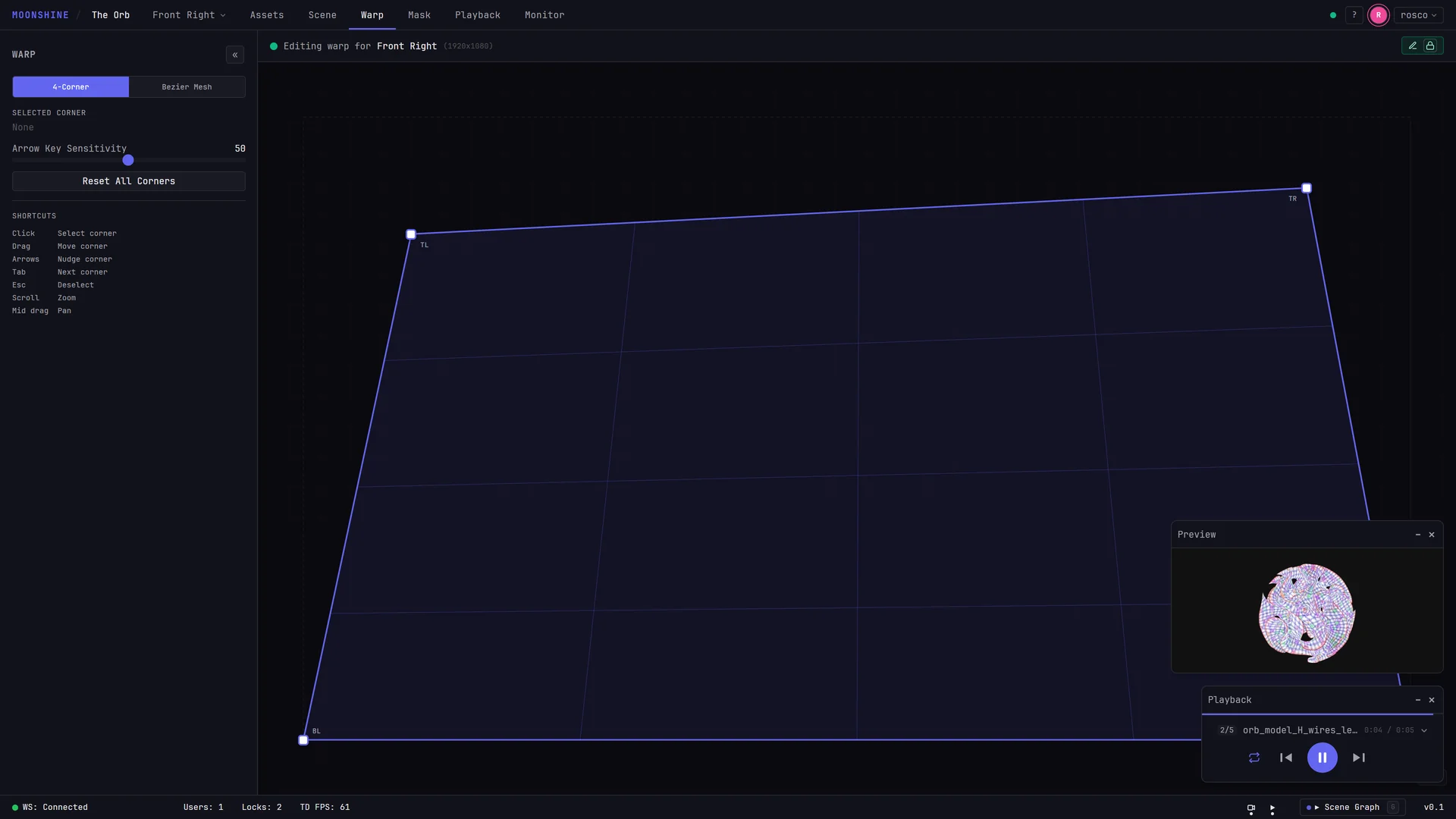
What you are looking at
| On the canvas | What it means |
|---|---|
| Dashed rectangle | The projector's uncorrected output frame, at its native aspect ratio |
| Solid quadrilateral | Where the corners are now |
| Interior grid lines | The corrected shape divided into quarters. Use them to judge whether straight lines in your content will land straight |
| Square handles | The four corners you can drag |
| TL, TR, BL, BR | Corner labels: top left, top right, bottom left, bottom right |
The selected handle fills in and gets slightly larger.
Three buttons in the toolbar, before the zoom buttons, choose what's drawn under the corners:
- Video shows what the projector is playing, seen from its lens and bent through the corners as you drag them. This is what the projector will throw, before its mask and blend. It starts off, because drawing it adds rendering work.
- Grid shows or hides the interior lines.
- Fill shows or hides the tint inside the shape.
The arrow beside Video sets how strongly the picture shows, so the lines stay visible over it. It starts at 25%. The Warp tab keeps its own setting, separate from the Mask tab and the Outputs canvas.
Move a corner
- Click a corner handle to select it. The sidebar's Selected Corner field names it and shows its X and Y offset.
- Drag it to where the image should land, or nudge it with the arrow keys.
- Repeat for the other three corners.
Double-click a corner to put it back where it started. Press Ctrl+Z to undo that.
Corner positions are offsets from the uncorrected frame, so 0.000, 0.000 is an untouched corner. Positive X is to the right and positive Y is down. Corners aren't limited to the frame, so you can drag one well outside the dashed rectangle when a projector is far off-axis.
The projected image follows the handle while you drag, not only when you let go.
Work one corner at a time, from a distance
Set a corner, step back and look at the surface, then come back. If you adjust all four corners at once on screen, the shape can look right in the editor and wrong in the room.
Nudging and cycling
Once a corner is selected, the keyboard is often faster than the mouse.
| Key | Action |
|---|---|
| Up Down Left Right | Nudge the selected corner |
| Tab | Select the next corner, clockwise from the top left. After the last corner, it deselects and focus moves on to the next control |
| Shift+Tab | Select the previous corner. Before the first corner, it deselects and focus moves back |
| Esc | Deselect |
| Ctrl+Z / Ctrl+Shift+Z | Undo / redo |
Clicking an empty part of the canvas also deselects.
A quick run of arrow presses is one undo step, so Ctrl+Z takes back the whole nudge. A drag is also one undo step.
Nudge distance
Arrow Key Sensitivity in the sidebar sets how far one arrow press moves a corner, from 1 to 100. It starts at 50.
- Turn it down for the final pass, when you're matching the last pixel of an edge.
- Turn it up for the first pass on a badly placed projector, when a corner has a long way to go.
After you move the slider, the arrow keys go back to moving the corner.
Zoom and pan
| Input | Action |
|---|---|
| Scroll wheel | Zoom, centered on the pointer (25% to 800%) |
| Drag on empty canvas | Pan |
| Right-button drag | Pan, as on the Mask tab |
| Middle-button drag | Zoom in (drag right or down) or out, around the point you pressed |
| Double-click empty canvas | Reset zoom and pan |
| Buttons at the end of the toolbar | Zoom out, zoom in, and Fit back to 100% with no pan |
The current zoom shows in the bottom-right corner. On a phone or tablet, use the buttons to zoom. Zooming and panning change only your view of the editor; the corners stay where they are.
Zoom in when you're matching a corner to a physical edge. At 800%, each pixel of mouse movement moves the corner an eighth as far, so you can place it much more precisely.
Reset
Reset All Corners returns all four corners to the uncorrected frame. Moonshine asks first: Reset Keystone? This will reset all corner positions to their defaults. Choose Cancel or Reset.
This clears the bezier mesh too
The two modes share the same corners, so Reset All Corners also rebuilds that projector's bezier grid. The control points are spaced evenly inside the uncorrected frame again, and any bending you did there is lost. Your row and column counts are kept. To undo only the last corner move, press Ctrl+Z instead.
Resetting from the scene graph
You can also right-click a projector's Keystone node in the scene graph and choose Reset Keystone. This resets immediately, without asking, and resets only the four corner handles. The projected image doesn't change, because the output follows the bezier grid, and the grid stays where it is until your next corner drag fits it to the reset corners. To reset the image, use Reset All Corners.
Working with other operators
Keystone and bezier edits share one lock per surface. You take it when you open the Warp tab and release it when you leave. While another operator has the Warp tab open on the same surface, the canvas and sidebar are dimmed for every projector on that surface and don't respond to you. A padlock badge with their initial appears at the top right of the canvas. Hover it to see who it is, or click it to ask them to hand over the lock. See Locks.
When four corners are not enough
If the corners are right but the image still bows, dips or drifts in the middle, the surface isn't flat, and moving the corners won't fix it. Switch that projector to Bezier Mesh. Your corner positions carry over.