Install and activate
Install the show server on the computer that drives your projectors, connect to it from the desktop app or a browser, and activate the show machine with a license key.
Get the two parts
Moonshine has two parts:
- The show server runs on the Windows PC or Mac connected to the projectors. It renders the show with TouchDesigner.
- The operator interface runs in the Moonshine desktop app, for Windows or Mac, or in a trusted browser on the same network.
Both installers are on download.moonshine.software. The show server also needs a license key from Tridant before it will run a show. If you don't have one yet, join the free beta at id.tridant.io/start/moonshine for a key that's free until January 2, 2027, or buy a license.
On Windows, the show server installer is Moonshine-Server-X.Y.Z.exe. It installs the server in C:\ProgramData\Moonshine, finds or downloads the Derivative engine it runs on, and opens the network ports the interface connects through. It also offers to start the server automatically: at boot through Owlette if the machine has it, otherwise whenever someone signs in to Windows. See What you need for the engine and its license.
On a Mac, the show server is a package, Moonshine-Server-X.Y.Z.pkg. Install TouchDesigner or TouchPlayer first, because the package won't install without one of them. The package installs the server in /Users/Shared/Moonshine, lets TouchDesigner accept connections through the macOS firewall, and starts the server right away. After that, the server starts whenever someone logs in to the Mac, and restarts if it crashes. The first time it runs, macOS asks whether TouchDesigner may find devices on your local network. Allow it, or Moonshine can't reach projectors and other devices. To uninstall, double-click Uninstall Moonshine.command in /Users/Shared/Moonshine. It moves everything to the Trash except the data and snapshots folders.
The desktop app for Windows is an installer, Moonshine-X.Y.Z.exe. Run it, choose whether to install for yourself or for everyone on the computer, and it adds Moonshine to the Start menu. On a Mac, the app is a disk image, Moonshine-X.Y.Z.dmg: open it and drag Moonshine into Applications. The installed app updates itself. See The desktop app.
Start a session
- Start Moonshine on the show computer. On Windows, use the Moonshine Server entry in the Start menu, unless you set it to start automatically during installation. A Mac starts it automatically. When the server is ready, the show computer's screen shows its address and a QR code (see The show machine's screen).
- Open the desktop app, or open the show computer's address in a trusted browser.
- Sign in. First launch explains the connecting, activation and sign-in screens.
On a Windows show computer, the Start menu also has Moonshine (web UI), which opens the interface in a browser on that computer, and Moonshine data folder, which opens the folder that holds its projects, accounts and license.
The desktop app doesn't include TouchDesigner and doesn't start the show server. If it stays on the connecting screen, check that the show server is running and that its address is correct and reachable from your network.
Windows may warn you the first time
Windows builds are signed by Tridant, Inc. Windows SmartScreen may still stop the first launch while a new release earns its reputation. Click More info, then Run anyway. A copy from a USB drive or a local network share usually doesn't show the warning. The Mac builds are signed and notarized by Apple, so macOS asks only once whether to open an app downloaded from the internet.
Trials and beta licenses
A beta or trial is a license key like any other. The free beta is self-serve: sign up with your email at id.tridant.io/start/moonshine, and the key appears on screen and arrives by email. It's valid until January 2, 2027. Moonshine doesn't start a trial on its own, and a show machine that has never had a key asks for one.
A trial includes everything, with no watermark, caps or locked features. The trial belongs to the license, not to the app.
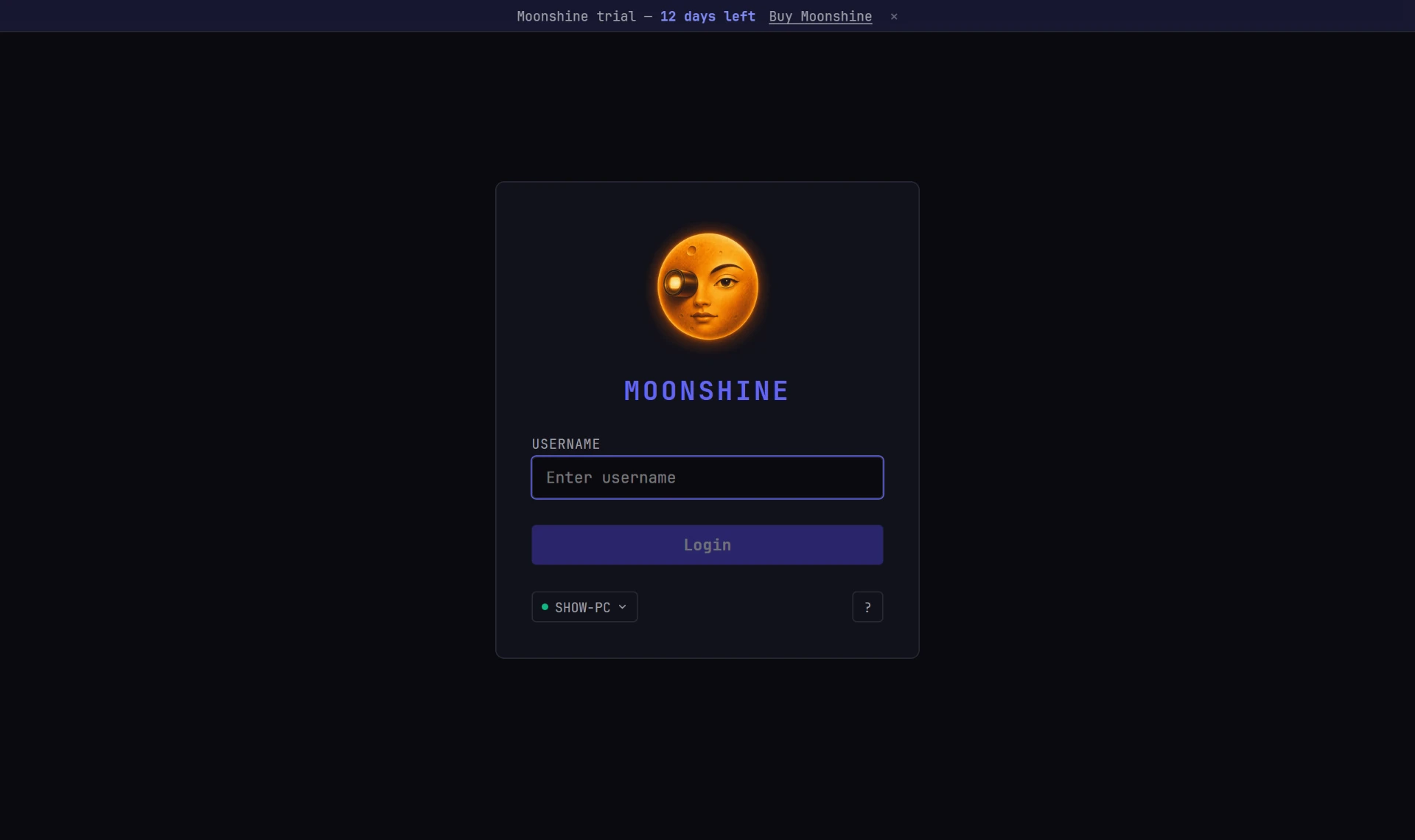
While a time-limited license is running, a strip across the top of the sign-in screen counts down:
Moonshine trial — N days left · Buy Moonshine · ✕
A beta license shows the same strip, reading Moonshine beta. In this version, the show machine doesn't yet receive the end date from the license server, so the strip shows the license type without a day count. Ask Tridant for your end date and keep it where the crew can see it.
- Buy Moonshine opens Tridant's checkout in your default browser.
- ✕ hides the strip until the next time the sign-in screen appears.
The strip appears only on the sign-in screen, not over the interface.
In the last two weeks of a license whose end date the show machine knows (a beta, a trial, or a paid license with an end date), Moonshine shows a notice whenever it starts or reconnects. The notice appears on the sign-in screen and as a row under the top bar, where it doesn't cover anything.
Your Moonshine beta ends on January 2, 2027 — 10 days left · Buy Moonshine · ✕
For a paid license, the notice reads Your Moonshine license ends on … and offers Renew at id.tridant.io instead. The date is the last day the license works, in your time zone. ✕ hides the notice until Moonshine next starts.
No notice appears when a license's update window ends, because the license keeps working. A license whose end date the show machine hasn't been told (most licenses, in this version) gets no notice either.
A license belongs to the machine
A license is activated on the computer that runs the show server. Signing in as a different user doesn't change what's licensed or extend a countdown.
A trial can run out mid-show
A time-limited license doesn't wait for the next launch. While the machine is online, the license stops within a day of its end date, even in the middle of a show. Every output switches to a license card, playback stops, and everyone connected sees the activation screen (see When a license ends). Offline, it may run for up to about two weeks longer, but don't count on that (see What you need). Sort out the key before load-in.
Activate with a license key
When a show machine needs a key, because its trial has ended or it has never been licensed, Moonshine shows the activation screen instead of everything else. The screen appears before sign-in, and it also replaces the interface for anyone who is already signed in. You can license a machine without an account.
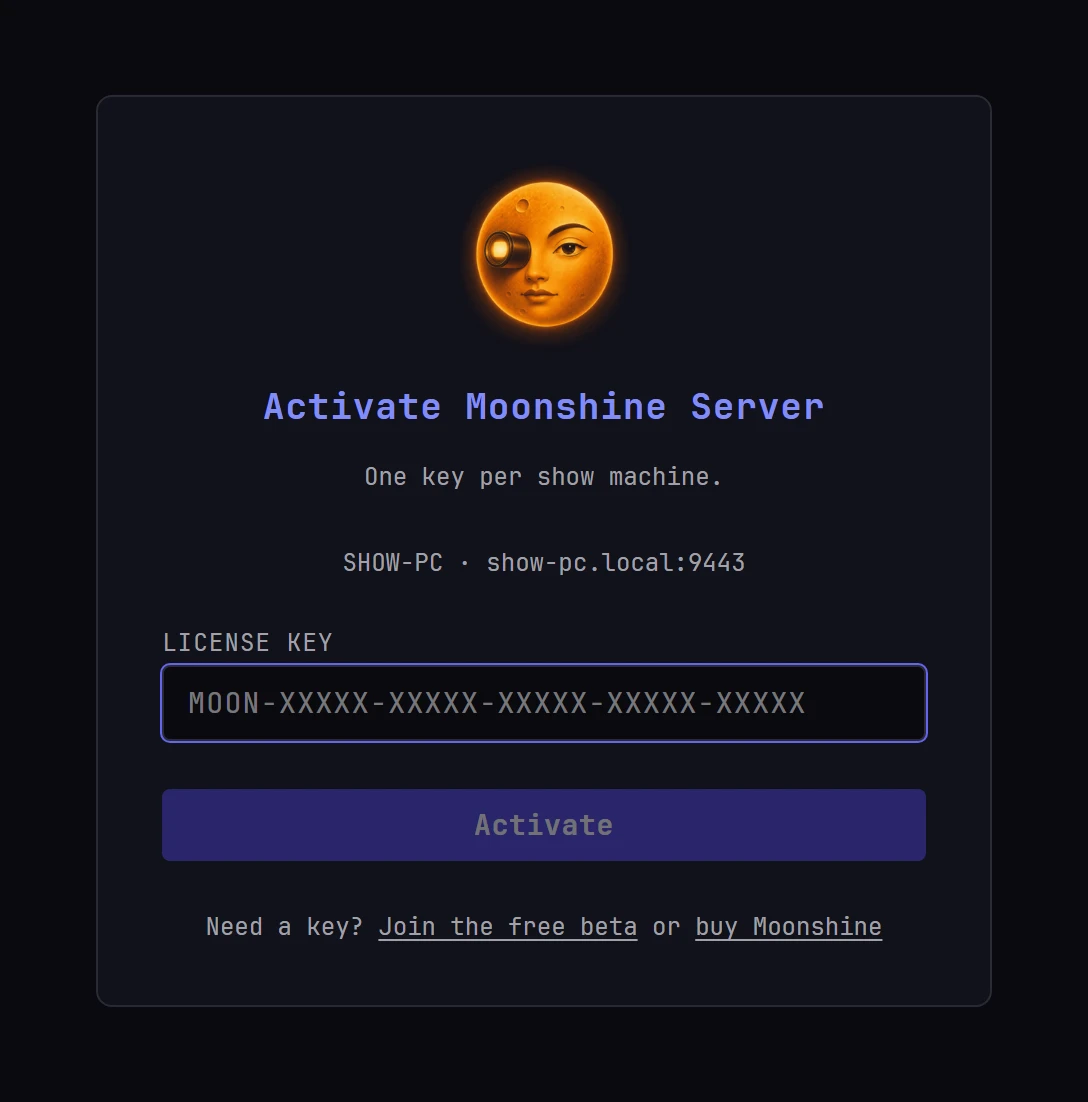
- Read the heading. It tells you which case you're in:
- Activate Moonshine Server (One key per show machine.) means the machine has no working license. It was never activated, it was deactivated, or its license no longer verifies on this machine.
-
Moonshine Server license has ended (Enter a key to put it back on air.) means the license reached its end date, lapsed or was revoked.
The address under the heading belongs to the show machine you're connected to. That machine is the one being licensed, not the device you're holding. If the show machine reports a specific reason, it appears in a line under the address (see Why the screen is up).
The activation screen appears only while you're connected to the show machine. If the connection drops, the screen shows the moon and, after a few seconds, The server is not answering with a Retry button. That means the show machine has stopped responding. It says nothing about the license. 2. Type or paste your key into the License key field. A key is
MOON-followed by five groups of five characters, separated by hyphens, as the placeholder shows. Lowercase letters change to capitals as you type, so you can paste a key as it is.Keys never contain the letters I, L, O or U. If a character on a screen or a printed card looks ambiguous, it's a
1, a0or aV. 3. Click Activate. The button reads Activating… while the key is checked. 4. When the key is accepted, the activation screen closes. You go on to the sign-in screen, or straight back to the interface if you were already signed in. There's nothing to restart.
Below the button, Need a key? offers Join the free beta (a key free until January 2, 2027, from id.tridant.io) and buy Moonshine (Tridant's checkout). Both open in your default browser. When a license has ended, only the purchase link appears.
What the messages mean
| What you see | What it means | What to do |
|---|---|---|
| That key is not valid. Check for typos and try again. | The key is the wrong shape, has a mistyped character, or belongs to a different product | Check the key character by character. It contains no I, L, O or U |
| The license could not be saved on this machine. Check that the Moonshine data folder is writable, then try again. | The key was accepted, but the show machine couldn't store it | Make sure the show machine's data folder is writable: C:\ProgramData\Moonshine\data on Windows, /Users/Shared/Moonshine/data on a Mac |
| Cannot reach server. Check that the backend is running and try again. | The connection went down as you activated | Wait for the show machine to answer again, then activate again |
| Lost connection to server during activation. Please try again. | The connection dropped during activation | Activate again |
| Activation failed. Please try again. | An error Moonshine couldn't identify | Activate again. If it happens again, check the show computer on the Monitor tab |
| This license is already active on all of its machines. Deactivate one, then activate again., with a list under Machines using this license | Every seat on the license is in use | The list shows which machines hold the seats. Deactivate the one you're replacing at id.tridant.io, then click Activate again |
| This license has expired or is past due. Renew it to continue. | The license has ended | Renew the license at id.tridant.io, then activate again |
| This license has been revoked. | The license was withdrawn | Contact Tridant |
| The license server rejected this machine. Contact support if the license should be active. | The license server refused this machine | Contact Tridant |
| Too many activation attempts. Wait a few seconds, then try again. | Several keys were tried in quick succession | Wait ten seconds, then activate again |
| An activation is already in progress. | An activation started a moment ago, from this device or another, is still running | Wait for it to finish |
| Could not reach the license server. Check this machine's internet connection and try again. | The show computer can't reach the internet | Connect it to the internet. Activation needs it once; after that, shows run offline (see What happens offline) |
| This license is registered to different hardware. Deactivate that machine at id.tridant.io, then activate again. | The machine's hardware changed enough to look like a new machine, such as after a new motherboard or a fresh OS install | Deactivate the old machine at id.tridant.io, then activate again |
Where seats are managed
You release seats and renew licenses in your account at id.tridant.io. The activation screen links there, under the machine list, when a license is full. On a machine that's already licensed, the link is Manage seats at id.tridant.io under Settings → Cluster → Servers.
Why the screen is up
When the show machine knows why it needs a key, the activation screen shows the reason under the address. These are the most common:
| Line | What to do |
|---|---|
| The license reached its end date. | Renew, or enter a new key |
| The beta this build was issued for has ended. | Enter a paid key, or install a current build |
| A payment on this license has not gone through. | Settle the payment at id.tridant.io |
| This license has been revoked. | Contact Tridant |
| Offline too long to keep using the cached license. Reconnect to refresh. | Connect the show machine to the internet. The license checks again automatically |
| The stored license belongs to different hardware. Activate this show machine to move the seat. | Enter the key again on this machine |
| The show machine’s clock is behind the last known good time. Correct its clock, then try again. | Set the machine's date and time correctly |
| The stored license could not be verified by this build. Activate again, or update Moonshine. | Enter the key again. If that fails, install the current build |
When the build itself is out of date
One screen has no key field: This Moonshine build is no longer supported. Your license is fine. The build was released after your license's update window ended, and a key can't change that. The screen links to Downloads, where you'll find a build inside your window, and to renewing your updates. Builds you already run keep working forever. The update window only decides which new builds a license covers.
The license belongs to the show computer
The show computer checks and stores the license, not the browser. You can enter the key on any connected device, including a phone that has joined over the network, and the show computer is what gets licensed. As soon as the key is accepted, every connected device moves past the activation screen without reconnecting, and the license card leaves the outputs.
After activating
The machine is licensed and the countdown strip goes away. From then on, Moonshine opens straight to sign-in.
The License column on Settings → Cluster → Servers shows what each Moonshine server on the network holds: the license state, the days left on a time-limited license, and whether it's running offline. Hover the state to see the key and the reason.
Administrators also get buttons under each server's row:
- Enter key, when no key has been activated there, or Update key once one has.
- Deactivate, which frees the seat for another computer. Use it when you retire or re-image a machine. The server stops serving until a key is activated again, so Moonshine asks you to confirm: Deactivate goes ahead, and Cancel or Esc backs out.
Manage seats at id.tridant.io, under the list, opens your Tridant account.
More than one show machine
Several show machines can play one show together, each driving its own projectors. Each machine needs its own license key.
Settings → Cluster → Servers lists every Moonshine server on the network, in four columns:
- Server: its name, address and version. The server you're connected to is marked You're here.
- Role: Leader, Follower or Standalone. Followers play their leader's show. A standalone server plays its own.
- Show: the project it plays. Followers play their leader's project, so servers playing together show the same name, and a follower's role reads Follows SHOW-PC. Administrators can choose the show from a menu on the leader and on each standalone server.
- License: see After activating.
The leader is listed first, with its followers indented under it, then the standalone servers. The round arrow beside the count searches the network again.
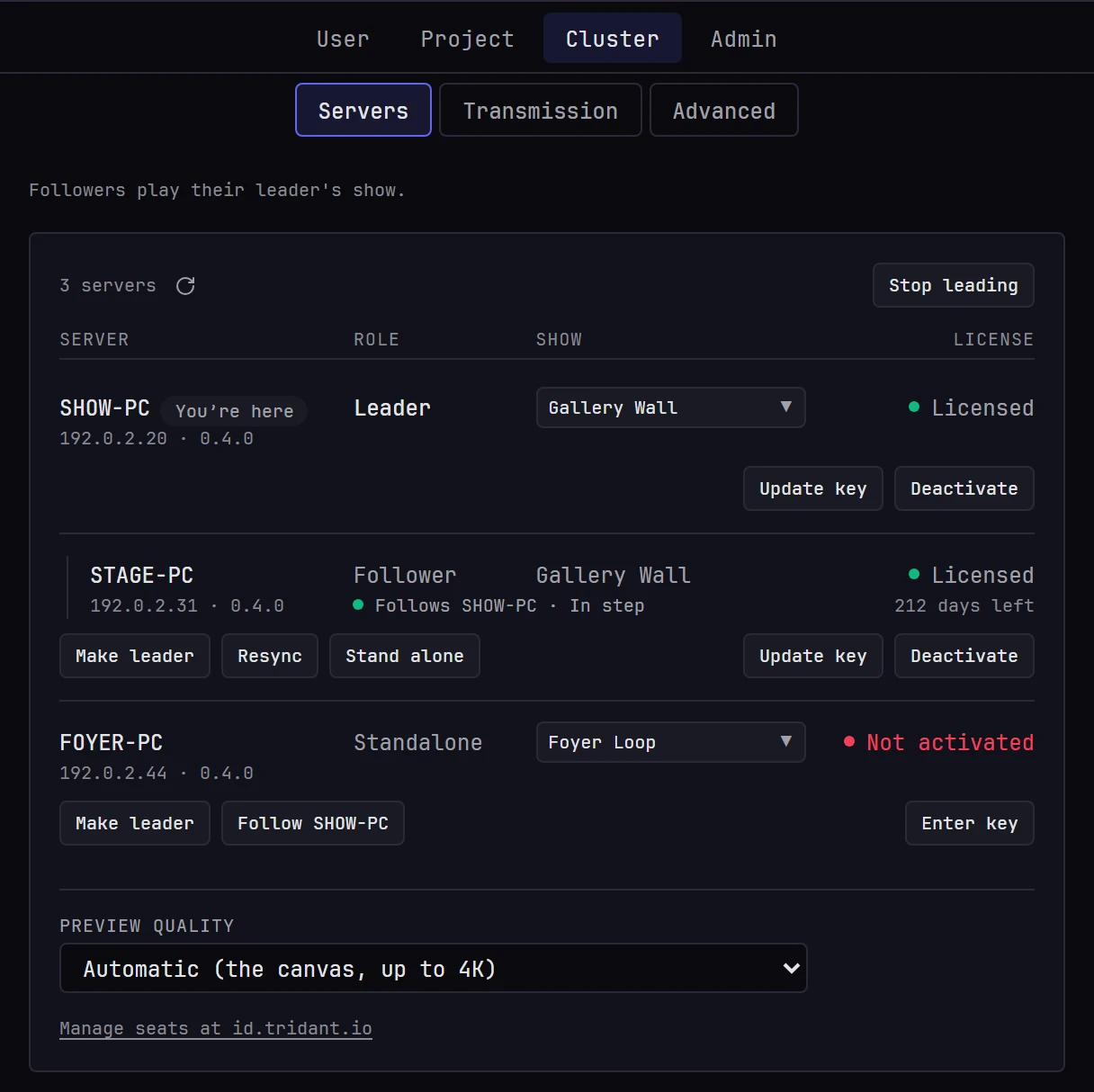
Only an administrator can change who leads and who follows, using the buttons under each row. Each button opens a dialog that describes what will happen; Cancel or Esc backs out.
- Make leader makes that server the leader. Every server that follows it plays its cuelists and media and uses its accounts, and keeps its own copy of each. If a show is playing, it carries on from the cue on air with nothing to press, and the other servers follow. The picture holds for about two seconds while the new leader takes over, then picks up where it would have been.
- Stand alone, on a follower, takes it out of the leader's show. It plays its own show again, and stays out when another server becomes the leader.
- Follow and the leader's name, on a server that was taken out, makes it follow the leader again.
- Stop leading, above the list, ends the leader's show. Every server goes back to playing its own.
- The Show menu opens another of that server's projects. On a standalone server, it changes only that server. On the leader, it changes the whole show, and the followers play the new project. Followers have no menu, because they play their leader's show; use Stand alone to give one its own. A network can have only one leader. The project opens even if someone is working in it on that server, so check before you switch a show that's playing.
A server that hasn't been taken out joins whichever server becomes the leader within a few seconds, and its row reads Joining until it has. An unlicensed server joins once it's licensed.
A server in a show accepts these changes only from a server in the same show, so make them while connected to one of its servers. A standalone server accepts them from any server on its network, so another show can take it in.
Two things work from any server on the network, whatever show a server is in:
- Licensing a server that isn't licensed. It isn't playing a show, so you can enter a key, replace it or deactivate it from anywhere. A licensed server in a running show accepts license changes only from a server in that show.
- A follower whose leader has gone. If the leader's address now answers as a different server, or as a server that leads nothing, the follower accepts changes from any server, including license changes, about 10 seconds after it last heard from its leader. If nothing answers at that address, it waits a minute, so a leader that's only busy keeps its followers. Once the follower hears from its leader again, it accepts changes only from the show.
A server running an older version accepts neither. Enter its key on its own page, or update it first.
A server's role reads Not answering while it restarts, until it's back. A server that three searches in a row can't find leaves the list. Too old means the server's version can't join a show.
Under a follower's role, a second line shows the state of its copy of the show (In step, Catching up, Copying the show or Out of step), or why it isn't following its leader right now: SHOW-PC isn't leading, SHOW-PC isn't answering, or a note that the leader's address answers as another server. Resync makes a follower copy the leader's whole show and its media again. It's also in the right-click menu of the follower's row in Monitor → Cluster.
You edit the show on the leader. When you connect to a follower, its Scene tab is renamed Following and shows a single panel. The panel says which server it follows (STAGE-PC follows SHOW-PC), what it's playing and the state of its copy, and offers Switch to SHOW-PC leader server, which opens the leader in the same window. (The desktop app then remembers the leader.) Only Monitor and Settings remain beside it.
If the leader stops answering, the follower keeps playing from its copy, and an administrator can make it the leader from that panel. While a follower copies the show, or the media for the cue that's playing, its outputs fade to the Moonshine moon, with a spinner and a ring that fills as the files arrive. When they're in, the show fades back in at its current point.
In a show across servers, each projector runs on one server. A projector you add to the show runs on the leader. To move it, drag its card onto another server in the Machines list under the projectors, or choose the server under Runs on in its output settings. The Outputs view shows one server's displays at a time. See A show across machines.
Settings → Cluster → Advanced holds the servers' Sync channel (the name their sync traffic uses), its port, and Lead (frames): how far ahead each server is told what to do. The default is 15 frames, a quarter of a second at 60 fps. The servers need the ports listed under What you need.
When a license ends
When a license ends, is deactivated or stops verifying on this machine, or when the installed build is past its update window, Moonshine stops serving within about a minute. This affects the outputs as well as every connected device:
| Where | What happens |
|---|---|
| Every output | Shows a license card instead of the show, in the style of the status panel: the moon in its ring, then This machine's Moonshine license has ended if the license expired, or Moonshine is not licensed on this machine for any other reason, what to do next, and the server's version at the bottom of the ring |
| Playback | Stops |
| Every browser and app | Shows the activation screen, whether or not anyone was signed in. Nothing else is available |
| The show machine's screen | Shows License expired - outputs stopped and Activate from the app, or No license, under the version (see The show machine's screen) |
Entering a key on any connected device reopens Moonshine on every device and takes the card off the outputs. Playback does not restart on its own. Press play when you're ready.
Losing the internet does not end a license
A show machine that goes offline keeps running on the license it holds. A license with no end date does need to reach the license server now and then (see What you need).
Next: First launch, for signing in and confirming you're connected.