Vector masks
Draw exact shapes with the pen tool, curve their edges, and use a closed shape as a stencil that keeps the brush inside it.
Use the brush for organic, feathered coverage. Use the pen when an edge has to be exact: a window reveal, a doorway, the straight line where two projectors meet, the outline of a prop. A path is a series of points joined by curves. It's stored as geometry rather than pixels, so you can move any point or reshape any curve later without repainting.
A shape on its own holds no light back
Only paint changes the projector's output. A shape is a stencil for the brush. To hold light back inside a shape, close it, leave it selected and paint into it. See Use a shape as a stencil.
Switch to the pen
Set Tool to Pen in the Properties sidebar, or press P. Press B to go back to the brush. The pointer becomes a small dot, and you can click points, curves and handles.
The paint area works the same as with the brush: scroll or middle-drag to zoom, and right-drag anywhere to pan. Shapes are measured in the selected projector's pixels. Points can sit outside the picture, so a shape can run past its edge.
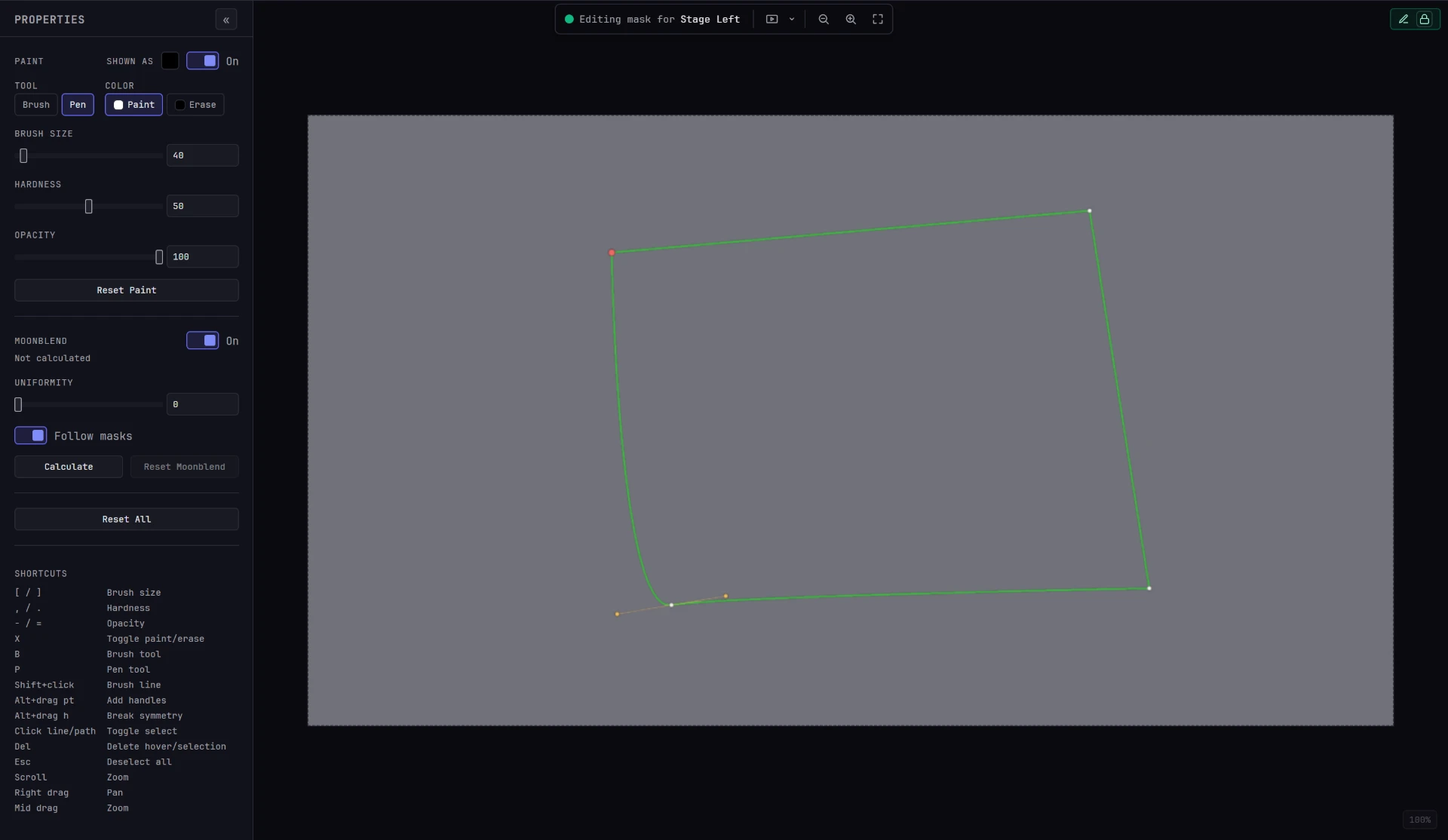
Draw a shape
- Click the paint area to place the first point. If no path is selected, this starts a new one.
- Click to place each following point. Straight segments join them.
- To curve a segment as you go, click and drag instead of clicking. Dragging pulls a pair of curve handles out of the new point, and the segment bends to follow. Release when the curve looks right.
- To close the shape, click the first point, which is drawn larger and in red. A shape needs at least three points before you can close it.
Closing a shape doesn't paint anything. It makes the shape usable as a stencil.
Plan for straight-then-curve
It's usually faster to place every point with a plain click and add curves afterward than to get each curve right as you go. You can turn any corner into a curve later.
Read the drawing
| What you see | What it means |
|---|---|
| Blue outline | A path that isn't selected |
| Green outline | A selected path |
| Brighter, thicker outline | The path under your pointer |
| Large red point | The first point of the path. Click it to close the shape |
| White points | The other points |
| Orange dots on orange lines | Curve handles for a point |
Edit an existing shape
| To do this | Do this |
|---|---|
| Move a point | Drag it. Its curve handles move with it. |
| Reshape a curve | Drag a handle. The opposite handle mirrors it, so the curve stays smooth through the point. |
| Break a smooth point into a corner | Hold Alt while dragging a handle, so only that handle moves. A later drag without Alt mirrors the pair again, so hold Alt each time you adjust a corner. |
| Turn a corner into a curve | Hold Alt and drag the point. Handles are pulled out of it as you drag. |
| Add a point to a closed shape | Select the shape, then click outside it, close to where you want the point. It's inserted into the nearest segment, not added at the end. Clicking inside the shape or on its outline selects or deselects it instead. |
| Continue an open path | Select the path, then click where the next point goes. |
| Delete a point | Hover it and press Del or Backspace. |
| Delete a whole path | Hover its outline and press Del or Backspace, or select it and press Del with nothing under the pointer. |
If deleting a point leaves a closed shape with fewer than three points, the shape reopens. Deleting a path's last point removes the path.
Select paths
Click a path's outline, or anywhere inside a closed shape, to select it. Click a selected path again to deselect it. Each click adds to the selection rather than replacing it. Press Esc to deselect everything.
Selection matters in three ways:
- New points go to the path you selected most recently.
- Del removes every selected path when the pointer isn't over a point or outline.
- Only selected, closed shapes act as stencils for the brush.
Use a shape as a stencil
Stencils give you clean, exact edges on site without needing a steady hand.
- Draw a closed shape around the area you want to work in, and leave it selected.
- Press B to switch to the brush.
- Paint. Strokes are clipped to the inside of the selected shape, so nothing lands outside it even if you drag across the boundary.
Every selected closed shape works as a stencil, so you can paint into several areas at once. Deselect (press Esc, or click the shape again) and the brush paints anywhere.
This lets you combine a hard, exact edge on one side with a soft falloff on the other, which is difficult to paint freehand. Run a closed shape along the architectural line you mustn't cross, then feather the coverage inside it with a soft, low-opacity brush.
A stencil the brush ignores
If strokes still land outside your shape, check that the shape is closed (click the first point to close it) and selected (green, not blue).
Undo
Ctrl+Z steps back through your path edits, up to 50 steps: each point you place, each drag of a point or handle, each deletion and each close.
Undo follows the order you worked in, whichever tool is selected. Path edits, brush strokes and Moonblend Uniformity changes share one history, and Ctrl+Shift+Z redoes what you undid. See Layers and undo.
What is stored
Paths are saved with the projector's mask, alongside the painted coverage, and come back the next time you open it. Reset Paint in the sidebar clears both the paths and the painting, and can't be undone.
Shortcut summary
| Key | Action |
|---|---|
| P | Pen tool |
| B | Brush tool |
| Alt + drag a point | Give the point curve handles |
| Alt + drag a handle | Move one handle on its own, breaking the curve |
| Click an outline or a closed shape | Select or deselect it |
| Del / Backspace | Delete the point or path under the pointer, or the selected paths |
| Esc | Deselect everything |
You'll also find these in the app, with the brush shortcuts, under Shortcuts at the bottom of the Properties sidebar.
Where to go next
- Brush masking: size, hardness, opacity, and painting inside a stencil.
- Layers and undo: how paths and painted coverage combine into one mask.
- Locks: why another operator can't change a mask you're editing.