Keyboard shortcuts
Every key and mouse gesture Moonshine responds to, grouped by where it works.
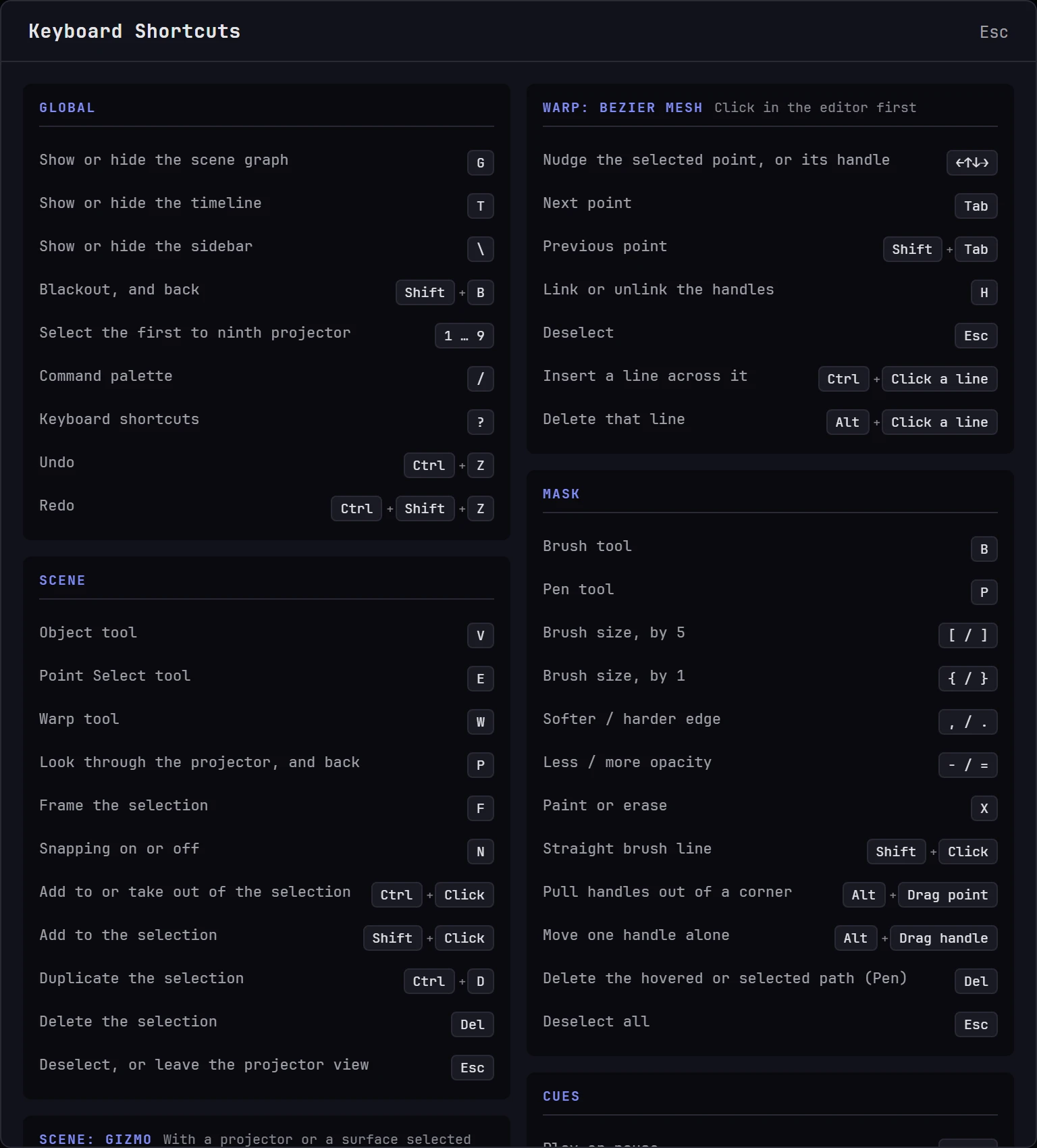
Press ? anywhere in the app to open or close the built-in list, or choose Keyboard Shortcuts from the ? menu in the top-right corner. The built-in list shows the keys only; mouse gestures, such as the camera, number fields and the Outputs canvas, are on this page. The Shortcuts list at the foot of the Scene, Warp and Mask sidebars shows that tab's keys and mouse gestures. In the Scene, it shows the gizmo's keys while something is selected, and the Point Select, Warp or Map keys while that tool is on.
Before you start
- Modifier key. Where this page shows Ctrl, use Cmd on macOS. The app shows the right key for your computer.
- Typing comes first. Shortcuts don't fire while you're typing in a text or number field. Click away from the field first. Undo and redo still work in a number field.
- Shortcuts depend on the tab. A key can do different things on different tabs: P picks the Pen tool on Mask and looks through the projector on Scene.
Global
These work on any tab.
| Key | What it does |
|---|---|
| G | Show or hide the scene graph, in the panel along the bottom |
| T | Show or hide the timeline, in the same panel. With both open, they sit side by side |
| C | Show or hide the Control drawer, in the same panel: your pinned controls, ready to press. With all three open, they share the panel in thirds |
| \ | Show or hide the sidebar |
| Shift+B | Blackout: every projector to black, and back. B alone is the Mask tab's brush |
| 1 … 9 | Select the first to ninth projector in the list |
| Ctrl+Z | Undo |
| Ctrl+Shift+Z | Redo |
| ? | Open or close the keyboard shortcut list |
| / | Open the command palette |
| Middle-drag a number field | The value ladder |
How undo is routed. Each editor keeps its own history, so Ctrl+Z undoes different things depending on what you're editing:
- On the Scene tab with the Warp tool on, undo and redo step through point edits.
- On the Mask tab, undo and redo step through brush strokes, path edits and Moonblend Uniformity changes, in the order you made them.
- Everywhere else, undo and redo step through your session's project edits, such as moving a projector, renaming something or nudging keystone corners.
The Undo and Redo buttons at the right of the top bar do the same as Ctrl+Z and Ctrl+Shift+Z wherever you are, for touch screens and mouse users. They're grayed out when there's nothing to undo or redo.
The project edit history belongs to your session. It holds the last hundred actions, and it's emptied when you switch projects, restore a project or reload the page. It's kept when the connection drops and comes back. Undo sends the change to the show machine like any other edit, so on a shared project, undo only your latest changes, not what you did twenty minutes ago.
Number fields
Every number field in Moonshine has a value ladder, like a TouchDesigner parameter: a projector's lens, a surface's size, the Scene's grid, a cue's length, the canvas size, a test pattern's cells.
| Mouse | What it does |
|---|---|
| Hold the middle button on a field | Open the ladder: a column of step sizes, such as 10, 1 and 0.1 |
| Move up or down, still holding | Choose the step size |
| Move left or right, still holding | Change the value by that step, one step for every 12 pixels |
| Let go | Keep the value |
| Esc, still holding | Put the value back as it was |
A whole-number field steps in whole numbers, and every field stays within its own limits. Where undo covers the field, one Ctrl+Z undoes a whole ladder drag. Fields you can't change, such as Properties on a phone or settings only an administrator can change, have no ladder, and neither do ports, addresses and codes.
Scene tab
Modes and views
| Key | What it does |
|---|---|
| V | Object tool |
| E | Point Select tool |
| W | Warp tool |
| U | Map tool, with a Material selected: Resize, again for Crop, again for off |
| P | Look through the selected projector, or go back to the free camera, like PJ View in the toolbar |
| F | Frame the current selection (with the pointer over the viewport) |
| Del or Backspace | Delete the selected projectors and surfaces. Moonshine asks before deleting projectors, and Ctrl+Z brings everything back |
| Ctrl+D | Duplicate the selected projectors and surfaces, half a meter higher |
| Alt-drag the gizmo (Option on a Mac) | Copy the selection and move, turn or scale the copies; the originals stay put. One Ctrl+Z removes the copies |
| Ctrl-click a projector or surface | Add it to the selection, or take it out |
| Shift-click a projector or surface | Add it to the selection |
| Esc | Deselect everything, deselect the warp point, or leave the projector view |
F frames whatever is selected: every selected projector and surface, or the whole surface if nothing is selected. In one of the camera menu's views, such as Top or Front, it frames everything and resets that view (see Perspective and orthographic). It does nothing while you're looking through a projector, because the view is fixed to the lens.
Ctrl-click and Shift-click select several projectors and surfaces, in the viewport and in the scene graph, and the gizmo then moves, turns and scales them together. On the projector cards, Shift-click selects every card between the last one you clicked and this one. On a touch screen, turn on Add to selection in the Scene toolbar, and each tap then works like Ctrl-click. See Selecting things.
Esc steps back one thing at a time: first it deselects everything, then the selected warp point, then it leaves the projector view.
Moving a projector or a model
These act on the gizmo, so click a projector or a model first. The Move, Rotate, Scale and pivot buttons in the Scene toolbar do the same.
| Key | What it does |
|---|---|
| M | Move |
| R | Rotate |
| S | Scale. Only surfaces scale, so it works only when a surface is selected |
| L | The pivot tool: move the point things turn and scale around, without moving the things. Press it again, or M, R or S, to leave it |
| O | Switch the gizmo between World and Local, like the toolbar's globe button |
| N | Turn snapping on or off, like the toolbar's magnet |
| Shift (hold) | Fine control while dragging |
| Ctrl (hold as the drag starts) | Image lock for that drag |
Holding Shift slows a move or rotate drag to a tenth of its normal speed. Scale is always slowed, and Shift makes it ten times finer again.
The magnet for snapping is in the toolbar after the World / Local button. See Snapping.
Holding Ctrl (Cmd on a Mac) moves a projector or a model and keeps each picture where it is: the lens shifts and zooms, and the projector turns to make up the rest. With the Image Lock switch on, Ctrl does the opposite and moves without image lock. See Image lock. In earlier versions this was Alt, which now makes copies.
Selecting and warping
| Key | What it does |
|---|---|
| [ / ] | Shrink / grow the Point Select radius |
| Alt+[ / Alt+] | The same, in steps a fifth the size (Option on a Mac) |
| Shift+[ / Shift+] | Less / more softness, 5 at a time; with Alt as well, 1 at a time |
| X | Switch the selection mode between Add and Subtract |
| Up Down Left Right | Nudge the selected warp point |
| Shift+Up (etc.) | Nudge in finer steps |
Mapping a picture
With the Map tool on, these work on the border around the selected Material's picture: white in Resize, amber in Crop. See The Map tool and Cropping the picture.
| Action | What it does |
|---|---|
| Drag a corner | Resize: scale the picture, in proportion |
| Shift-drag a corner | Resize: scale the picture freely |
| Drag a side | Resize: stretch the picture one way |
| Drag inside the border | Resize: move the picture |
| Drag a corner | Crop: crop the picture, in proportion, leaving the rest where it is |
| Shift-drag a corner | Crop: crop the picture freely |
| Drag a side | Crop: crop the picture on that side |
| Drag inside the border | Crop: slide the picture under its crop |
Camera
| Action | What it does |
|---|---|
| Left-drag | Orbit around the point you pressed on |
| Middle-drag | Zoom toward the point you pressed on: right or down moves in, left or up pulls back |
| Right-drag | Pan |
| Scroll | Zoom toward what's under the cursor |
| One-finger drag (touch) | Orbit around the point you touched |
| Pinch (touch) | Zoom toward the point between your fingers |
| Two-finger drag (touch) | Pan |
Outputs canvas
In Projectors → Outputs. The view moves the way TouchDesigner's network editor does.
| Action | What it does |
|---|---|
| Drag an output rectangle | Move that output |
| Drag an output rectangle onto a machine in the sidebar's Machines list | Run that projector on that machine (in a show across several machines) |
| Left-drag on empty canvas | Pan |
| Middle-drag | Zoom around the point you pressed: right or down moves in, left or up pulls back |
| Scroll | Zoom around the cursor |
Warp tab
The Warp tab has two editors, each with its own keys. Switch between them with the 4-Corner / Bezier Mesh control at the top of the sidebar.
4-Corner
| Key or action | What it does |
|---|---|
| Click | Select a corner |
| Drag | Move a corner |
| Up Down Left Right | Nudge the selected corner |
| Tab | Next corner; after the last one, moves the focus out of the editor |
| Shift+Tab | Previous corner; before the first one, moves the focus out of the editor |
| Esc | Deselect |
| Double-click a corner | Put that corner back where it started |
| Double-click empty canvas | Reset the zoom and pan |
| Scroll | Zoom around the cursor |
| Left-drag or right-drag on empty canvas | Pan |
| Middle-drag | Zoom around the point you pressed |
Click a corner to select it before you use the keyboard: Tab and the arrow keys work only once a corner is selected. The Arrow Key Sensitivity slider in the sidebar sets the nudge distance. Turn it down for the final pass against a physical edge.
Bezier Mesh
| Key or action | What it does |
|---|---|
| Click | Select a point |
| Drag | Move a point or a handle |
| Up Down Left Right | Nudge the selected point, or its handle if a handle is selected |
| Tab | Next point; after the last one, moves the focus out of the editor |
| Shift+Tab | Previous point; before the first one, moves the focus out of the editor |
| H, or double-click a handle | Switch the selected point's handles between Linked and Independent |
| Double-click a point with no handles | Pull out its handles |
| Esc | Deselect |
| Ctrl-click a grid line | Insert a line across it, at the pointer |
| Alt-click a grid line | Delete that line |
| Right-click a point or a grid line | Open its menu |
| Double-click empty canvas | Reset the zoom and pan |
| Scroll | Zoom around the cursor |
| Left-drag on empty canvas, or right-drag where no menu opens | Pan |
| Middle-drag | Zoom around the point you pressed |
Click once inside the editor before you use these keys: the bezier editor receives keystrokes only while it has the focus. This editor has its own Arrow Key Sensitivity slider for the nudge distance, separate from the 4-Corner one.
Mask tab
| Key or action | What it does |
|---|---|
| B | Brush tool |
| P | Pen tool |
| [ / ] | Brush size, in steps of 5 pixels (1–1000) |
| { / } | Brush size, one pixel at a time |
| , / . | Softer / harder brush edge |
| - / = | Less / more opacity, in steps of 10% |
| X | Switch between Paint and Erase |
| Shift-click | Draw a straight brush line from the last point you painted |
| Click a path's first point (Pen tool) | Close the path |
| Alt-drag a point | Turn a corner point into a smooth one and pull out its handles |
| Alt-drag a handle | Move one handle without its pair |
| Click a line or path | Add it to the selection, or take it out |
| Del or Backspace | Delete the hovered or selected path (Pen tool) |
| Esc | Deselect everything |
| Ctrl+Z | Undo the last stroke, path edit or Uniformity change |
| Ctrl+Shift+Z | Redo what you undid |
| Scroll | Zoom |
| Right-drag | Pan |
| Middle-drag | Zoom around the point you pressed |
The Shortcuts list at the foot of the Mask sidebar has the same keys and gestures, apart from undo and redo.
Scene graph
F works with the pointer over the graph panel. Del, Backspace and Ctrl+D work while the graph has the focus, or anywhere on the Scene tab.
| Key | What it does |
|---|---|
| F | Fit the whole graph in view |
| Ctrl-click a node | Add it to the selection, or take it out. Projectors and surfaces are selected together, Materials together, and cuelists and assets together |
| Shift-click a node | Add it to the selection |
| Right-drag on empty space | Select what the box touches, of the kind it touches most: projectors and surfaces, Materials, or cuelists and assets. With Ctrl, add them to the selection |
| Del or Backspace | Delete the selected projectors and surfaces, as in the Scene. With a cuelist's wire selected, disconnect it |
| Esc | Deselect the selected cuelist wire |
| Ctrl+D | Duplicate the selected projectors and surfaces, as in the Scene |
Del doesn't delete other nodes, such as Materials or the warp and mask stages. A projector's or surface's stages go when you delete it.
Del and Backspace never delete while you're typing in a field, or while a menu or dialog is open.
Timeline
Click in the timeline in the bottom panel first. These keys work while it has the focus, on any tab.
| Key | What it does |
|---|---|
| Del or Backspace | Remove the selected clips |
| C, or hold Alt, while dragging a clip | Drop a copy and leave the original where it was |
| + / - | Zoom in / out |
| 0 | Fit the whole timeline in view |
| Esc | Cancel a slip in progress, or deselect |
| Home / End | Move playback to the start / end of the timeline |
| Left / Right | Step playback back / forward one frame; with Shift, ten frames |
| Ctrl+Z / Ctrl+Shift+Z | Undo / redo an edit made on the timeline |
See The timeline for what the mouse does there.
Cue tab
| Key | What it does |
|---|---|
| Space | Play or pause the open cuelist, like the play button. Works on the Cue tab, and on any tab while the timeline is open. Not while you're typing in a field, while a menu or dialog is open, or while a button has the focus: then Space presses that button |
| Enter | Play the selected cue, like double-clicking it. Not while a button has the focus |
| Up / Down | Select the cue above / below in the list. Not while you're typing in a field or a menu is open |
| L | Hide or show the list beside the 3D view |
Control tab
On Edit:
| Key or action | What it does |
|---|---|
| Click a control | Select it on its own |
| Shift-click a control | Select every control between the last one you selected and this one |
| Ctrl-click a control | Add it to the selection, or take it out |
| Up Down Left Right | Nudge the selected controls one cell |
| Del or Backspace | Remove the selected controls. Moonshine asks first |
| Esc | Clear the selection |
On Learn, Esc discards a control you didn't mean to bind. See The Control tab and Learn.
Assets tab
| Key | What it does |
|---|---|
| Up / Down | Move the selection up and down |
| Left / Right | Move the selection sideways (grid view only, since the list is one item wide) |
| Home / End | Jump to the first / last item |
| F2 or Enter | Rename the selected item |
| Esc | Close the type filter or the full-screen preview, or clear the selection |
Esc works one step at a time: the first press closes the type filter or a full-screen preview, and the second clears the selection.
Dialogs and the command palette
| Key | What it does |
|---|---|
| Esc | Close the open dialog, menu or palette |
| Up / Down | Move through the palette results |
| Enter | Run the highlighted command |