Users and sessions
Create the accounts your crew signs in with, see and end sign-ins, and collect diagnostics from, take snapshots on, or restart the show machine.
Administrators only
Everything on this page is in Settings → Admin, which appears only for accounts with the Admin role. Operators don't see the Admin group in Settings.
Opening Admin
Open Settings, then Admin, the last of its groups (User, Project, Cluster, Admin). You can also run Go to Settings → Admin from the command palette.
Admin has three tabs: Users, Sessions and Server. The Server tab covers this show machine's diagnostics, snapshots and restart. The servers on the network, their licenses and Transmission are in the Cluster group.

Users
The Users tab lists every account on this show machine.
| Column | Shows |
|---|---|
| Username | What the person types to sign in |
| Display Name | The name others see on avatars, name tags and lock indicators. A dash means none is set. |
| Role | admin or operator |
| Last Login | When the account last signed in, or a dash if it never has |
| Actions | Edit and Delete |
With no accounts, the table reads No users found.
Roles
There are two roles.
| Role | Can |
|---|---|
| Operator | Everything involved in building and running a show (media, scene, alignment, masking, playback and monitoring), except adding components |
| Admin | Everything an Operator can do, plus adding or replacing components (.tox) and everything in Settings → Admin: creating, editing and deleting accounts, revoking sessions, downloading diagnostics and restarting the server |
Make Operator the default. Give someone Admin only if they need to manage accounts, add components or restart the server.
Add an account
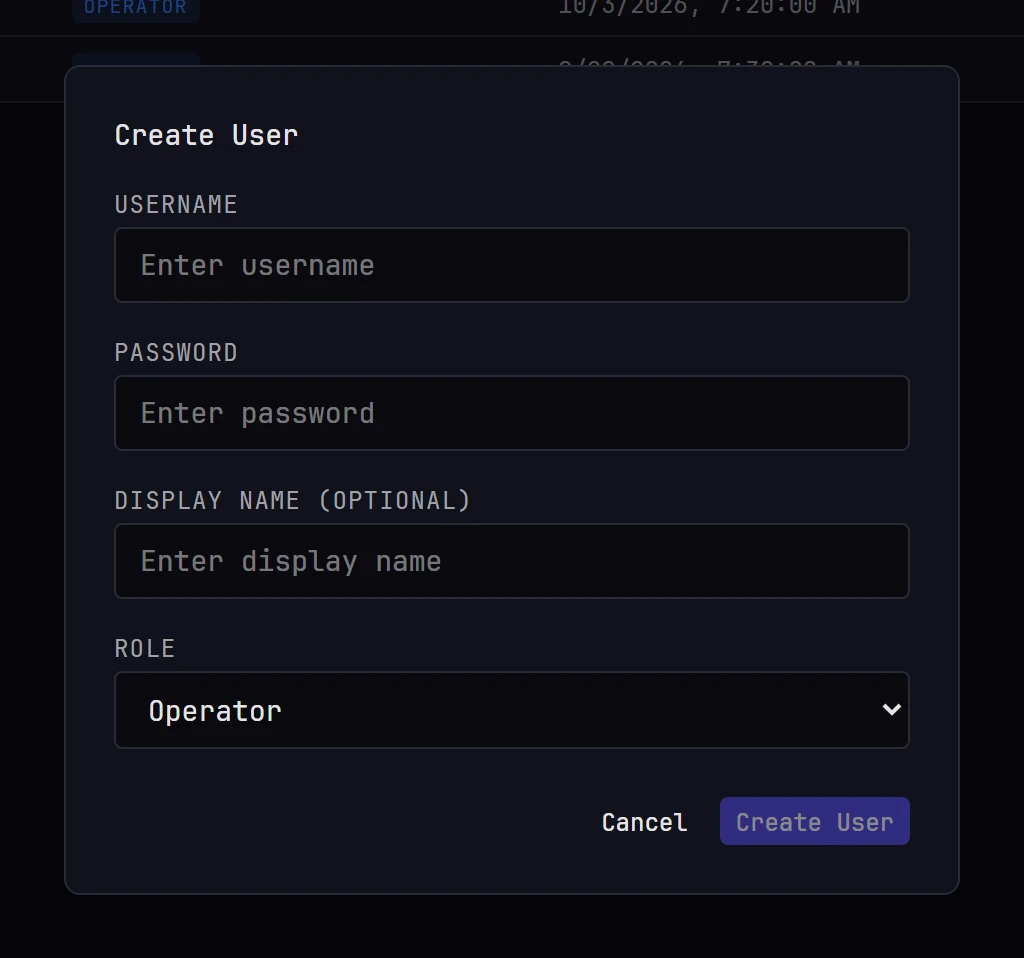
- Click Add User. The Create User dialog opens.
- Enter a Username. This is what the person types to sign in, and it must be unique.
- Enter a Password. A new account needs one.
- Optionally, enter a Display Name. This is the name the rest of the crew sees, so a first name usually works better than a login handle. If you leave it blank, others see the username.
- Choose a Role: Operator or Admin.
- Click Create User.
The dialog closes and the new account appears in the table.
Note
If the username is already taken, the dialog stays open and a message at the corner of the screen ends username already exists. Choose a different username and submit again.
Edit an account
Click Edit on the account's row. The Edit User dialog opens with the account's details filled in.
- You can change the Username, Display Name and Role. You can change a display name here but not clear it; its owner can clear it in their own profile.
- The Password field reads Password (leave blank to keep current). Type a new password only if you want to reset it.
Click Save Changes to apply, or Cancel to discard.
A role change takes effect at once, even in windows the person already has open: Moonshine accepts only what the new role allows. Their screen updates when they reload. Until then, a former Admin still sees Settings → Admin, but nothing they do there is accepted.
A password you set here has no minimum length, but people need at least eight characters when they change their own password, so use at least eight here too.
Everyone's own profile
Anyone signed in can change their own display name and password, without an administrator, in Settings → User → Profile. They can also open it from Profile… in the account menu under their name. A new password needs the current one and at least eight characters. The profile shows the username and role, but only an administrator can change them.
Tip
There's no "forgot password" option, so people can't reset their own password. When someone is locked out, edit their account, set a new password and tell them what it is.
Delete an account
Click Delete on the account's row, and confirm with Delete in the Delete User dialog (Are you sure you want to delete this user?).
Deleting an account ends its open session at once, so its credentials stop working, and releases every lock it held. Keep in mind:
- You can't delete the last Admin account or change its Role to Operator, because no one would be left to open Settings → Admin. Moonshine refuses and explains why in a message at the corner of the screen.
- You can't undo a deletion. To remove someone's access temporarily, change their password and revoke their session. A new password doesn't end a sign-in that's already open.
Sessions
The Sessions tab lists the sign-ins on record. An account can be signed in in only one place at a time, so each account has at most one row.

| Column | Shows |
|---|---|
| User | The username. Your own row is highlighted and has a You badge. |
| Role | admin or operator |
| Created | When the person signed in |
| Expires In | The time left before the session expires: 13d 4h while it's days away, 4h 20m in the last day, then minutes alone, and Expired once it has passed |
| Actions | Revoke |
Below the table, a note reads Sessions expire automatically after 2 weeks. The two weeks run from sign-in, and using Moonshine doesn't extend them. A window that's still open when its session expires keeps showing the show, but no changes made in it are accepted, and no message says so. When it's reloaded, it shows the sign-in screen. Signing in again starts a new two weeks.
Click Refresh to update the list. A revoked session disappears by itself; other changes, such as a new sign-in or a sign-out, appear only after a refresh.
A sign-in stays on the list until it ends: it's revoked, it expires, the person signs out with Logout, the same account signs in elsewhere, or the account is deleted. Closing the browser doesn't end it. With no sessions at all, the table reads No active sessions.
Revoke a session
Click Revoke on the row. The session ends at once: that window returns to the sign-in screen with the message An administrator ended this session., and every lock it held is released immediately. Deleting an account does the same to its open windows.
Revoking your own session asks you to confirm first, in the Revoke Session dialog (This will log you out. Are you sure?). Revoking anyone else's session happens at once, with no confirmation, so check the row before you click.
Revoke a session when:
- a device was left signed in somewhere you no longer control
- someone has gone home while holding a projector, and you can't close their browser
- you want to clear out an old sign-in before the show
Tip
Closing the holder's browser window also frees their locks at once, and doesn't need an administrator. See Locks.
Note
Revoking doesn't delete or disable the account, so the person can sign straight back in. To keep them out, change their password or delete the account.
Server
The Server tab acts on the show machine itself.
Diagnostics
Download diagnostics saves a zip file about this show machine to the computer you're using: its log, version, displays, outputs, audio device and any faults it has reported. The button reads Collecting… while the show machine prepares the file. When something goes wrong, send the file to Tridant; it answers most of the questions support would otherwise ask.
Nothing is uploaded, so the file stays with you until you send it. It contains no passwords, certificates, license key or media, and the log is filtered before it leaves the show machine. The file name includes the machine's Moonshine version and the time it was collected, so files from several machines stay separate.
Snapshots
Every 15 minutes, the show machine takes a snapshot of every project's setup: projectors, surfaces, cuelists, settings, masks, warps and blend layers. Snapshots don't include media, so back up your uploaded files separately. If no project has changed since the last snapshot, no new one is taken. Each blend layer or photo is stored once, however many snapshots include it.
| Control | What it does |
|---|---|
| Take a snapshot every 15 minutes | Turns the schedule on or off. It's on by default. |
| Destination | The folder snapshots are saved to: another drive, or a network share such as \\server\snapshots. If it's empty, they go to the snapshots folder beside the data folder: C:\ProgramData\Moonshine\snapshots on Windows, /Users/Shared/Moonshine/snapshots on a Mac. Only administrators can see or change it. |
| Snapshot now | Takes a snapshot straight away, whether the schedule is on or off. |
Below the controls, the card shows the exact folder, when the newest snapshot was taken and its size, and the last error if a snapshot failed. Each show machine uses its own folder, named after the machine, so several machines can share one destination.
Each snapshot is a zip named for when it was taken, in UTC, for example moonshine-2026-10-14_1945.zip. Blend layers and photos are stored next to the zips in a blobs folder. Moonshine keeps:
- every snapshot from the last 4 hours
- one an hour for the last day
- one a day for the last week
- one a week indefinitely, deleting the oldest first if the destination runs low on space
A blend layer or photo is deleted once no kept snapshot needs it. Anyone who can edit a project can restore it from its snapshots in Settings → Project → Snapshots; see How do I restore a project?
Restart
Restart Moonshine Server closes Moonshine on the show machine and starts it again. It asks you to confirm first, with Restart and Cancel: Outputs go dark and every connected user is disconnected until the show machine is back. This usually takes a few seconds.
- On a Windows machine managed by Owlette, Owlette starts Moonshine again.
- Otherwise, the show machine sets up its own restart before it closes (on a Mac, through its login agent). If it can't, it stays running instead of closing.
If a restart is refused, a message at the corner of the screen says why, and the show machine keeps running. Restart it at the machine instead.
Moonshine reopens the project it had open, and every browser and app reconnects by itself. The show machine's own screen has no controls, so this button is how you restart the server from anywhere else.
A restart takes the show off the air
Every output is dark from the moment Moonshine closes until it has restarted and reopened its project. Restart between shows, not during one.
Related pages
- Presence: the display names and colors these accounts appear as
- Locks: what a revoked session releases
- First launch: signing in for the first time