First launch
Sign in, open a project, and check the status bar to confirm you're connected to the show computer before you start work.
The connecting screen
Every start begins here. Moonshine shows its moon, small and centered, while the interface loads, which usually takes a moment on a local network. Then the sign-in card fades in around the moon. If you're still signed in from last time, your project opens instead.
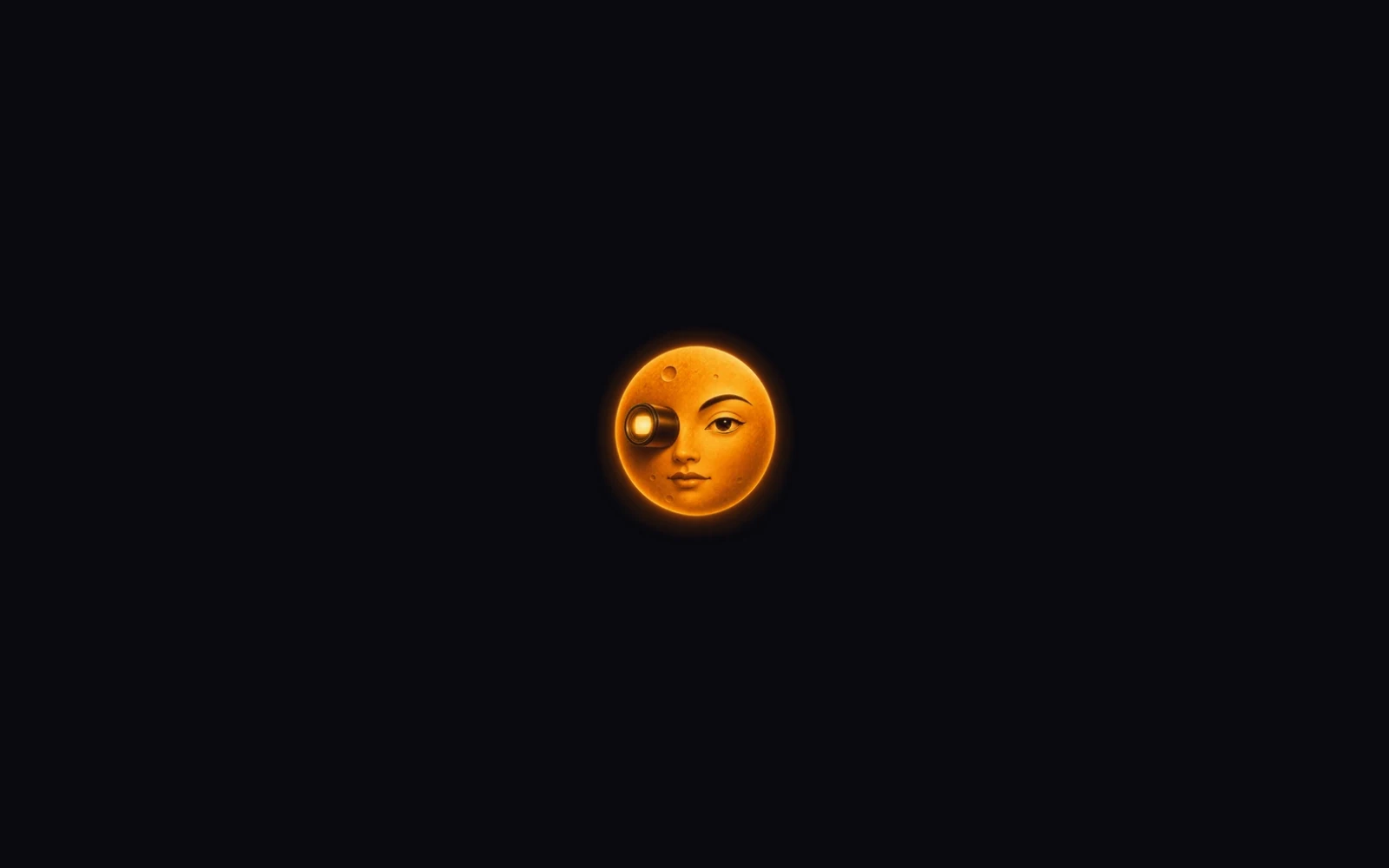
If something fails, a red The server is not answering appears under the moon, with a Retry button and a line saying what didn't arrive:
| Line | What it means |
|---|---|
| No connection to an address | Nothing answered at that address for 8 seconds. The address is the show computer's, so you can use it to check you opened the right one |
| Connected to …, but it has not answered. | The show computer accepted the connection but sent nothing for 10 seconds |
| … answered, but this screen did not finish loading. | The next screen took more than 10 seconds to arrive |
Moonshine keeps trying in the meantime, with a ring turning around the moon, and carries on as soon as the show computer answers.
Retry reloads the page. Before you press it again, check that Moonshine is running on the show computer. No device can connect to a show computer where Moonshine is closed.
Signing in
Once you're connected, the sign-in card appears, with the Moonshine mark, the wordmark and a Username field. A new machine shows First-time setup instead (see Setting up a new machine).
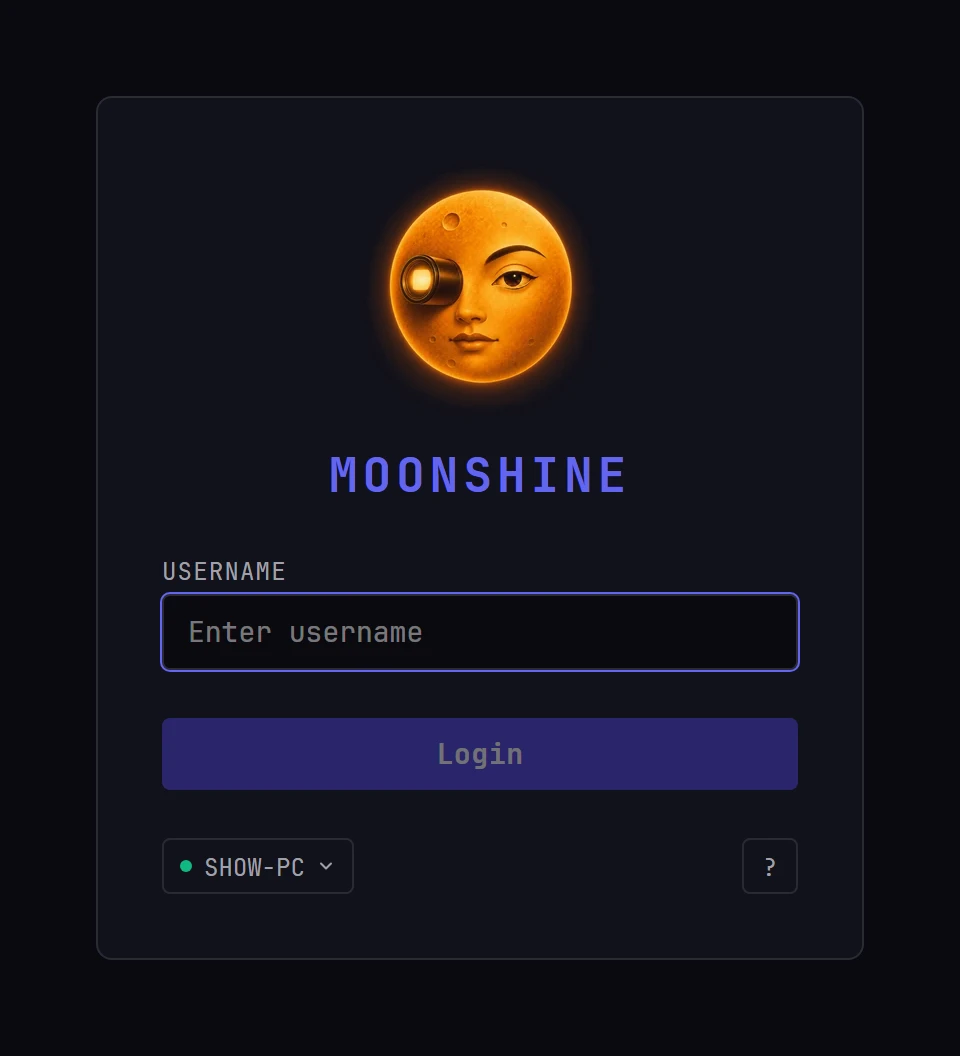
- Enter your Username. The Password field appears below it. Pressing Enter also moves you there.
- Enter your Password.
- Click Login. The button reads Logging in... until your project is ready, then Moonshine opens.
Login stays grayed out until both fields are filled in. If the connection drops while the card is open, the card says so, and Login reads Offline until the show computer answers again.
Sign-in errors appear in a red strip above the fields:
| Message | Meaning |
|---|---|
| Invalid username or password | The username or password is wrong. Both are case-sensitive |
| Too many failed sign-in attempts. Try again in N seconds. | Five wrong passwords for this username within five minutes. The wait grows with each further failure, up to fifteen minutes. A correct sign-in clears it, and the account is never locked permanently |
| Too many sign-in attempts right now. Try again in a moment. | Many devices tried to sign in at the same time. Wait a couple of seconds |
| Session expired | Your saved sign-in reached its two-week limit. Sign in again |
Moonshine remembers your session on the device you signed in from, so the next launch skips the sign-in card and opens your project. The session ends when you choose Logout from the account menu, when the same account signs in on another device, or two weeks after you signed in. Using Moonshine doesn't extend it.
At the bottom of the card, the button on the left shows the name of the show machine you're signing in to, with a green dot while it's answering. Click it to see the machine's address and, in the desktop app, Switch server, which returns to the list of show machines. The ? on the right opens docs.moonshine.software in your default browser, for when you can't get past this screen.
Accounts come from the show computer
There's no sign-up. Accounts are stored on the show machine, and after the first one, an administrator creates them in Settings → Admin (see Users and sessions).
Running the show takes an account
Any device that connects can view the project without signing in. To change anything, you must be signed in: that covers every edit and all playback, including play, pause, stop, jumping to a cue and putting media on a surface. Two things work without an account: entering a license key, so a new machine can be licensed before it has any accounts, and a take from a Transmission control board connected to the machine.
Setting up a new machine
A new show machine has no accounts yet. The first device to connect sees First-time setup instead of the sign-in card, and uses it to create the administrator account:
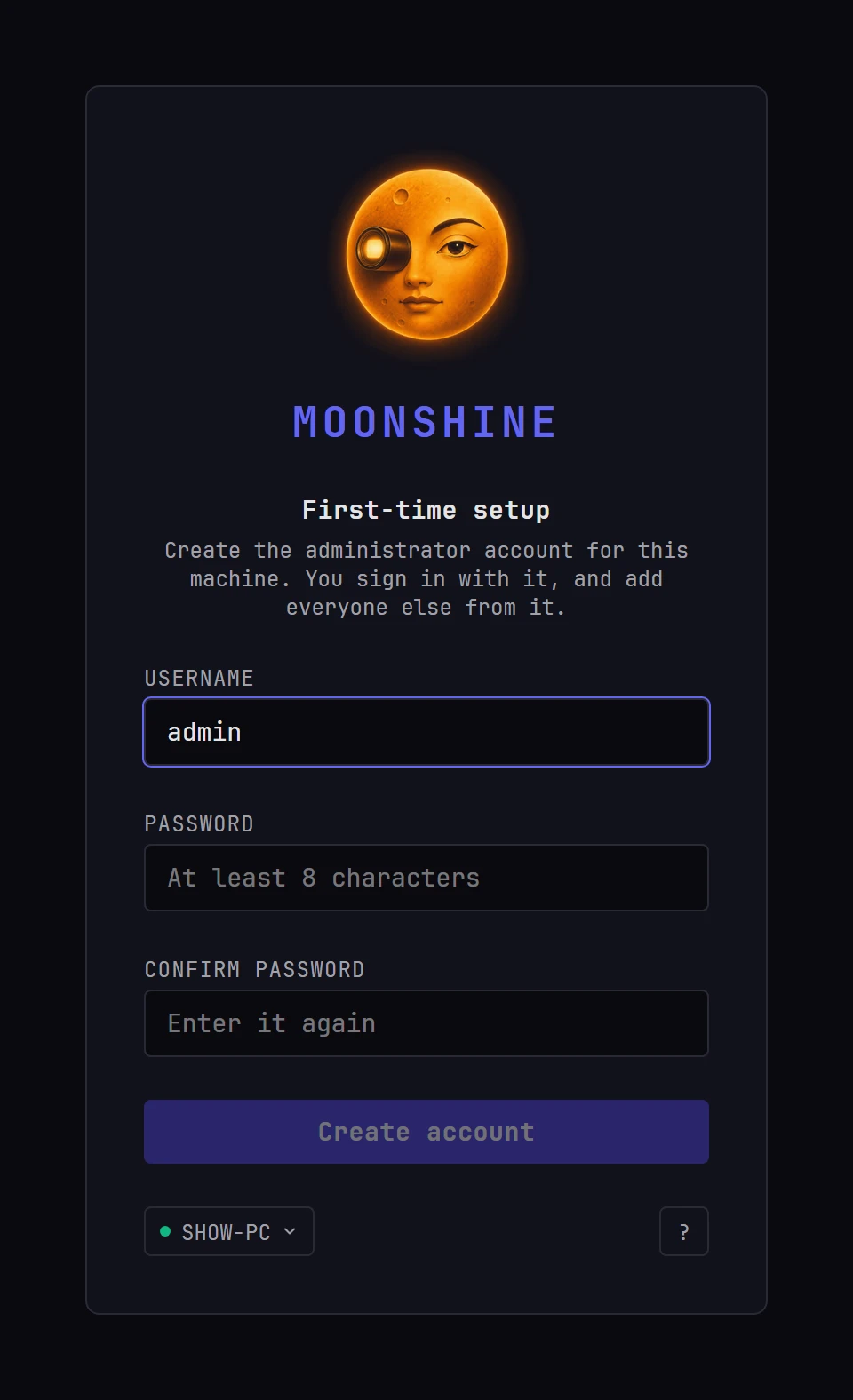
- Username is filled in as
admin. Keep it or type another. - Enter a Password of at least eight characters.
- Enter it again in Confirm password.
- Click Create account.
You're signed in as the administrator. Add everyone else in Settings → Admin (see Users and sessions).
Whoever connects first sets the machine up
Until the administrator account exists, any device that reaches the show machine sees First-time setup, not only the show computer itself. Set it up as soon as Moonshine is installed, before the machine joins a network that other people use.
Once the account exists, other devices showing First-time setup switch to the sign-in card. If two people submit at the same time, the second sees This Moonshine is already set up. Sign in instead. and gets the sign-in card.
| Message | Meaning |
|---|---|
| Choose a password of at least 8 characters. | The password is too short |
| The two passwords do not match. | Password and Confirm password are different. Nothing was sent |
| This Moonshine is already set up. Sign in instead. | Someone else created the administrator account first. Sign in with that account |
Upgrading a machine that is still on admin/admin?
Up to version 0.3.17, a new machine created an admin account with the password admin. If that password was never changed, the machine shows First-time setup after the upgrade, as a new machine does. If it was changed, nothing is different.
If an administrator gives an account the password admin, that account must choose a new password at its next sign-in, on a Choose a password screen that can't be skipped. Fill in Current password, New password and Confirm new password, then click Set password and continue.
Choosing a project
If no project is loaded, the Projects window opens as soon as you sign in. You can't close it without choosing a project, because a Moonshine session always has one open.
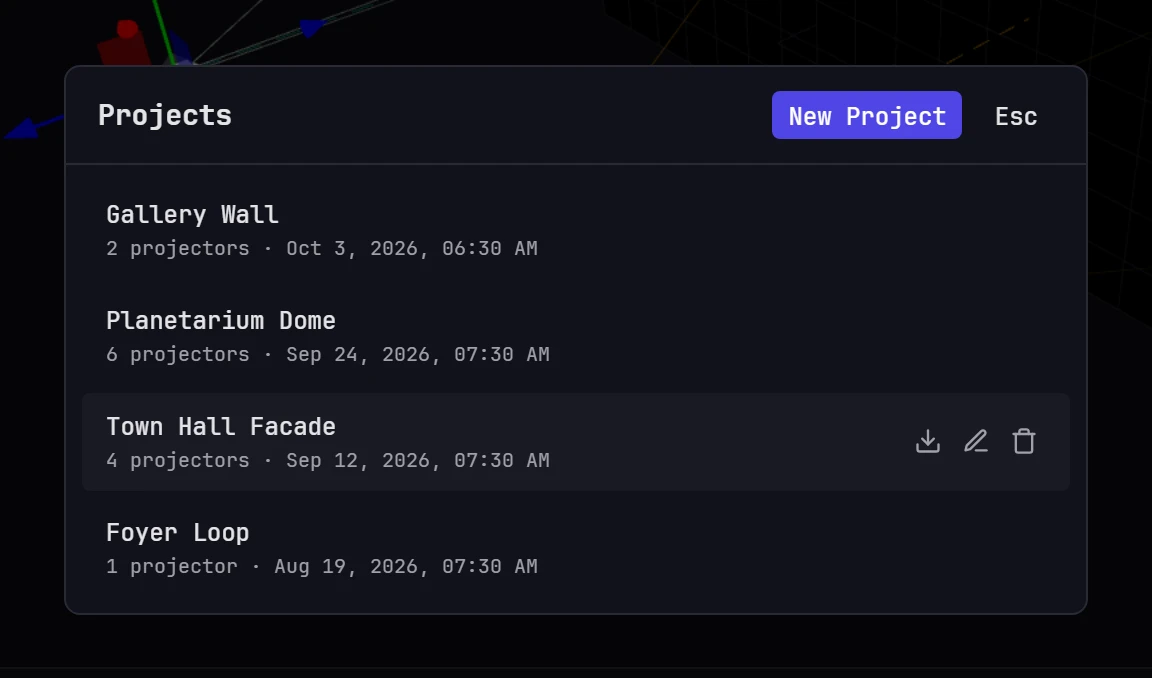
- Each row shows the project name, how many projectors it has, and when it was last updated.
- Click a row to load that project.
- Hover over a row to show three icons on the right: download, rename and delete.
- New Project creates a project (see Your first mapping for the fields).
- With no projects yet, the window reads No projects yet. Create one to get started.
While a project loads, a full-screen overlay shows a spinner and Loading project.... It clears once the show computer has sent the whole project.
Knowing you are connected
The status bar along the bottom of the window shows the state of your connection. From left to right:

Connection. A colored dot and a label:
| Label | Dot | Meaning |
|---|---|---|
Connected to and the show computer's name |
Green | Connected. Wait for this before you start work, and check the name to confirm it's the show computer you meant |
Connecting… |
Yellow, pulsing | Moonshine is opening the connection |
Reconnecting… |
Amber, pulsing | The connection was lost and Moonshine is retrying. Edits you make now may not reach the show computer |
Unresponsive |
Red, pulsing | Connected, but nothing has arrived for 15 seconds. Treat this as offline |
Disconnected |
Gray | No connection |
Next to the label, a timestamp shows how long it's been since anything arrived. It appears only after a gap of a few seconds, so no timestamp means data is arriving normally.
When the project receives timecode, the bar shows it next, as TC and the time, with a green dot while it's locked (see Timecode). While an AI app is viewing this window, the bar shows Sharing with and the app's name. Click it to stop sharing (see AI assistant (MCP)). At the right end are the dock icons for the floating cards and the Scene Graph, Timeline and Control pills.
The top bar shows who else is signed in, with one avatar each (see Presence). The render engine's frame rate is on the Monitor tab.
Where to read the version
The ? menu in the top bar shows the show machine's version and, in the desktop app, the app's version. Each server's version also appears under its address on Settings → Cluster → Servers, and the show machine shows its version on its own screen (see The show machine's screen). When an update is available, the update banner names both the current and the new version.
Check the dot before you start aligning
An amber or red dot means your changes may not be reaching the show computer. Wait for green before you do precision work.
Signing out
Click your username at the top right of the window and choose Logout. Anything you had locked is released for others to use.
Next: Join from another device, or go straight to Your first mapping.